Merge Fields are dynamic placeholder values that you can insert into your Mogli Messages and Mogli Templates.
When an SMS is sent, the merge field automatically pulls and inserts specific, personalized data from the Salesforce record for the end recipient. This allows you to send messages that feel individual and relevant.
Merge Fields in Action
In Mogli |
|
End Recipient Receives (e.g., Sydney) |
|
Result | The recipient receives a tailored message, enhancing engagement and clarity. |
Mogli Merge Fields can be referenced in
Mogli Conversation View
the Bulk SMS Lightning Tab
Mogli Templates
Form Templates
Merge Field Selector
For Organizations using Grays Peak and newer, you will be able to utilize our new and improved merge field selector.
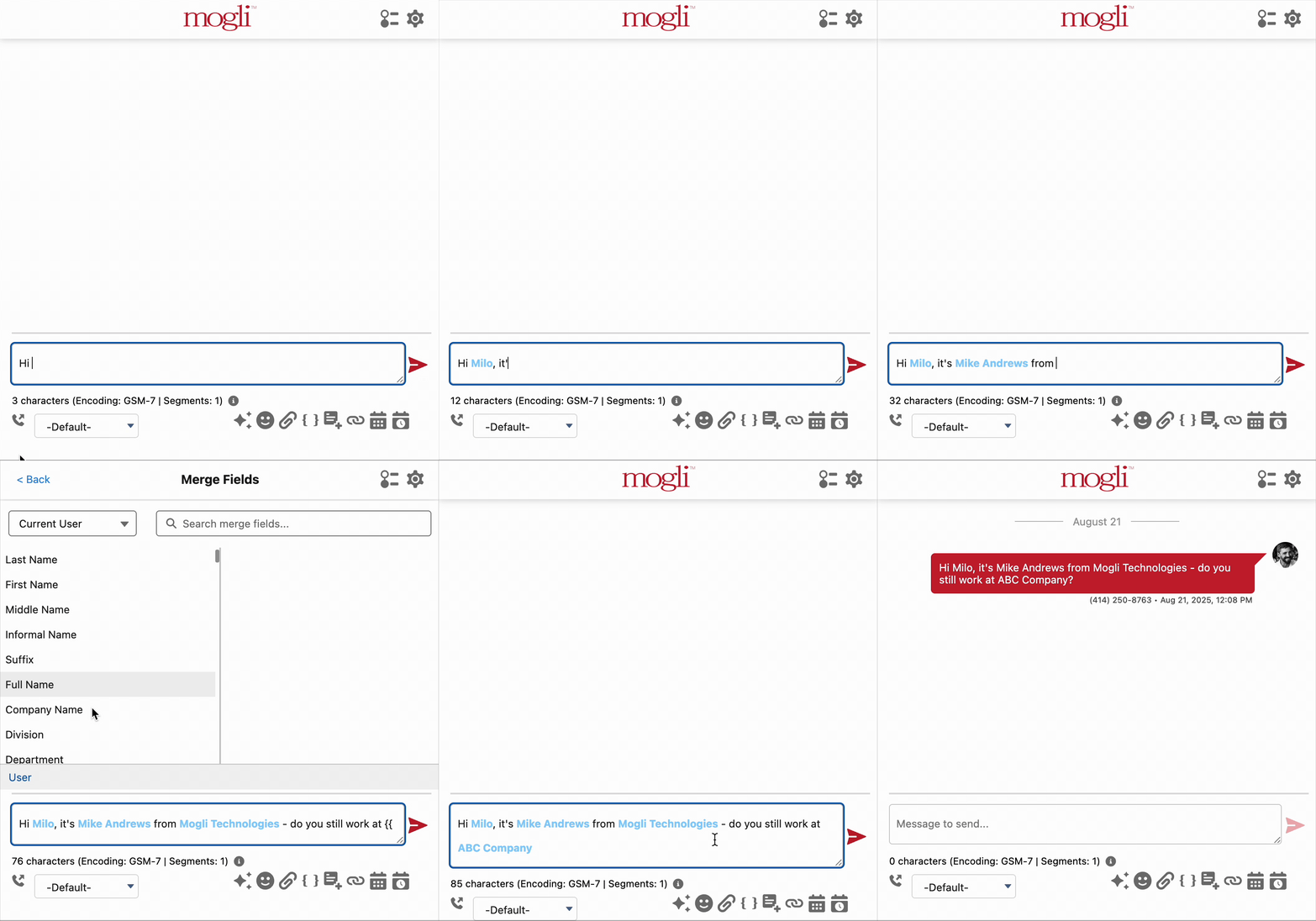
The Merge Field Selector enables easy insertion of any merge field from the current record (e.g., Contact, Lead) or its parent records directly into your messages in the Mogli Conversation View and Bulk SMS Lightning Tab.
Benefits
User-specific Access: The merge field list only shows fields the user has permission to view, ensuring data security.
Intuitive Navigation: Allows easy navigation to the related parent record using a “>” symbol.
Smart Search and Display: Search bar helps you quickly find fields, and selected fields are automatically converted into bold, blue text for a clear preview.
Using the Merge Field Selector
Option 1: Using the Merge Field Button
Navigate to the Mogli Conversation View for a specific record, or open the Bulk SMS Lightning Component.
Locate the message input field.
Click the "Merge Field" button (often represented by an icon like { } or a merge field symbol) located near the message input field.
Option 2: Typing {{ in the Message Field
Navigate to the Mogli Conversation View for a specific record or open the Bulk SMS Lightning Component.
In the message input field, type {{ (two curly braces).
Once the Merge Field Selector is Open:
Select the Object:
By default, the Recipient object (e.g., Contact, Lead) will be selected, and its fields will be displayed. The breadcrumb footer will show the object name (e.g., Contact).
To access fields from the current user, click on the dropdown in the top left-hand menu and select User. The breadcrumb footer will update accordingly.
To navigate to a parent record (e.g., Account from Contact), look for fields with a > symbol (e.g., Account >). Click on these fields to display the fields of the linked object.
Find the Merge Field:
Scroll through the list of available merge fields.
Use the search bar at the top of the merge field list to quickly filter results (e.g., type "first" to find First Name).
Insert the Merge Field:
Click on the desired merge field from the list.
Editing Inserted Merge Fields
If you need to edit or remove an inserted merge field, simply click into the bold and blue text in the message field. As soon as you remove a character from the value, the text will revert to regular, unformatted text, allowing you to modify it as needed.
Values vs. Lookup Fields
When using the field selector, you'll see fields displayed in black and blue. Understanding the difference is key to getting the correct information in your messages.
Black Fields (Values): Adding the black version of a field will display the raw value stored on the record.
Example: Selecting the black
Owner IDfield will populate the actual Salesforce ID (e.g.,005A000000C1o0J) instead of the owner's name.
Blue Fields (Lookup Fields): These fields pull data from the related/destination record. Use them to display information beyond the simple ID.
Example: If you select the blue
Owner IDfield and then choose a subsequent field likeFull Name, the owner's actual name will display in the message.
💡 Tip: You can see a preview of merge fields in 1:1 conversations by enabling Lightning Web Security within your Session Settings.
If you’re using a Mogli version older than 5.171, refer to the merge field guidance below.
Contact and Lead Merge Fields
Contact and Lead merge fields may be utilized in 1:1 conversations, SMS Templates, and bulk sends.
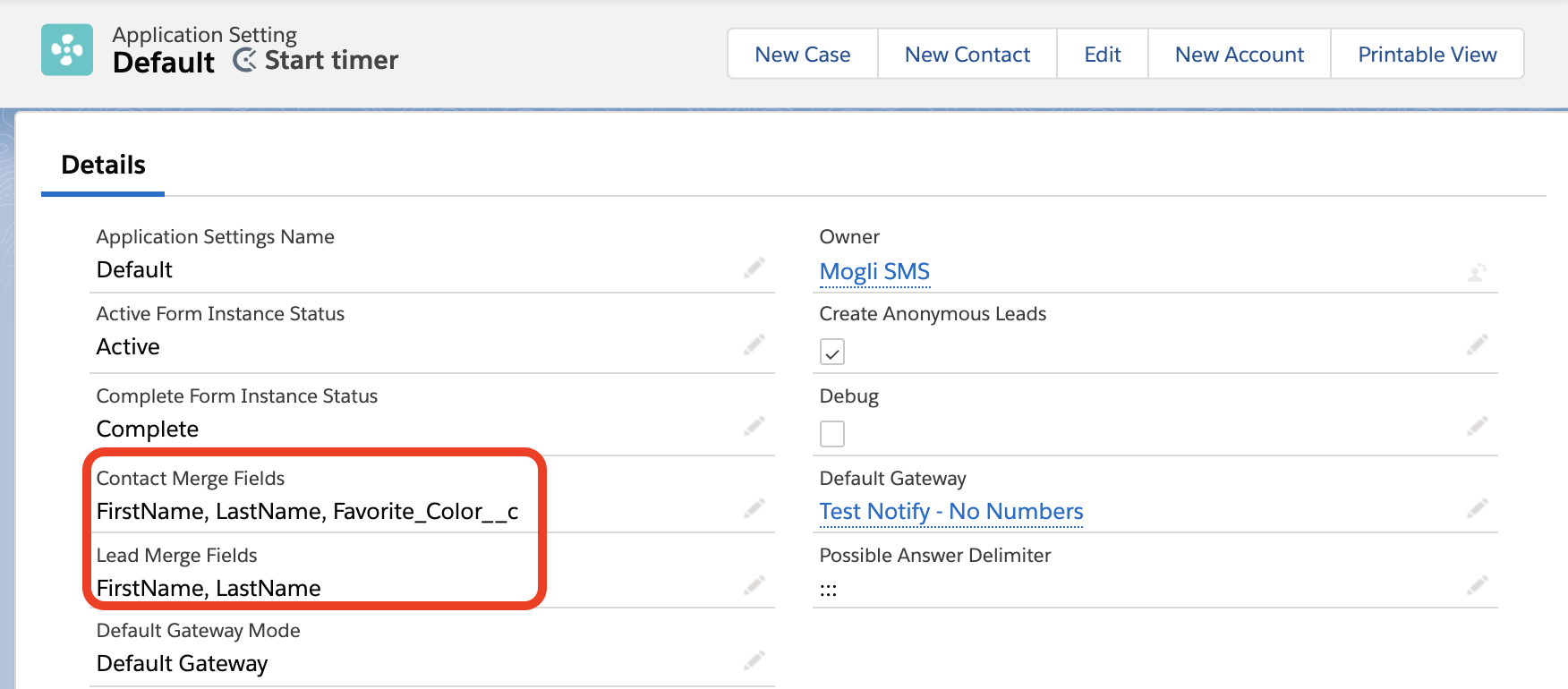
Go to the Application Settings tab and select Default
Populate your chosen standard or custom Contact and Lead merge fields in the fields labeled Contact Merge Fields and Lead Merge Fields. Use the API format. Custom fields must include __c at the end. Separate each merge field with a comma and space
Save. Your merge fields are now ready for use.
Using Merge Fields in SMS Templates and 1:1 Conversations
Enter merge fields in double curly brackets like this: {{Favorite_Color__c}} or {{FirstName}}.
Example: Hi, {{FirstName}}. Don’t forget about your appointment tomorrow at 1:00PM!
Using Merge Fields in Bulk Messages
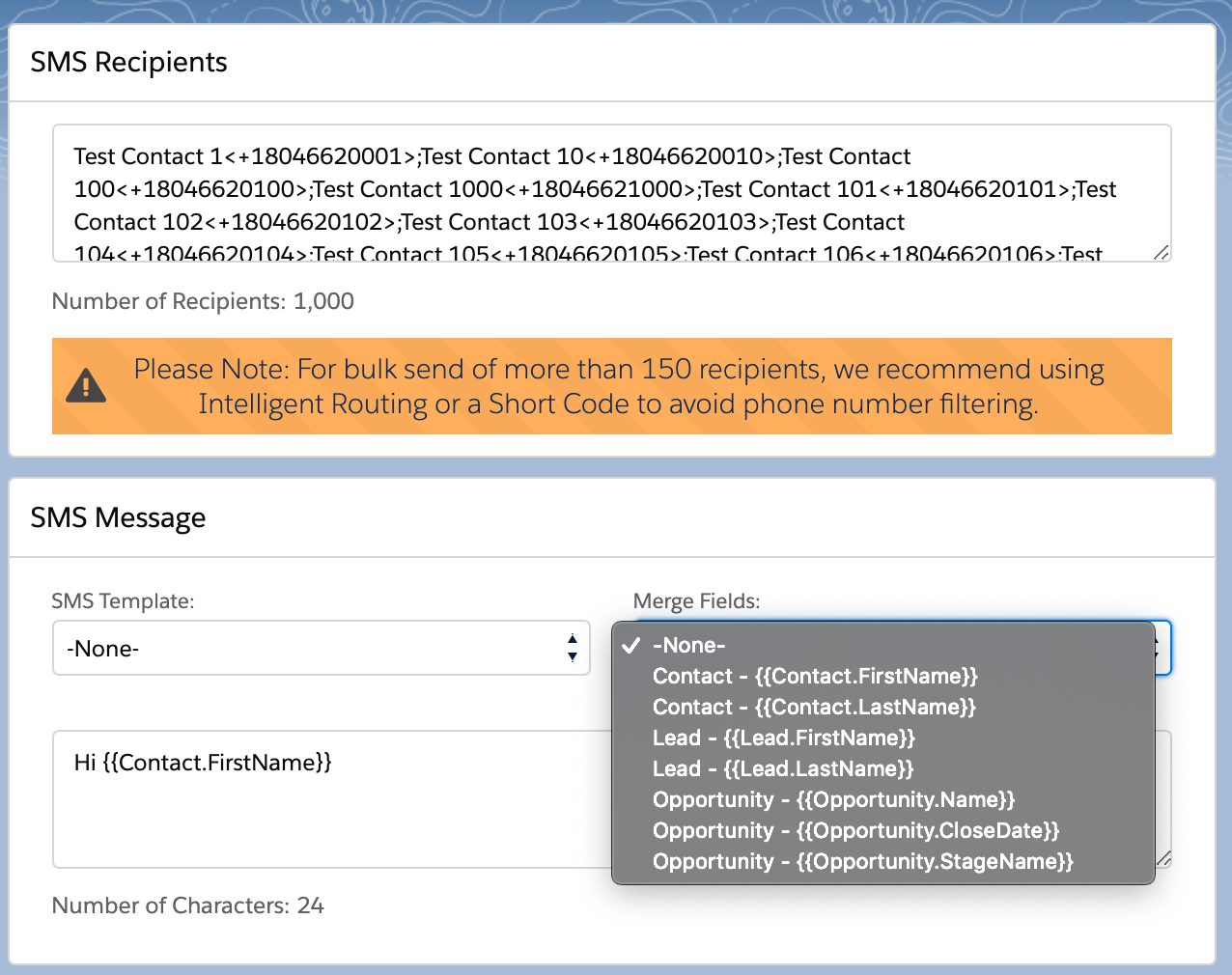
From the Bulk SMS or Bulk SMS Lightning tab, locate the Merge Fields dropdown menu:
Note: Merge Fields configured on objects besides Contact and Lead will also appear in the dropdown menu in Bulk SMS and Bulk SMS Lightning.
Merge Field FAQs
How do I populate the Contact Owner merge field in a text message?
Add the API name of Owner.Name to Contact Merge Fields and/or Lead Merge fields in Application Settings, then test.
Where do I find the API-formatted names of the Contact and Lead fields?
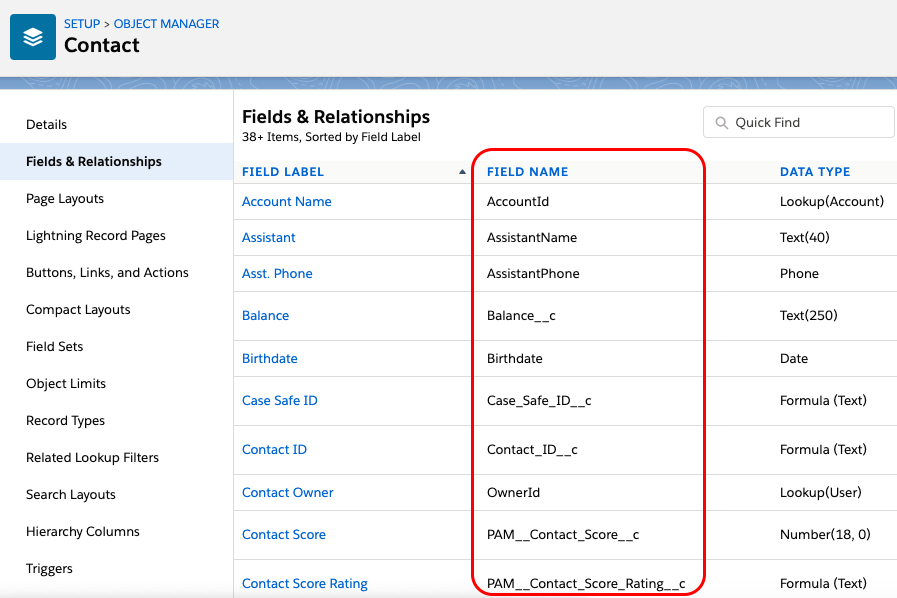
In Lightning, from Setup, click Object Manager.
Find the Contact or Lead object and select Fields and Relationships.
In the Field Name column, you’ll find the API names.
Can I use the field {{Id}} as a merge field?
Yes, on versions 5.171 and newer. Reach out to help@mogli.com for assistance with upgrading.
On versions older than 5.171, you cannot use the {{Id}} field as a merge field, at least not directly. A workaround for this current limitation is to create a formula field that pulls in the ID, then use your new formula field as a merge field instead.
What about merge fields on Person Accounts?
Person Account merge fields must all live on the Contact object. Populate the merge fields you want to use for Person Accounts in Application Settings under Contact Merge Fields (separate with comma + space).
Merge fields from Account side can be added to the contact object via formula, using the Account lookup on the contact record (the account lookup is created when person accounts are enabled and may not be visible under 'Fields & Relationships').
What happens if I enter a merge field incorrectly?
On versions older than 5.171, merge fields entered incorrectly in the Application Settings or Custom Metadata can lead to a degradation in Mogli functionality! To avoid this, please ensure that your merge field API names are correct and each field is entered according to the instructions provided within this guide. We recommend upgrading to our latest package to curb user errors with merge fields!
Merge Fields for Additional Objects
In versions 5.171 and newer, additional configuration is not required for additonal/custom objects. Refer to the Merge Field Selector guidance.
For objects besides Contact or Lead, configure merge fields by following these steps:
From Setup, click Object Manager
Select the object on which Mogli is configured
Select Fields & Relationships
Make note of the API names of the fields you wish to reference as merge fields.
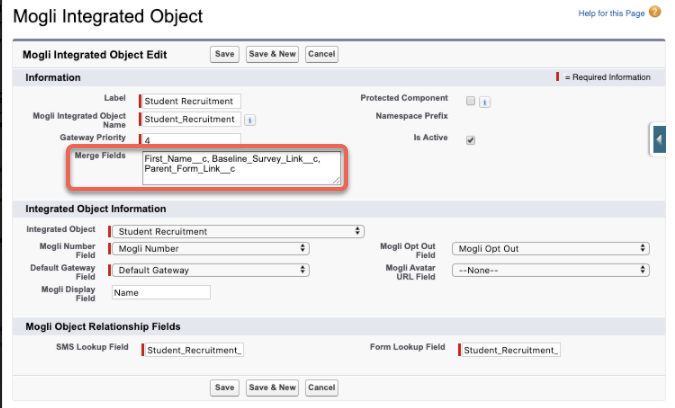
Within Setup, enter Custom Metadata into the Quickfind bar and select Custom Metadata Types.
Next to Mogli Integrated Object, click Manage Records
Click Edit next to the Mogli-configured object of your choice
Locate the Merge Fields section, and enter the API names of your fields in this format (separated by comma but with NO RETURNS OR SPACES): FirstName,LastName,Email,Favorite_Color__c,Favorite_Food__c
Merge fields will now be accessible in the Bulk SMS Lightning dropdown menu.
Alternatively, place your field name within double curly brackets in conversation view, such as {{Favorite_Color__c}}
ADMIN TIP:
Merge fields can be used from more than one object related to the SMS record ONLY when created from an automation (such as a Flow) and so long as the lookup field for the object is populated (on the SMS record) AND the merge field includes an object prefix.
While a message sent from a Contact record might look like this:
“Hi {{firstname}}, We have received your case, and will reach out shortly for more information.”
A message sent via automation and related to both a Contact record AND a Case record and with BOTH object lookups populated could look like this: “Hi {{Contact.FirstName}}! We have received your Case: {{Case.CaseNumber}}. We will review your request and reach out shortly for more information!
Messages sent from the conversation view or bulk screen, not from an automation must use formula fields located on the sending object to include data from other objects.
Helpful Merge Field Formulas
DATE/TIME to TEXT(DATE) Reformat
TEXT(MONTH(DATEVALUE(DateTime__c)))
& "/" &
TEXT(DAY(DATEVALUE(DateTime__c)))
& "/" &
TEXT(YEAR(DATEVALUE(DateTime__c)))
DATE to TEXT(DATE) Reformat
TEXT(MONTH(DateTime__c))
& "/" &
TEXT(DAY(DateTime__c))
& "/" &
TEXT(YEAR(DateTime__c))
DATE/TIME to TEXT(TIME) Reformat (without daylight savings adjustment)
IF(
OR(VALUE( MID( TEXT( DateTime__c - (#/24) ), 12, 2 ) ) = 0, VALUE( MID( TEXT( DateTime__c - (#/24) ), 12, 2 ) ) = 12),
"12",
TEXT( VALUE( MID( TEXT( DateTime__c - (#/24) ), 12, 2 ) ) - IF( VALUE( MID( TEXT( DateTime__c - (#/24) ), 12, 2 ) ) < 12, 0, 12))
)
& ":" &
MID( TEXT( DateTime__c - (#/24) ), 15, 2 )
& " " &
IF(
VALUE( MID( TEXT( DateTime__c - (#/24) ), 12, 2 ) ) < 12, "AM", "PM"
)
# represents the number of hours between your time zone and GMT.
For example, mountain time’s value would be 7/24. This may change by 1 hour during daylight savings.
See the following charts for the standard time zone UTC offset:
STANDARD TIME | ||
|---|---|---|
Atlantic Standard Time | AST | GMT -4 |
Eastern Standard Time | EST | GMT -5 |
Central Standard Time | CST | GMT -6 |
Mountain Standard Time | MST | GMT -7 |
Pacific Standard Time | PST | GMT -8 |
Alaskan Standard Time | AKST | GMT -9 |
Hawaiian Standard Time | HST | GMT -10 |
DAYLIGHT SAVINGS TIME | ||
|---|---|---|
Atlantic Daylight Time | ADT | GMT -3 |
Eastern Daylight Time | EDT | GMT -4 |
Central Daylight Time | CDT | GMT -5 |
Mountain Daylight Time | MDT | GMT -6 |
Pacific Daylight Time | PDT | GMT -7 |
Alaskan Daylight Time | AKDT | GMT -8 |
Hawaiian Standard Time | HST | GMT -10 |
TIME to TEXT(TIME) Reformat
Use this formula to convert a time field in HH:MM:SS.MSZ format (and other variations) to text:
IF(
HOUR(Time__c) < 12,
TEXT(HOUR(Time__c)) & ":" & TEXT(MINUTE(Time__c)) & " AM",
IF(
HOUR(Time__c) = 12,
TEXT(HOUR(Time__c)) & ":" & TEXT(MINUTE(Time__c)) & " PM",
TEXT(HOUR(Time__c) - 12)) & ":" & TEXT(MINUTE(Time__c)) & " PM"
))