Gateways are outbound phone numbers used to send messages to your end recipients.
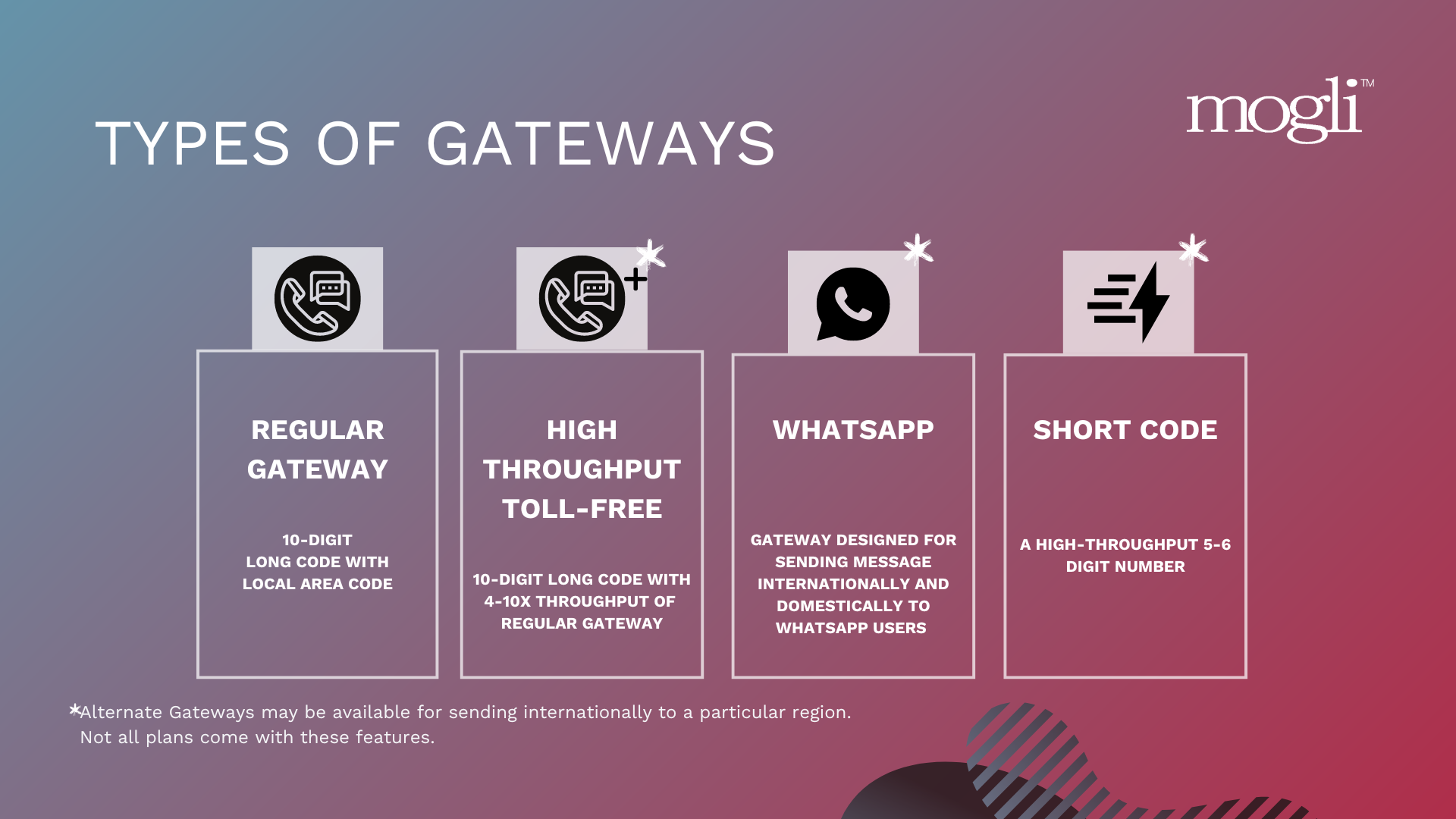
Check out our Texting 101: What's Your Number article to learn more about the differences between gateway types.
Managing Gateways
Who can manage Gateway records and settings in Mogli?
A System Administrator user or a standard user with the Mogli SMS User: System Admin permission set can view/manage Gateway records.
Where can I view the Gateways configured in my org?
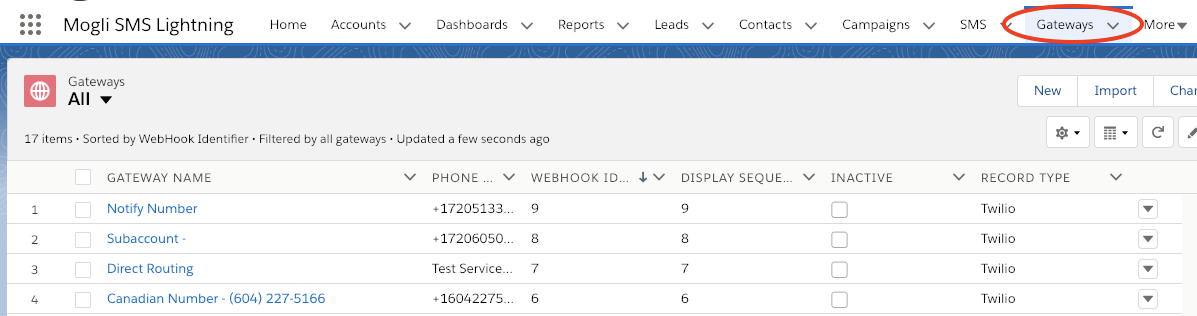
There are two places to view Gateways. The first is by visiting the Gateways tab and selecting 'All' under the listview options.
You can also navigate to the Gateways section under the Mogli Settings tab (requires version 5.127.8 and higher).
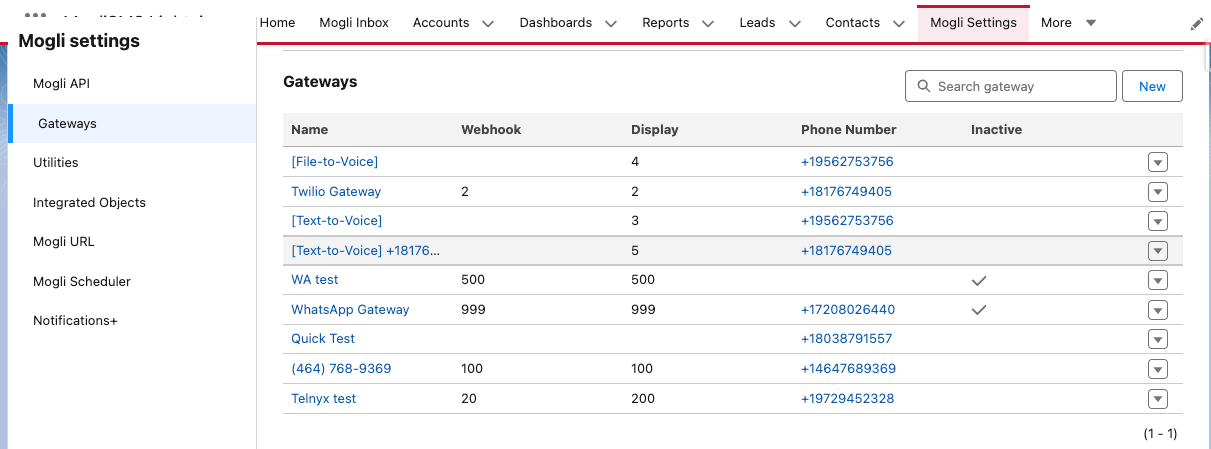
Gateway Records
Considerations for Your Gateways
To ensure your messages are delivered successfully, please do not change the "Webhook Identifier" of your Gateways. This identifier is set up in coordination with our messaging partner and is critical for proper operation. On versions 5.171 and newer, a Webhook Identifier is not required.
Feel free to personalize your Gateways by modifying the "Name" and "Display Sequence." Select the Gateway you wish to edit and make your changes.
Gateway Modes
The Org-Wide Default Gateway
In the Mogli Settings (formerly Application Settings), the Default Gateway field must contain a Gateway.
This Org-wide Default Gateway will be used as the outbound phone number when -Default- is selected in the Mogli Conversation View or Bulk SMS Lightning Tab and the record doesn’t have its Default Gateway specified.
Change Your Gateway Mode to Assign Specific Gateways to Users
To restrict access to specified Gateways, you can assign users access to one or multiple Gateways. From the Mogli SMS Lightning App’s Application Settings tab, open the Default page. In the Default Gateway Mode field, click the dropdown menu and select User’s Assigned Phone Number. Save.
Assigning Users to Gateways
In the User’s Assigned Phone Number mode, every Mogli user must be assigned at least ONE Gateway. The specified users can only send messages from the Gateways assigned to them. Reverse this setting by selecting Default Gateway as the value in the Default Gateway Mode field in Mogli Settings (formerly Application Settings).
Step 1. Navigate to the Gateways tab or the Gateways list in Mogli Settings.
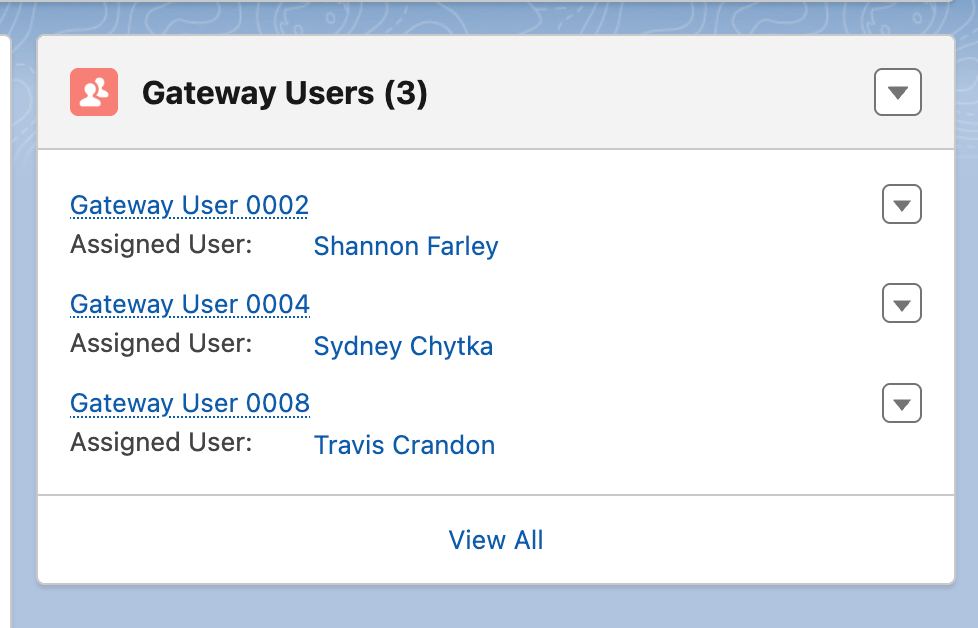
Step 2. Click into the Gateway Record. In the record, you'll see a related list labeled "Gateway Users" on the right-hand side.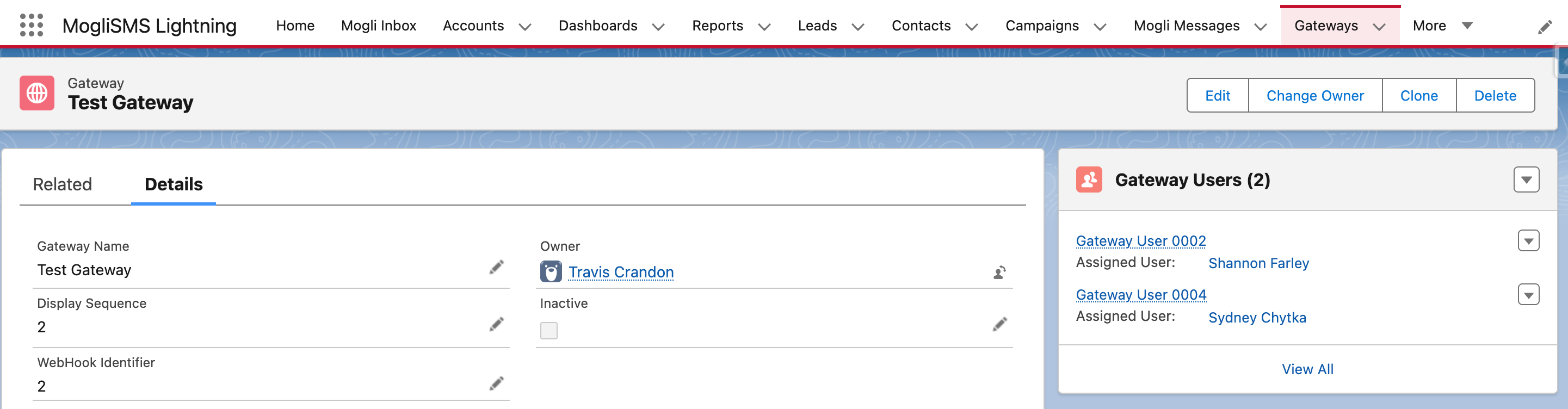
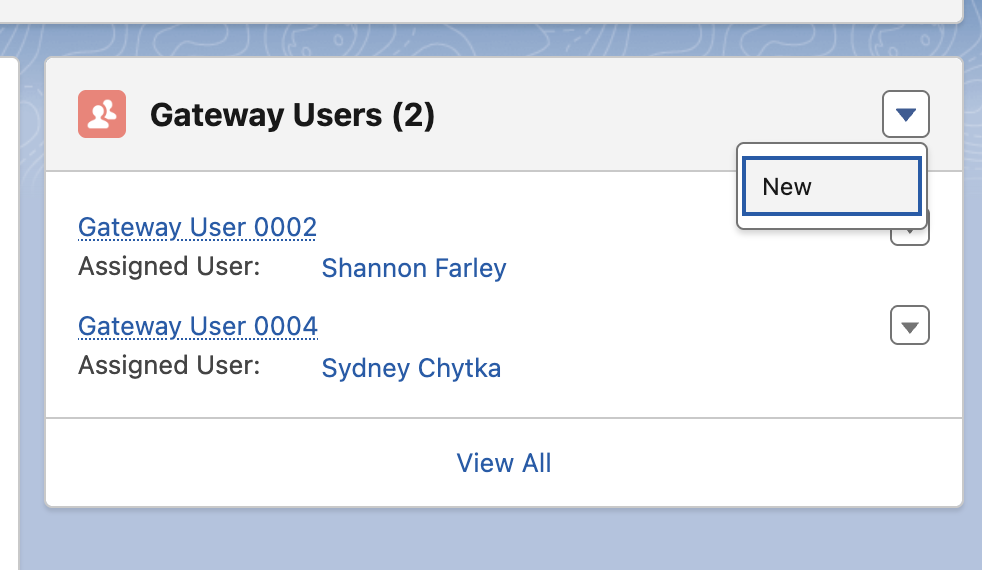
Step 3. Click the carrot dropdown and select New.
Step 4. Click into the field labeled "Assigned User" and type the name of the desired user. 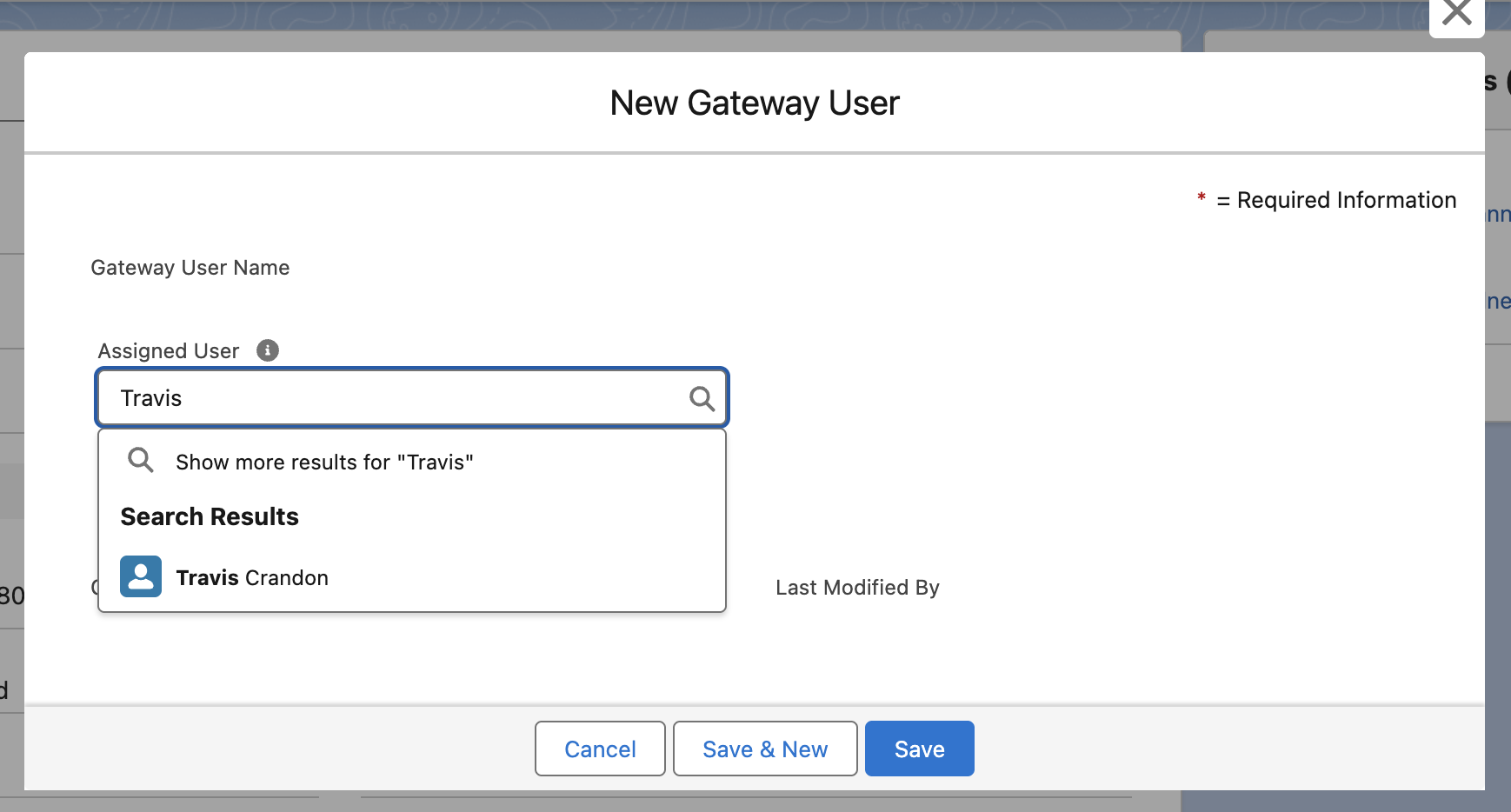
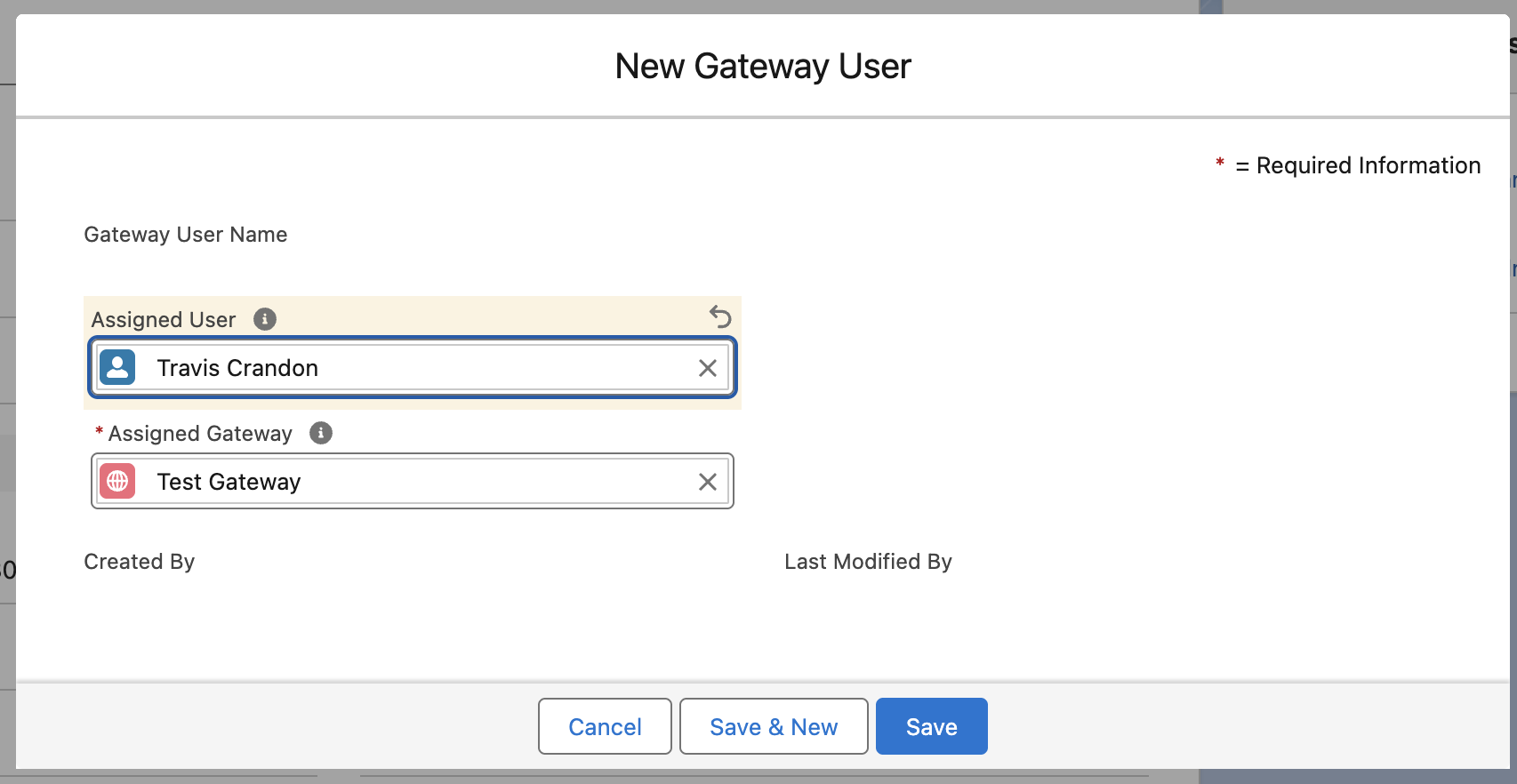
Step 5. Select the user and click the Save button, or click Save & New to add more users.
Note on Gateway Display Order
The order in which Gateways appear on the drop-down menus within Bulk SMS Lightning and 1:1 Conversations will now be determined by the Gateway record Display Sequence field, sorted in ascending order.
Add Display Sequence for User’s Assigned Gateway Mode
In versions 5.171 and newer, you can personalize the order in which your assigned Mogli Gateways appear in your conversation views and when sending Bulk SMS. To do this, simply set a value in the Display Sequence field on the Gateway User object.
The lower the number you enter, the higher that gateway will appear in your list. For instance, a gateway with a '1' in the Display Sequence field will be the first one you see, helping you quickly access your most preferred gateways.
Configuration
For existing Mogli clients, a new field, "Display Sequence," needs to be added to the Gateway User record page layout to enable its functionality.
Follow these steps to configure the new field:
Go to the specific Gateway User record linked to your Gateway.
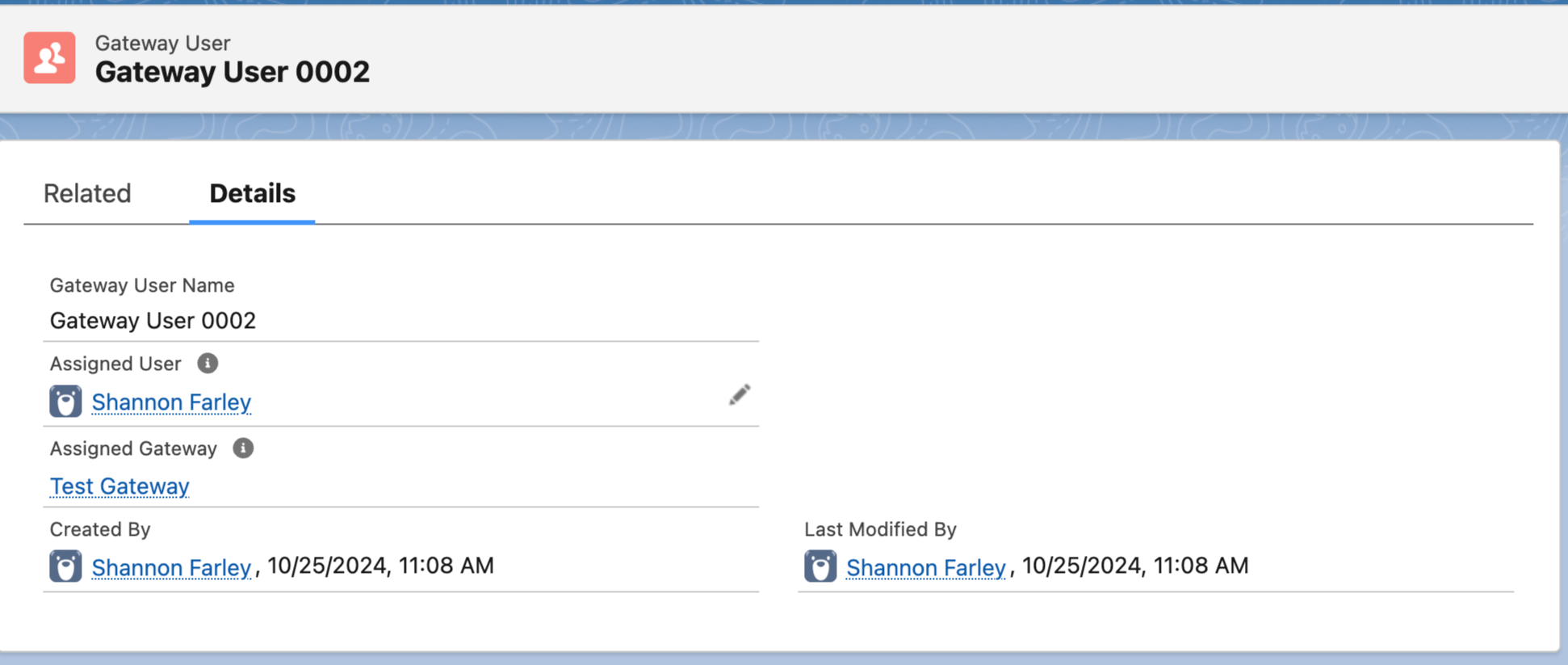
Edit the page layout for the Gateway User record.
Locate and drag the Display Sequence field onto the desired section of the layout.

Save your changes to the page layout.
Edit the Display Sequence as needed
Deactivating a Gateway
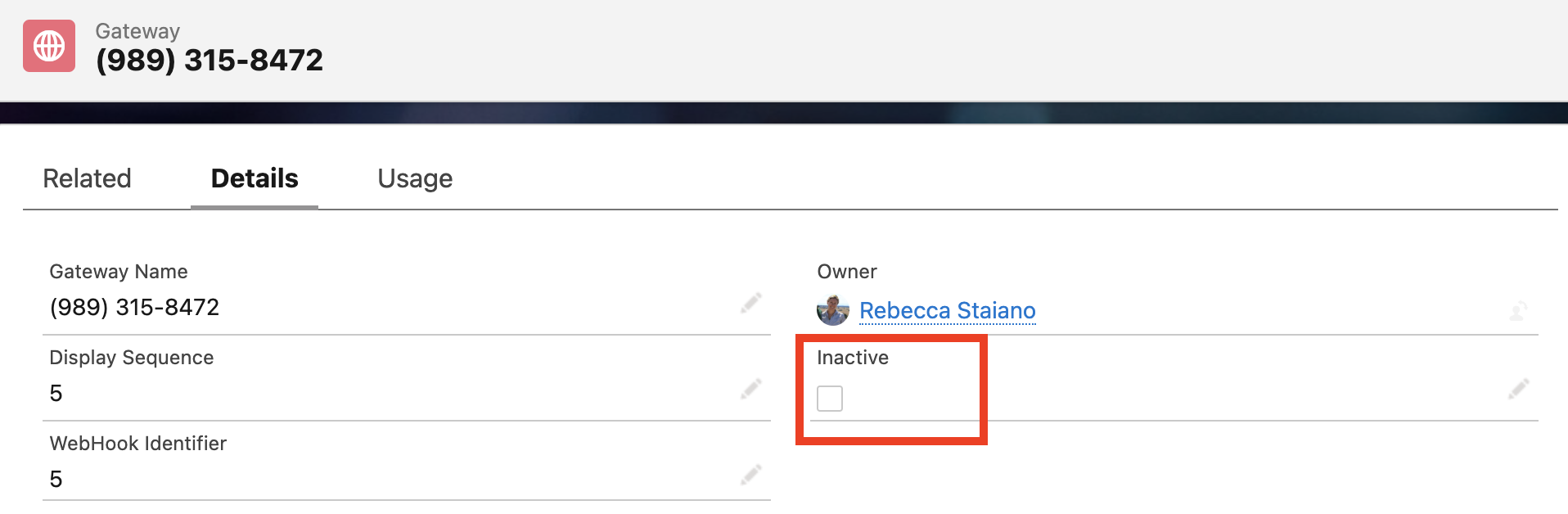
Checking the "Inactive" checkbox on a Gateway record effectively stops all SMS communication into and out of your Salesforce organization. This prevents any new messages from being processed.