Personalized Templates You Can Add to Any Message. Send fast, easy, personalized messages. No typing required.
Use Cases
Announcements: Join us for Happy Hour after today’s {{Event_Name__c}} at the SMS Pub from 5-8P.
Reminders: Hi {{firstname}}! Reminder: the Thanksgiving football game starts at 10A.
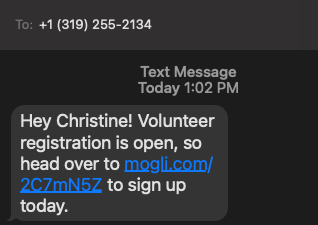
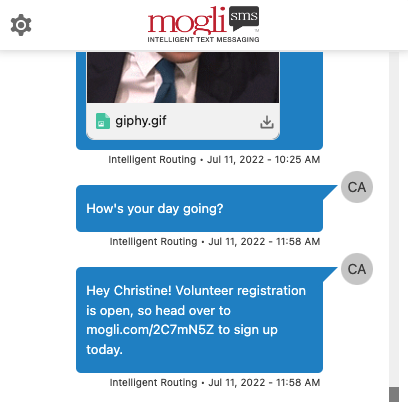
Call to Action: Volunteer registration is open. Go here: www.sampleURL.com to sign up today.
Greetings: Hi {{firstname}}. How are you feeling today?
Engagement: our loan balance is {{Balance__c}}. Your next payment of {{Payment__c}} is due on {{Payment_Date__c}}. Text ASSIST if you are not able to pay as expected.
Survey Starters (see the Form Templates section)
You can now view Mogli Template on Mogli Message Records
For organizations using Grays Peak you can now view Mogli Templates within Mogli Message Records when sending from Mogli Conversation View or Mogli SMS Bulk Lightning. If you’re sending them through automation you can easily set the Mogli Template field to ensure they are populated.
The user can instantly see which template was used for a specific SMS record without having to dig through separate records or remember details. This makes understanding the purpose and content of each SMS much easier.
Learn more here.
Mogli Template organization in the Conversation View and the Bulk SMS
Lightning tab
Organize your Mogli Templates into folders that are accessible within the Conversation View and the Bulk SMS Lightning tab.
Inserting an Mogli Template in the Conversation View
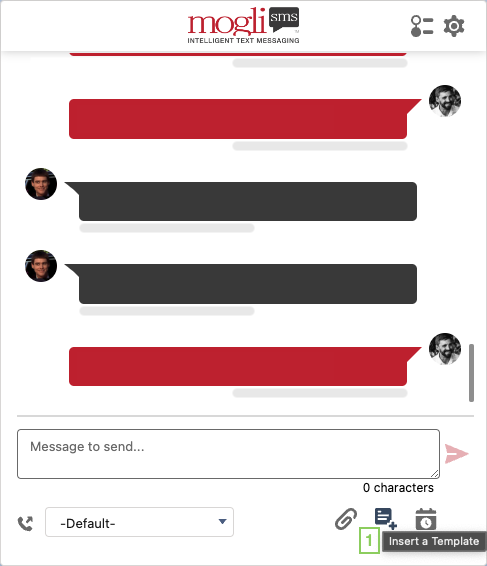
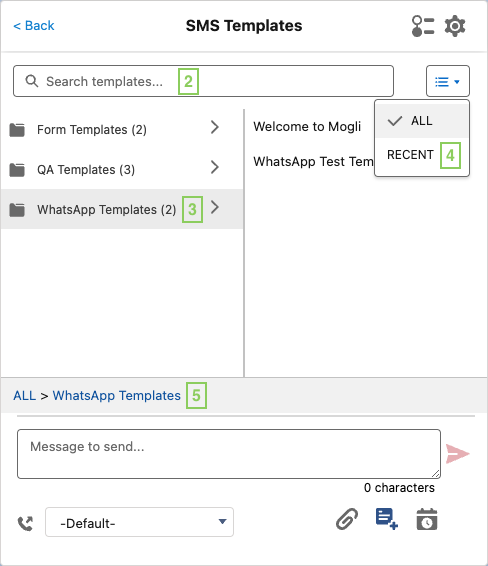
Click the Mogli Template button to select a template.
Search for Mogli Templates.
Select a folder.
Show all templates or recently used templates.
Navigate with breadcrumbs.
Creating Mogli Folders for Mogli Templates
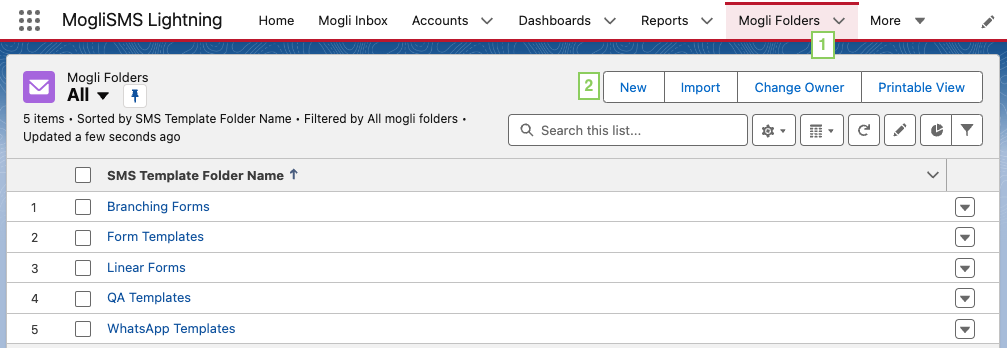
Navigate to the Mogli Folders tab.
Note: You may need to add the Mogli Folders tab to your Salesforce app.
Click New.
Type the name of your new folder.
To make your new folder a nested folder, select a Parent Folder.
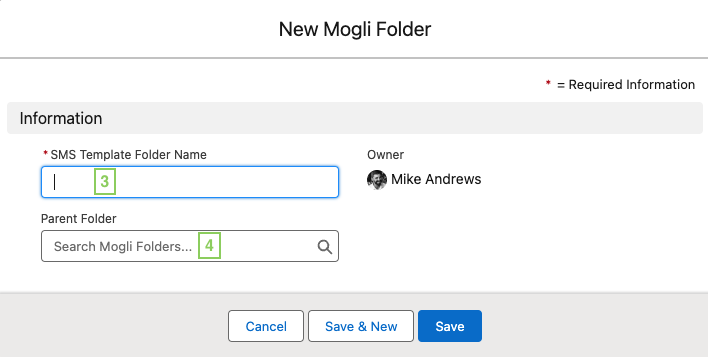
Adding Mogli Templates to Mogli Folders
Navigate to the Mogli Templates tab.
Use the list view inline editor to select a Mogli Folder.
Note: You may need to add the Mogli Folder field to the Mogli Templates page layout and/or the Mogli Templates list view.
Create a standalone SMS Template (not connected to a form template)
Before beginning, if you plan to utilize Contact or Lead Merge Fields, ensure that the API-formatted name of the Merge Fields are populated in Application Settings.
See the Merge Fields section for more information.
Click the Mogli Templates tab and click New.

2. Name the Mogli Template and populate your message text. Click Save

3. Here’s your finished Mogli Template record

Testing Your New Mogli Template
Navigate to a Mogli-configured object record. From Conversation View, click the caret to the right of the
 icon and select your SMS Template.

2. Click the red arrow or press Enter to send. Your message should populate the correct variable from the Merge Field. Your new Template is ready for use in 1 to 1 and Bulk Messages.
|
|
A delivered message via SMS Template. What the contact or lead sees. | In Conversation View |