Activating a New Mogli User in Your Org
Ensure that the user is active in Salesforce and can access the object(s) they'll be sending messages from.
Assign the user the appropriate level of permissions based on the Mogli Permission Sets.
If you are assigning users to specific Gateways (phone numbers), follow the Assigning Users to Gateways instructions to create Gateway User records for the numbers assigned.
Share instructions on Configuring Notifications with the new user
Deactivating a Mogli User in Your Org
If you assign users to specific Gateways (phone numbers), delete the Gateway User records for the user.
Remove all Mogli Permission Sets from the user record (note they may be granted multiple permissions)
If the user was the authorized Mogli API user, another user with a System Admin profile will need to reauthorize the Mogli API.
Click the Salesforce App Launcher (waffle icon).
Type and select "Mogli Settings."
Click the blue "Authorize" button.

NOTE: In versions 5.171 and newer, the Mogli API Health Check will alert System Admins if the authorized user no longer has the necessary permissions.
Check the Salesforce Scheduled Jobs to see if any Mogli Jobs were scheduled by the user (typically needed only if the user was an admin). If found, have your new admin user reset the scheduled jobs:
Navigate to the MogliSMS Lightning app > Setup MogliSMS tab.
Click "Unschedule."
Change the "Schedule SMS Utility Every" to 5 minutes.
Click "Schedule."

Mogli Permission Sets
Every Mogli user needs a base permission set from the options below, in addition to the Mogli SMS: Push Topics set, based on the desired level of access.
Mogli SMS: Push Topics
Purpose: Grants users the ability to see real-time notifications and messages in the Mogli Conversation View without needing to refresh the browser.
Required for every Mogli user.
Base Access Permission Sets (Choose One)
Users must be assigned one of the following base permission sets:
Mogli SMS User: System Admin
Access Level: High
Includes: All basic functionality plus access to under-the-hood administration tabs like Mogli Settings (formerly Application Settings), Gateways, Setup MogliSMS tab, and Async Tasks.
Mogli SMS User: Full Access
Access Level: Standard (Most Common)
Includes: Basic access to all common Mogli functionality (access to end-user features like 1:1 and Bulk messaging, Form Templates, Mogli Templates, and Mogli Inbox).
Mogli SMS User: Limited Access
Access Level: Restricted
Includes: Basic Mogli SMS permissions but excludes Mogli Inbox, bulk SMS, and manual opt-in/opt-out. These features can be added individually using the Mogli Feature permission sets listed below.
Mogli SMS User: Community User
Access Level: Full Access for Community/Experience Cloud Users
Note: Available in Mogli versions 5.113.2 and newer.
Add-on Feature Permission Sets
If you grant a user Limited Access, you can selectively add the following one-off feature permission sets:
Mogli SMS Feature: Bulk SMS Grants access to the Mogli Bulk SMS and Mogli Bulk SMS Lightning tabs.
Mogli SMS Feature: Manual Opt-In/Opt-Out Grants access to manual opt-in/opt-out actions on the Mogli Conversation View.
Mogli SMS Feature: Mogli Inbox Grants access to the dedicated Mogli Inbox tab.
Mogli SMS Feature: URL Grants access to the Mogli URL feature and related objects.
Additional Mogli Feature Permission Sets
These are supplementary sets for advanced functionality:
Mogli SMS User: MogliAI Features Permissions needed to access various MogliAI features.
Mogli SMS: Custom Incoming Notifications Grants access to additional notification methods if your plan includes the Notifications+ package. View more information in our notifications article.
[Mogli SMS] WhatsApp Content Template Builder Access Grants access to create Mogli Templates compatible with WhatsApp. Your Salesforce environment must have our WhatsApp Content Template Builder installed to leverage this permission set. View more information in our Content Template Builder article.
Mogli Hub: Full Access
Create, update, and manage customized conversation filters
Create and add active Mogli templates to conversations
Full capability to utilize contextual and global search
Mogli Hub: Limited Access
View pre-assigned filters and messaging channels
Send and receive instant messages only
Deprecated Permission Set
Mogli SMS User: Guest User: This was the Permission Set for SMS Site Guest Users (for versions v5.127.8 and before). Do not assign this to any users.
🔨 Build Your Own Permission Sets
Administrators can assign granular Mogli permissions to users, allowing flexibility without needing to assign the full Mogli SMS User: Full Access permission set.
Permission Sets
When upgrading to a new version, we recommend either using the original, out-of-the-box permission sets provided with the latest package or recloning the new managed permission sets after the upgrade as opposed to cloned permission sets from our managed packed to ensure proper access and functionality.
Muting Permission Sets
Instead of having to clone and manually update your Mogli permission set (like removing the ability to create gateway users or access the Mobile App), you can use a Muting Permission Set to do the opposite.
How it Works: You include the standard Mogli Permission Set in a Permission Set Group.
The Mute: You then create a specific Muting Permission Set and assign it to that group. You simply select the permissions you want to mute (disable), such as access to the Mogli Mobile App or creating gateway users.
The Benefit: This should persist across new Mogli versions. When you upgrade, the new Mogli permissions are added to the group, but your custom Muting Permission Set should continue to override and disable the specific features you don't want your users to have. This drastically cuts down on the manual work you have to do every time we release a new version.
For more information: Muting Permissions Sets
Community Users (Prior to v5.113.2)
If you are on Mogli SMS v5.113.2 (Crestone Peak) or higher, use the dedicated Mogli SMS User: Community User permission set provided out-of-the-box. The steps below are for older versions only.
Clone and Modify Permissions
Clone the Mogli SMS User: Full Access permission set.
Modify the following permissions on the cloned set:
Remove all Assigned Apps.
Remove View All on Async Tasks.
Remove View All on Application Settings.
Remove View All on Gateways.
Remove View All on Registered Gateways.
Rename and Assign
Rename the cloned permission set Mogli SMS Community User: Full Access.
Assign the new permission set to your Community users.
Change External Sharing Settings
You must adjust the sharing settings for the following objects by doing one of the following:
Option A (Public Access): Change external sharing settings to:
Public Read Only for Application Settings, Gateways, and Registered Gateways.
Public Read/Write for Async Tasks.
Option B (Sharing Rules): Set up sharing rules on each of the above objects, granting Public Read or Read/Write access to a specific role or group of Mogli users.
💡 Admin Tip: Troubleshooting Notifications
If a user isn’t receiving Mogli Notifications, ensure you add Read access to Push Topics on their Profile or an assigned permission set.
Conversation View Visibility in Lightning
1. To add Conversation View to a Lightning record page -
navigate to your desired record page,
select the gear icon,
then click Edit Page.
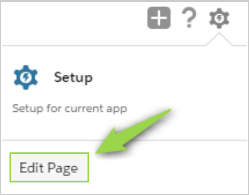
2. On the left side of the Lightning App Builder, search for and select Mogli Conversation View Lightning:

3. Drag the Mogli Conversation View Lightning component into the page where you’d like it displayed:
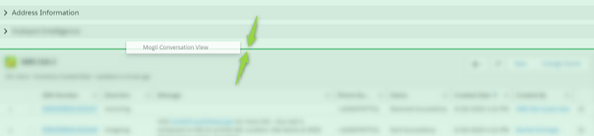
4. With the Mogli Conversation View Lightning component highlighted, click Add Filter under the Set Component Visibility section on the right.
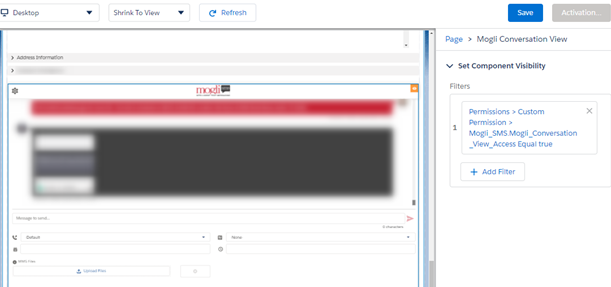
5. Choose the Filter Type: Advanced, and click Select under Field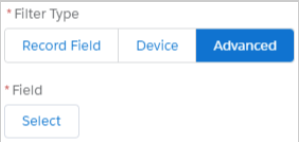
6. Choose Permissions > Custom Permission > Mogli_SMS.Mogli_Conversation_View_Access
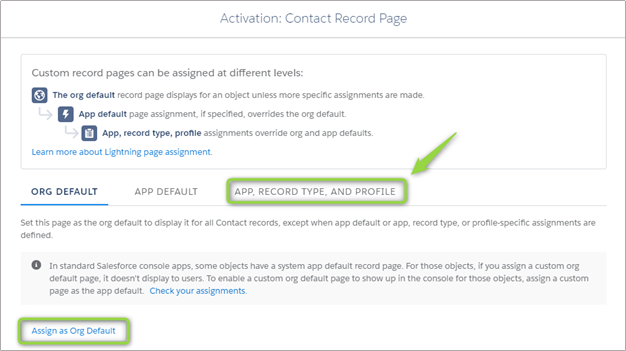
7. Click the Activation button to publish your changes
8. Assign the new Lightning page layout to Apps, Record Types, and Profiles, or assign it as the Org Default for the object. Then, click Save.
Additional Conversation View Customizations
Flexible Segment Limiter
Administrators can control the message length sent by Mogli end users. This is configured by setting Flexible Message Limits within the Mogli Conversation View. To learn more and get started with configuration, see Flexible Message Limits.