A connected app is a framework that enables an external application, such as the Mogli API, to integrate with Salesforce using APIs and standard protocols, such as SAML, OAuth, and OpenID Connect. The connected app in the Mogli SMS managed package is named Mogli Technologies, which uses OAuth to authenticate, authorize, and provide single sign-on (SSO) for the Mogli API.
Helpful links
The Mogli Technologies Connected App provides a secure, modern, and authenticated connection between the Mogli API and your Salesforce Org.
This connection allows Mogli to seamlessly handle messaging functions:
Create new incoming Mogli Message records: When a client sends a message to your Mogli number, the Connected App enables Mogli to instantly create a record of that message in Salesforce.
Update existing outgoing Mogli Message records: The Connected App allows Mogli to update the status of your sent messages (e.g., delivered, failed) directly in Salesforce.
While certain features like Mogli URL and Mogli Scheduler already use this framework, we are now extending the Connected App to handle all gateway communication and message status callbacks.
This means the Connected App will replace the previous method of using the Salesforce Site and the associated SMS Site Guest User.
Limitations
When selecting an authorized user for the Connected App, please be aware that certain user types and configurations are incompatible with this framework. Specifically, Integration Users will not work, as the connection requires specific interactive authorization permissions. Additionally, users assigned to Read Only profiles will not work, as the Mogli API must have the necessary permissions to create and update records within your Salesforce Org. For optimal performance and reliability, ensure the authorized user has the appropriate write access as outlined in the minimum requirements.
How to Enable the Connected App
Mount Democrat (5.127.7) version of Mogli SMS or higher is required to enable the connected app.
Automated Connected App Health Check in Grays Peak
For organizations that have upgraded to Grays Peak, the Automated Connected Health App Check can now automatically identify potential Mogli API connectivity problems before they impact users or processes.
Connected App Disconnection Notification in Longs Peak
On Longs Peak, we added a safeguard of authorization alerts to send an email to any user with the “Mogli SMS System Administrator” permission set, alerting them to a Connected App disconnection.
How to enable Connected App Authorization AlertsA system administrator with “Mogli SMS user: System Admin” permission set can
Navigate to Mogli Settings
Navigate to Mogli API health check
Choose your preferred frequency
We recommend at least every 30 minutes
Click Schedule
Before sending, the system checks how much of your daily email capacity is left. If your org has enough admins that they wouldn't all fit within that remaining capacity, the system skips the send entirely rather than emailing some admins and not others. An in-app banner still appears for all users, so nobody is left without a signal that something's wrong.
In practice, this edge case only comes into play for orgs with a high number of admins, multiple deauthorization events in the same day, or both.
Navigate to the Application Settings tab within the Mogli SMS Lightning App to access the Mogli Settings page.
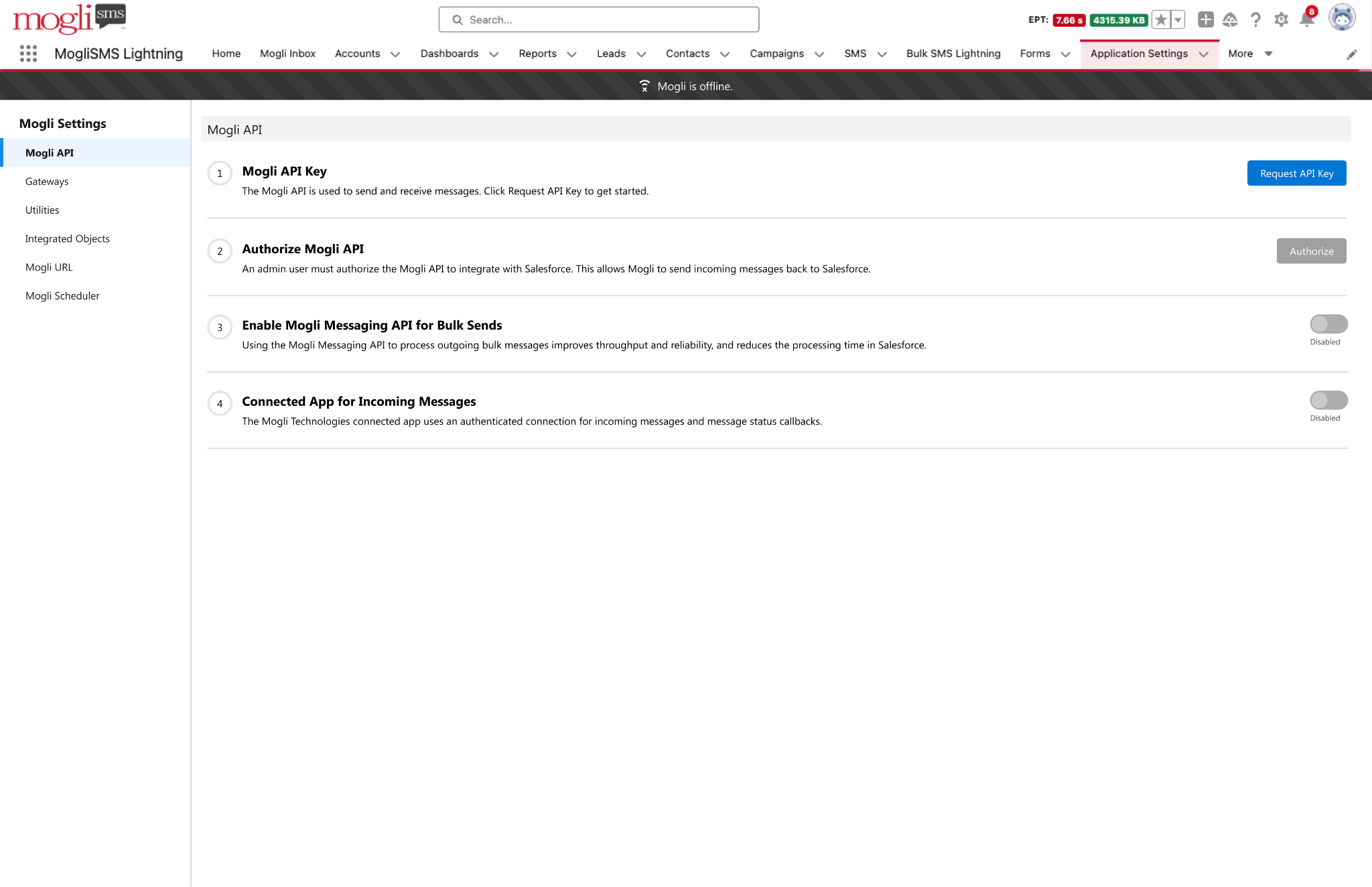
If you do not have a Mogli API key, click Request API Key.

If you already have an API key, the set assistant looks like this:

If you have not authorized the Mogli API, click Authorize. The Mogli team cannot authorize the Mogli Technologies connected app via subscriber access. Without this authorization, the Mogli API cannot make API calls back into Salesforce.

A new tab will open, click Allow.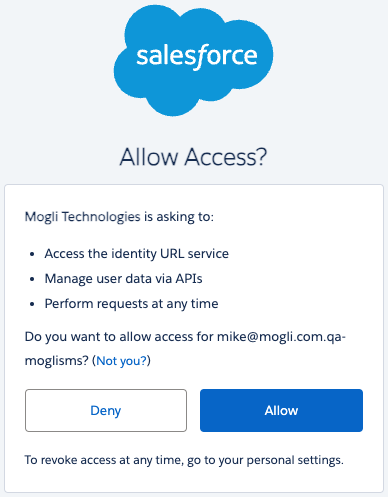
If you have already authorized the API, which you may have if your organization is using Mogli URL or Mogli Scheduler, the setup assistant looks like this:

Click the toggle to enable: Enable Mogli Messaging API for Bulk Sends.

Once enabled the toggle is changed to disabled in the Mogli Settings UI to prevent users from disabling the Mogli Messaging API without support from Mogli.
If your organization already has the Mogli Messaging API enabled, the setup assistant looks like this:

Click the toggle to enable: Connected App for Incoming Messages

Once enabled the toggle state is changed to disabled in the Mogli Settings UI to prevent users from changing the setting back to the Site Guest User without support from Mogli.
Once toggle is enabled, the setup assistant looks like this:

Gateways
To use the connected app for incoming messages, the incoming webhook URL must be updated on the messaging partner.
This process is automated for Salesforce production instances only by completing the steps above. Please contact help@mogli.com for support in updating gateways in sandbox instances.
Authorized user for the connected app
Best practice for authorizing the connected app is a user with a System Administrator profile and the Mogli SMS User: System Admin permission set.
Minimum access required for an authorized user
We understand that security-conscious clients may want to assign users with the minimum access required for Mogli to function correctly. To achieve this, you can assign an authorized user similar permissions to the SMS Site Guest User, but with the "Mogli SMS User: System Admin" permission set instead of the "Mogli SMS User: Guest User" permission set.
The user must be assigned the Mogli SMS User: System Admin permission set.
Read access to any objects configured on the Mogli Integrated Object.
Read access to the Mogli Number, Mogli Opt-Out, and Default Gateway fields on any custom Mogli Integrated Objects.
Managed “Connected App User” permission Set for the Authorizing User of the Connected App
Clients who want to use a dedicated non-human user (rather than a System Admin) as the Connected App’s authorizing user, but MFA requirements are pushing them away from the System Admin profile. This permission set grants a Standard User profile just the minimum access needed to run Mogli’s out-of-the-box functionality (incoming messages, outgoing bulk-send callbacks, Mogli URL/Scheduler, M4MC, etc.) via the connected app.Alternative Permission Set (for organizations not on Longs Peak)
Longs Peak introduces the built-in "Mogli SMS User: Connected App" permission set. A custom permission set can be built to let the connected app's authorized user run on a Standard User profile instead of System Administrator — avoiding the MFA requirement tied to Admin profiles.
Grant the following on the custom permission set:
Apex Class Access (Enabled):
MessagingWebService
MogliWebService
MogliSMSCallbackResource
MogliUrlResource
LinkEngagementResource
MogliGatewaysResource
EventConfirmationResource
MogliSMSWebService
System Permissions:
API Enabled
Apex REST Services
Field Permissions:
Gateway__c.Mogli_API_Id__c — Read/Write
Changing the authorized user
Navigate to the Mogli Settings, find the Authorize Mogli API step in the setup assistant and click Authorize.

The connected app will utilize the user who has most recently authorized.
An admin may revoke a previously authorized user’s authorization.
Revoking a user’s authorization
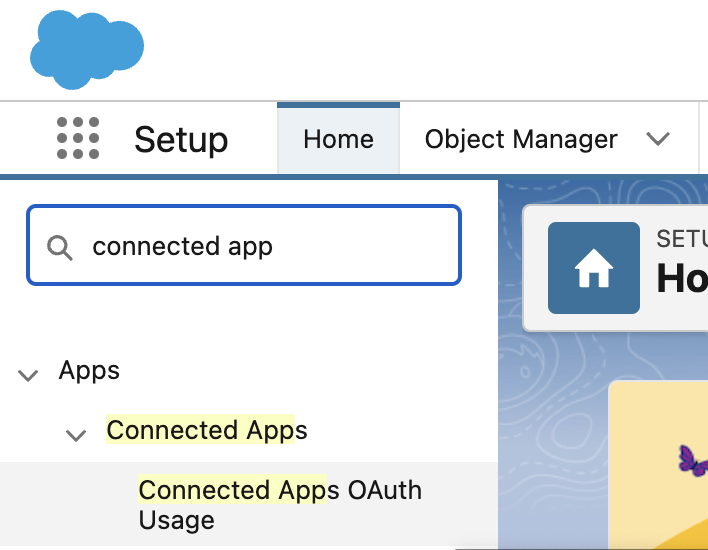
Navigate to Setup > Connected Apps OAuth Usage
Find the Mogli Technologies connected app, and click the link in the User Count column.
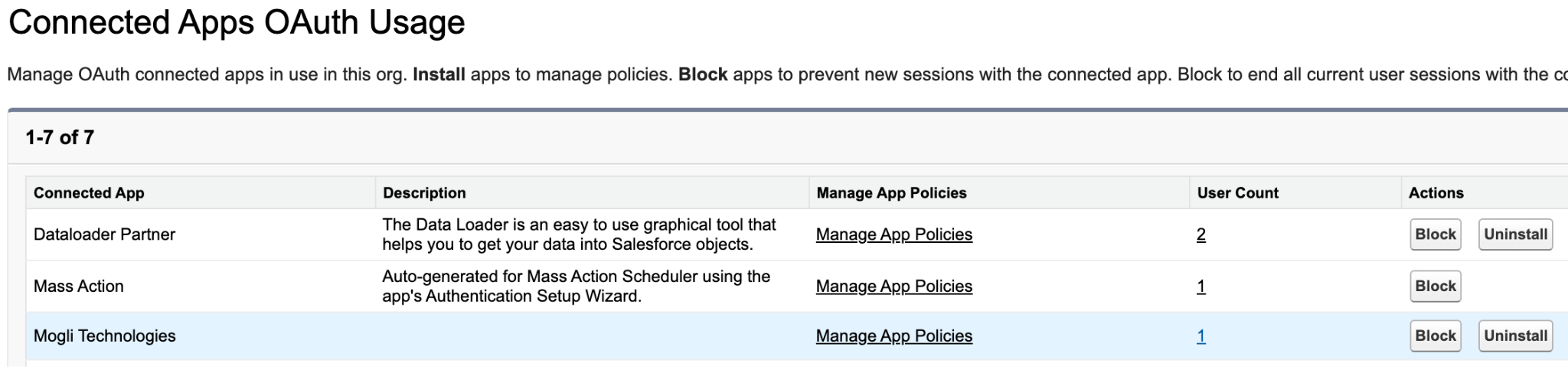
Find the user whose authorization needs to be revoked, and click the Revoke link in the Action column.

Incoming messages & status callbacks will no longer work.
If authorization is revoked and there is no authorized user, an offline alert is shown in the Mogli Conversation View component.
Revert back to SMS Site Guest User
If you wish to revert to using the SMS Site Guest User for incoming messages, please contact help@mogli.com for support.
Once Connected App is enabled
Outgoing 1:1 and Bulk Messages
No changes to general operation or experience. System fields are populated as follows:
Created By: running user.
Owner: running user.
Status updated by: authorized user.
Incoming Messages
No changes to general operation or experience. System fields are populated as follows:
Created By: authorized user.
Owner: matches owner from last outgoing message to that phone number + Gateway combination.
If there are no previous outgoing messages, the Owner is the authorized user.
Status updated by: authorized user.
Automated Outgoing Messages Triggered by Incoming Messages
No changes to general operation or experience. System fields are populated as follows:
The running user for the automation is the authorized user.
Created By: authorized user.
Owner: matches owner from last outgoing message to that phone number + Gateway combination.
If there are no previous outgoing messages, the Owner is the authorized user.
Status updated by: authorized user.
Forms Created from Outgoing 1:1 and Bulk Messages
No changes to general operation or experience. System fields are populated as follows:
First SMS record sent and Form record
Created By: running user
Owner: running user.
SMS.Status updated by: authorized user
The rest of the SMS records:
Created By: authorized user
Owner: matches owner of the Form record.
Forms created from an incoming query code
Automations that have any d
Connected App Disconnection Alerts
Beginning in Longs Peak, if Mogli SMS ever loses its OAuth authorization in your Salesforce org, a scheduled health check job catches it and lets your team know right away. This runs entirely inside Salesforce — the detection and alert logic is all native Apex, with no dependency on AWS.
When the job detects a deauthorization, two things happen:
Banner Alert A banner appears in Mogli Settings and on the Mogli Conversation View (available on both Visualforce Page and the Lightning Conversation View)

Banner in Mogli Settings
 Non-admins are notified to contact their admin. |  Admins are directed to go to Mogli Settings to reauthorize. |
Email Notification An email with the subject "Mogli SMS - Connected App authorization lost" is sent.
The email goes to everyone in your org holding the Mogli System Admin permission set. You may notice a cap of 15 recipients — that's not something Mogli sets, it's Salesforce's own daily org-wide email-send limit.
On Longs Peak, we added a safeguard: before sending, the system checks how much of your daily email capacity is left. If your org has enough admins that they wouldn't all fit within that remaining capacity, the system skips the send entirely rather than emailing some admins and not others.
Humboldt Peak doesn't have this safeguard yet — if the daily limit is hit there, the send attempt simply fails silently (it's logged internally, but there's no visible fallback). The in-app banner still appears for all users, so nobody is left without a signal that something's wrong.
Reconnecting Connected App
Need Assistance?
If you require further assistance with setup, configuration, or encounter any issues, please contact Mogli Support at help@mogli.com