Edit An Existing Form Template
This guide provides a comprehensive walkthrough for editing the order of questions in a form. It highlights how adding existing questions and Unused Questions function in the Mogli Form Template Wizard.
Please Note: The Mogli Form Template Wizard is available in Mogli v.5.139.1 (Mount Elbert).
Edit the Order of Existing Questions
1. Navigate to the Form Template Wizard, and select Edit Existing Form.
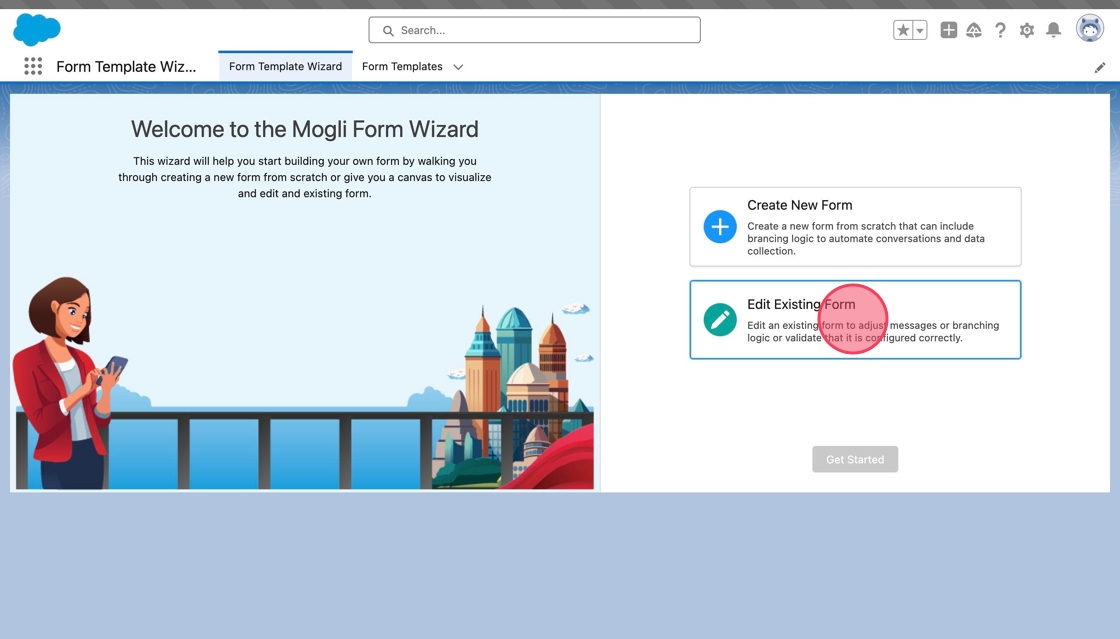
2. Click Get Started.

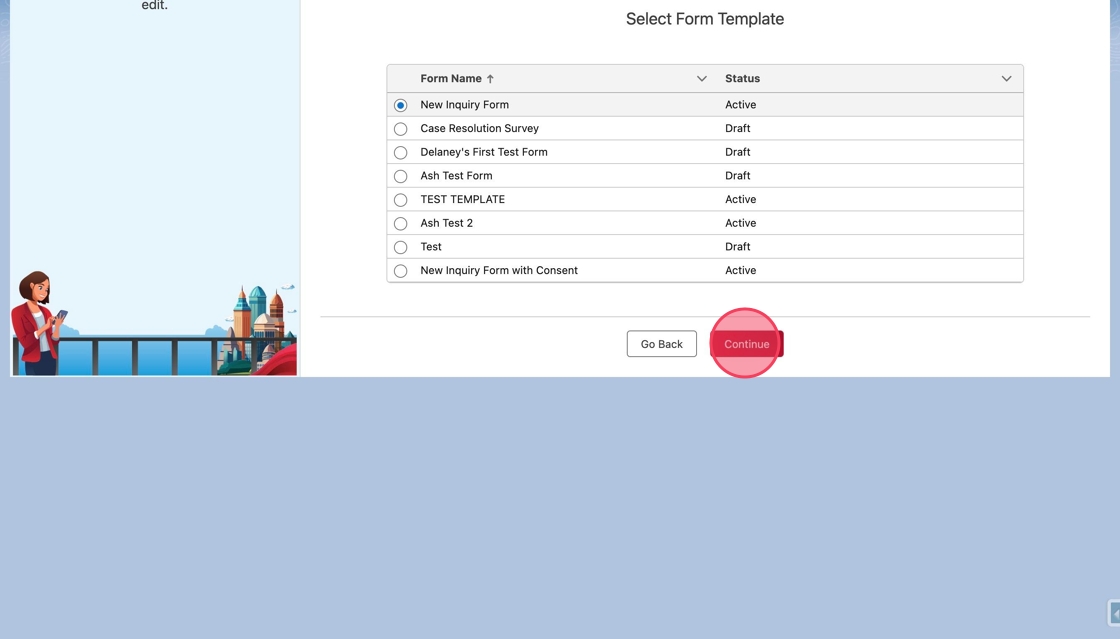
3. Select the form to edit, and click Continue.
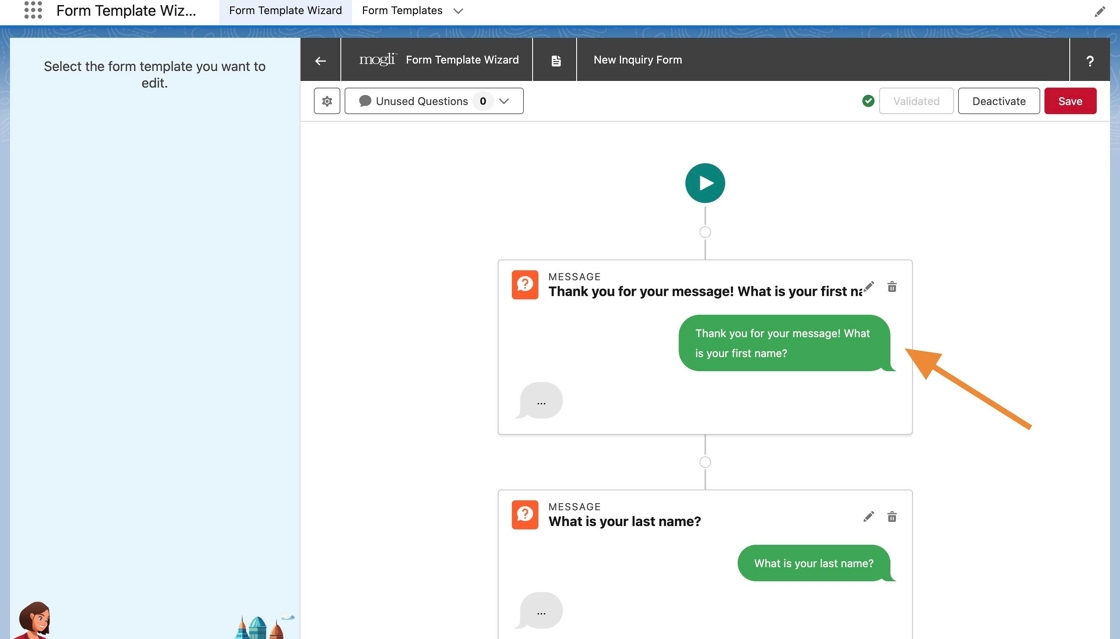
4. The existing questions will appear in the canvas. In this particular example, the first question is asking for the respondent's first name.
5. Later in the form, the respondent is asked for their email address. The form needs to be reordered and this questions switched.
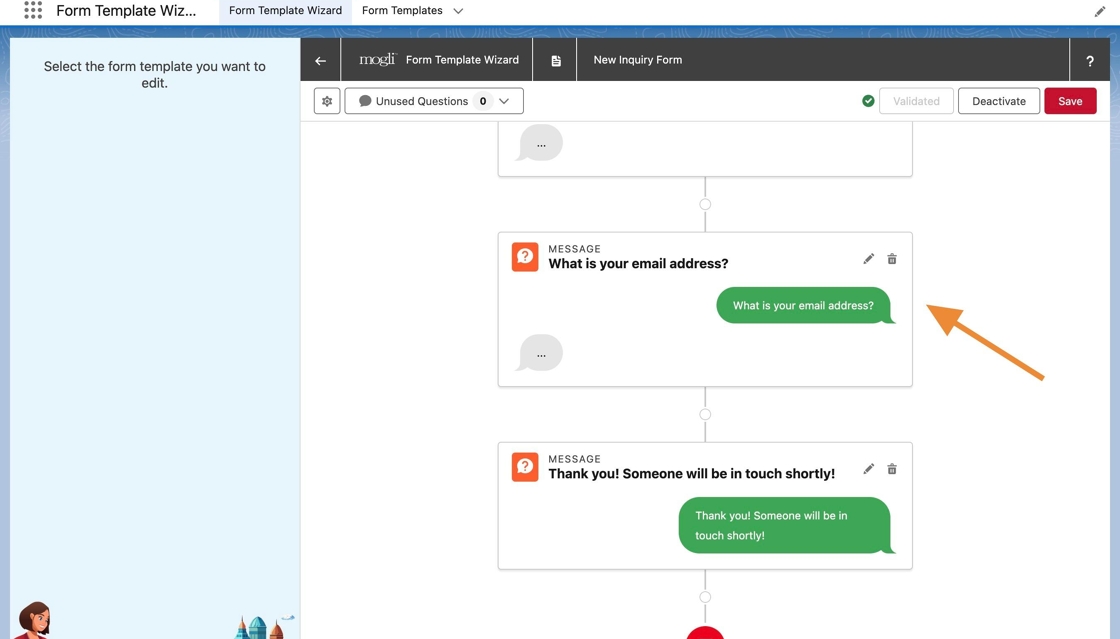
6. One thing to note at the top is that currently there are no Unused Questions in the form.
Unused Questions are those that are related to the form but not used currently - meaning they are not specified as the Next Question on any other question or branch
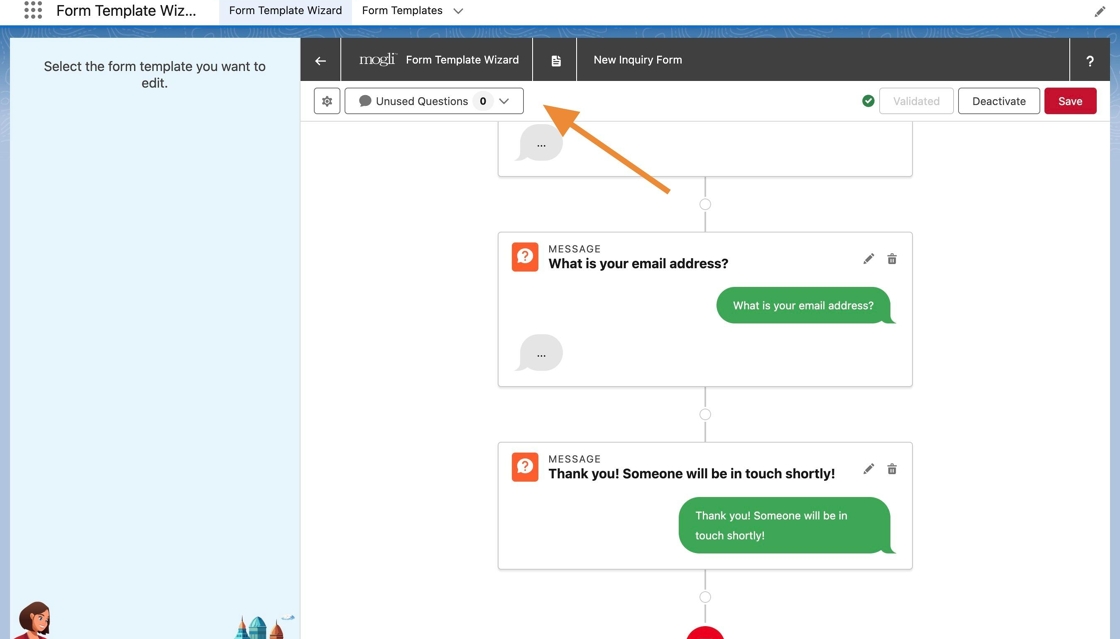
7. Scroll back to the email address question, and click on the delete button, represented by a trash can icon.
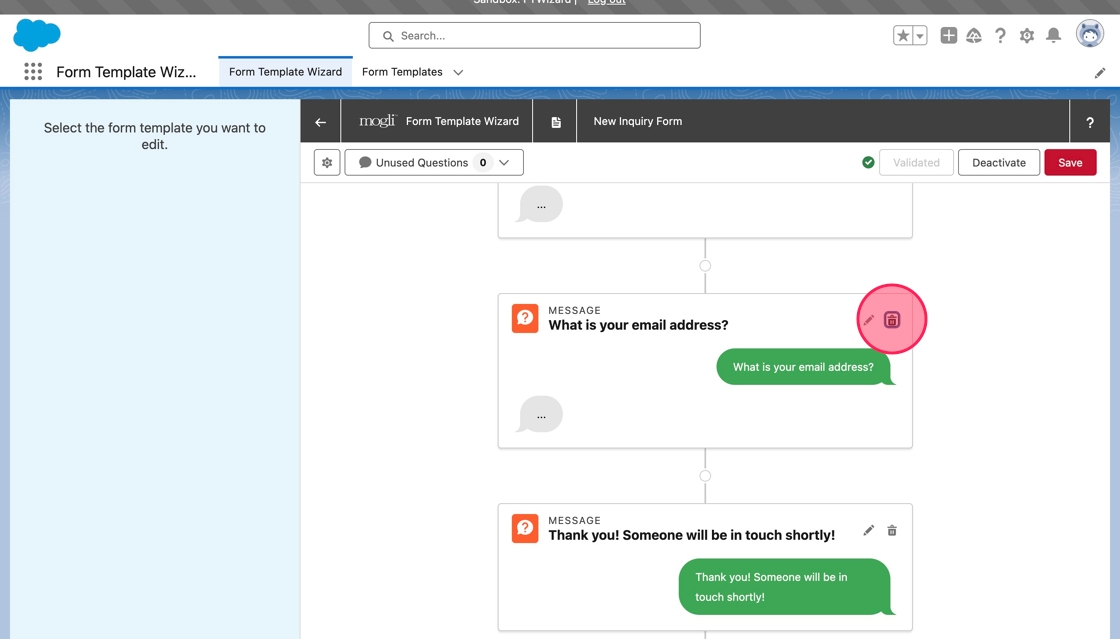
8. The email question will be removed from the canvas, but so will the subsequent question.
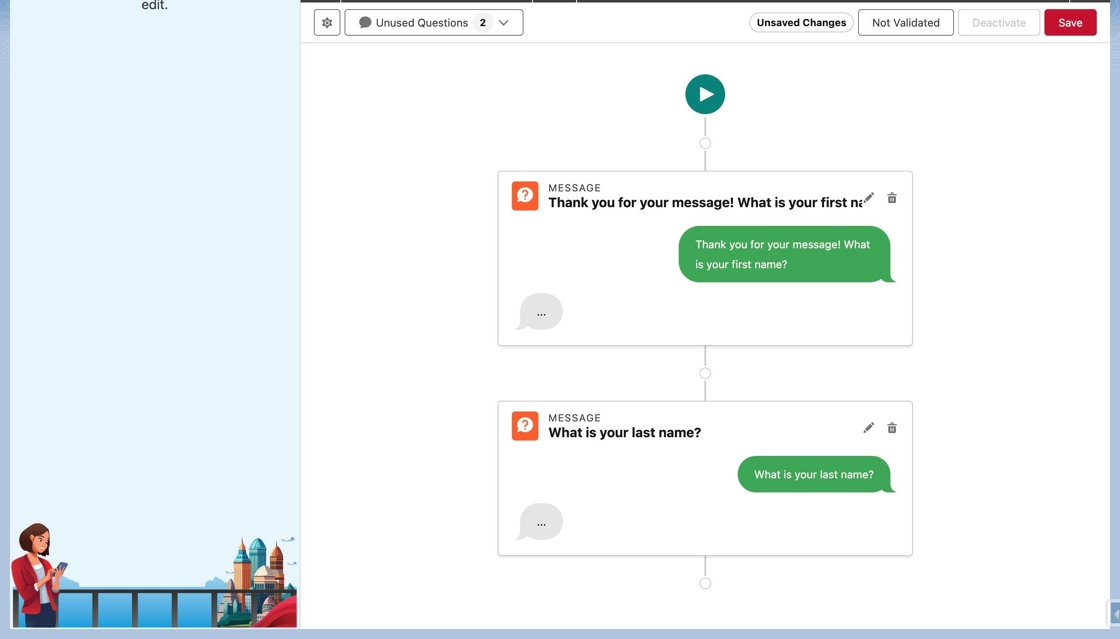
Tip: When a question is removed from the form, all subsequent questions will also be removed.
9. Now the two questions that were removed are now noted in Unused Questions.
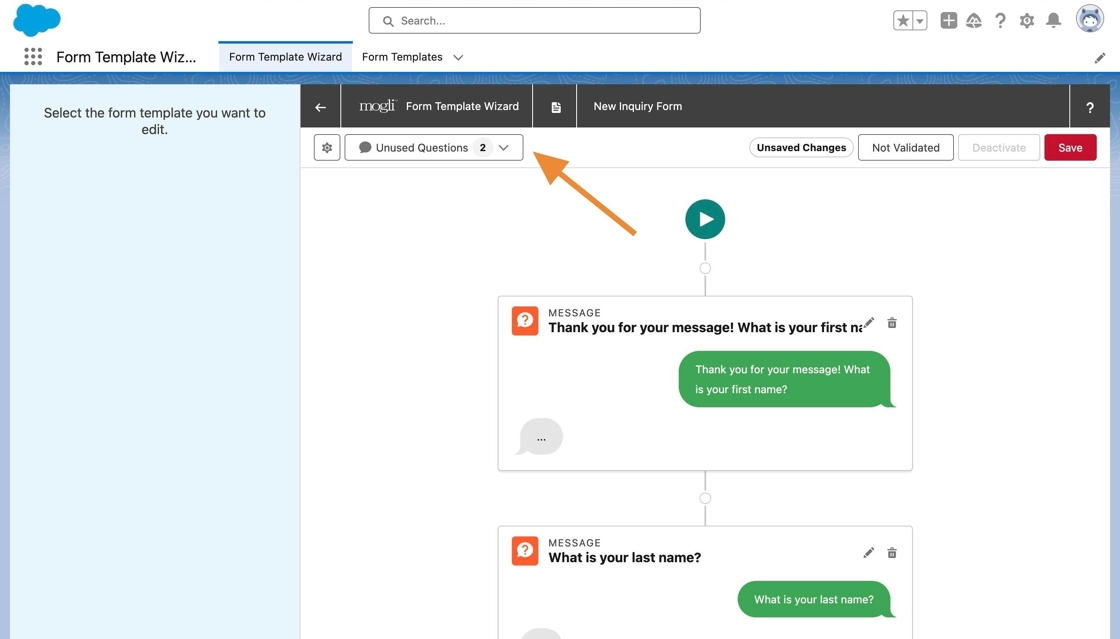
10. Click on Unused Questions.
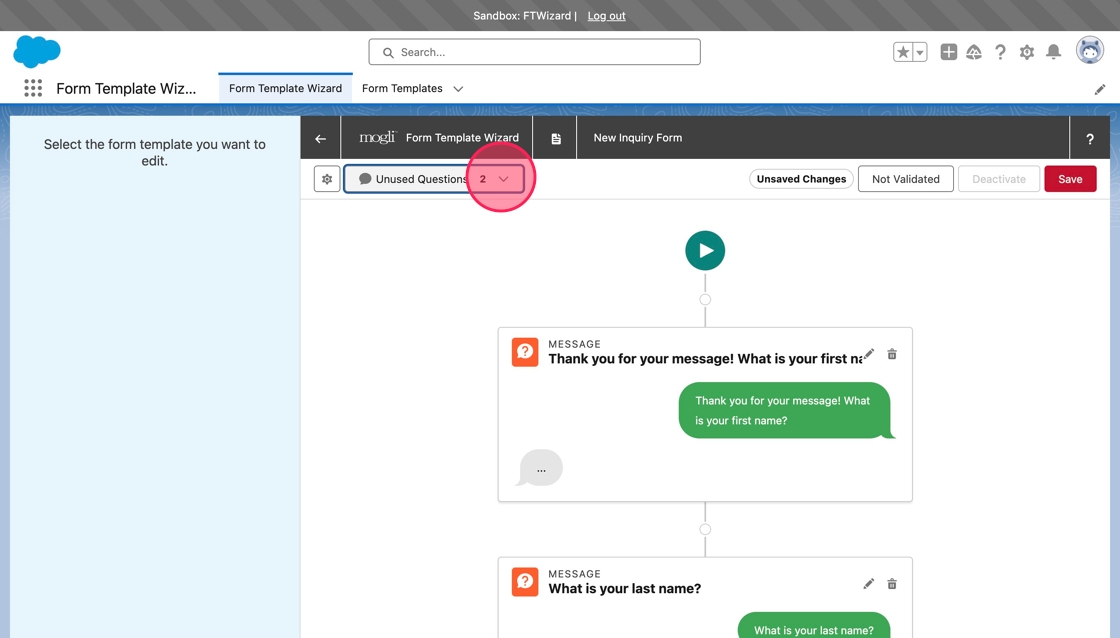
11. The Unused Questions menu will drop down.
The Unused Questions menu will list any questions that are related to the form, but currently not used.
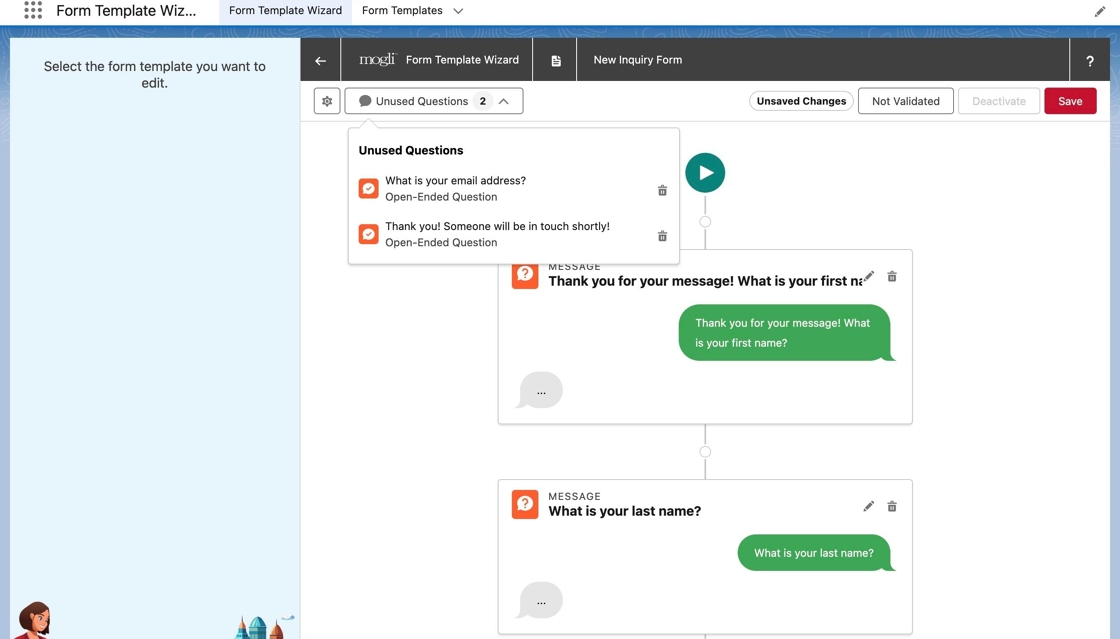
Tip: Questions will not be removed from Salesforce unless they are also removed from the Unused Questions list.
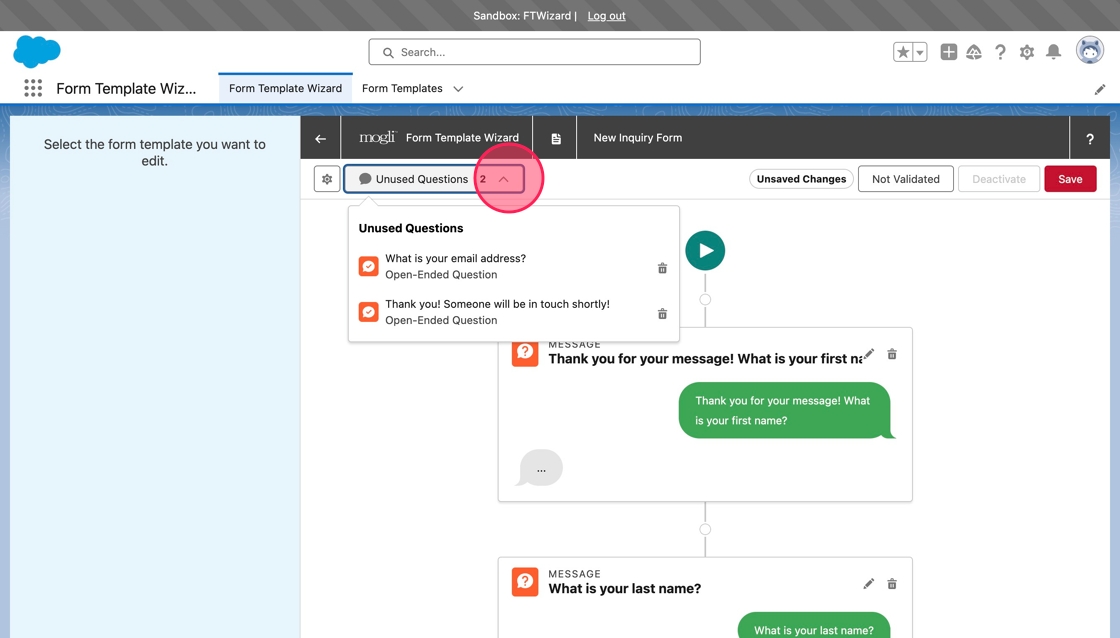
12. Click Unused Questions again to close the drop down list.
13. To add the final question back on to the form, scroll to the bottom of the canvas and click the Add Question node at the end.
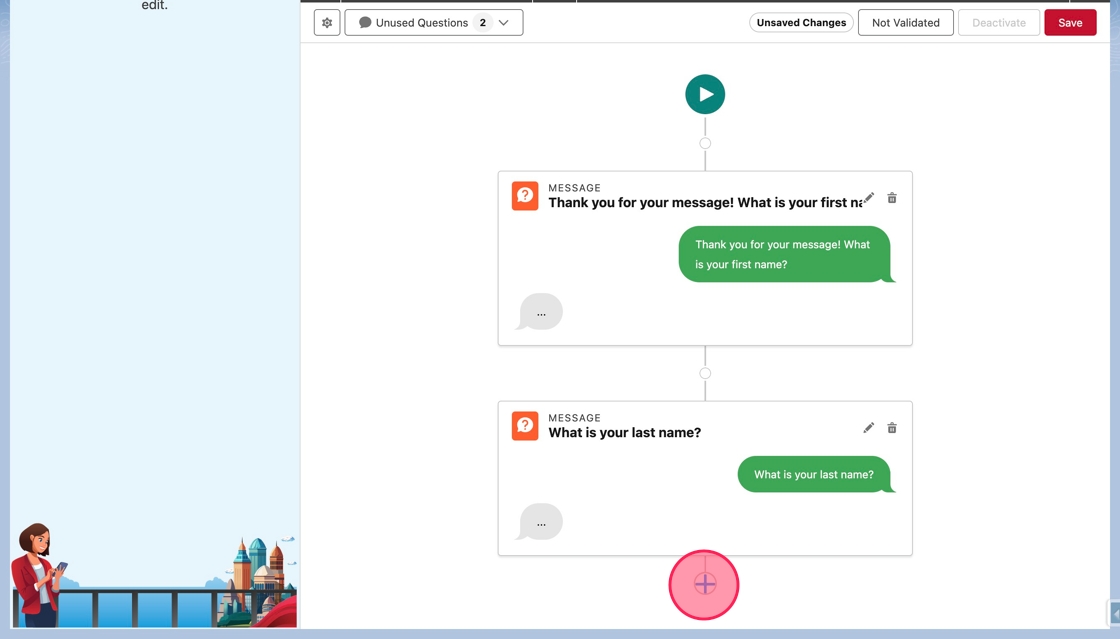
14. Select Existing Question in the drop down menu.
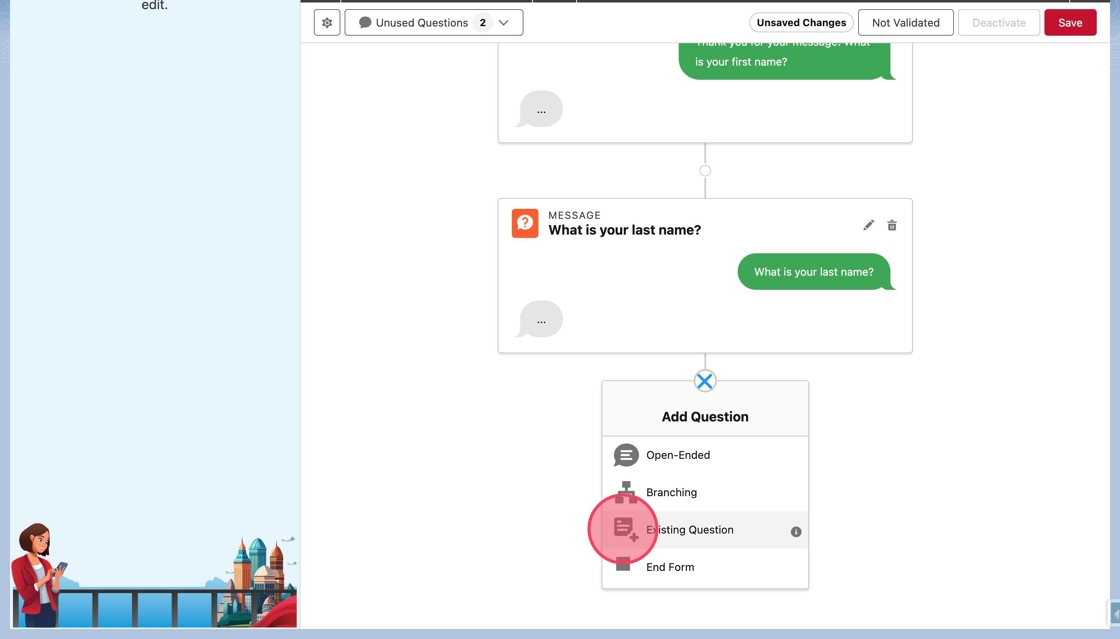
Tip: Existing Questions will only appear in the drop down menu when there are existing questions that are not part of the current path displayed on the canvas.
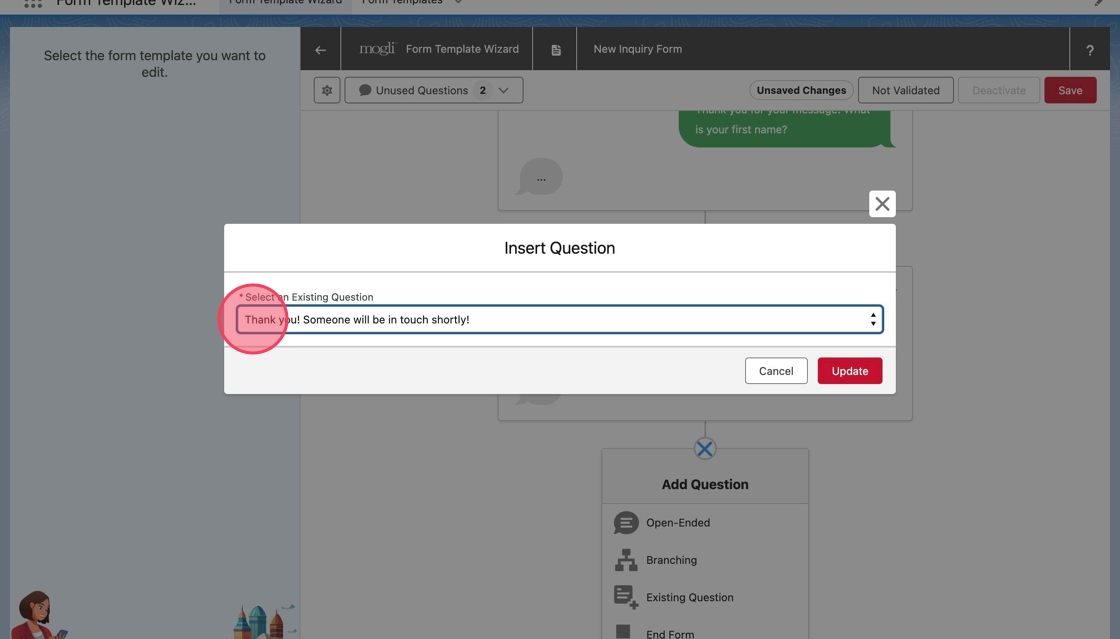
15. The Insert Question modal will open. Click or tab into the Select and Existing Question field and select Thank you! Someone will be in touch shortly! from the list of existing questions.
16. Click Update to add the existing question back into the form.
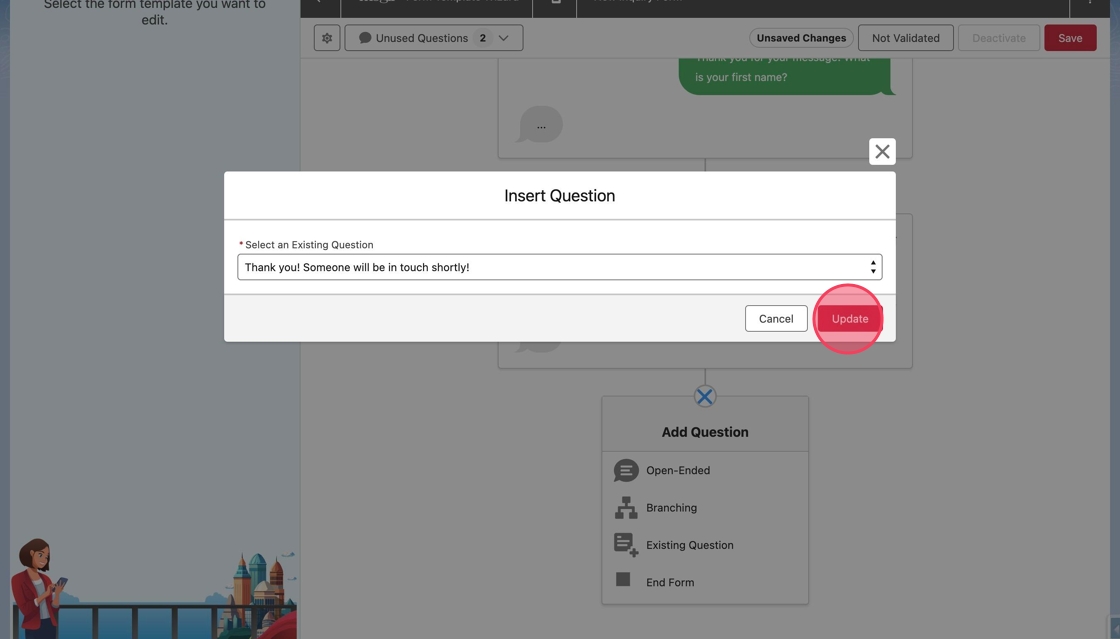
17. The question will be added back to the form, and since it was originally noted as the last question, it will still end the form.
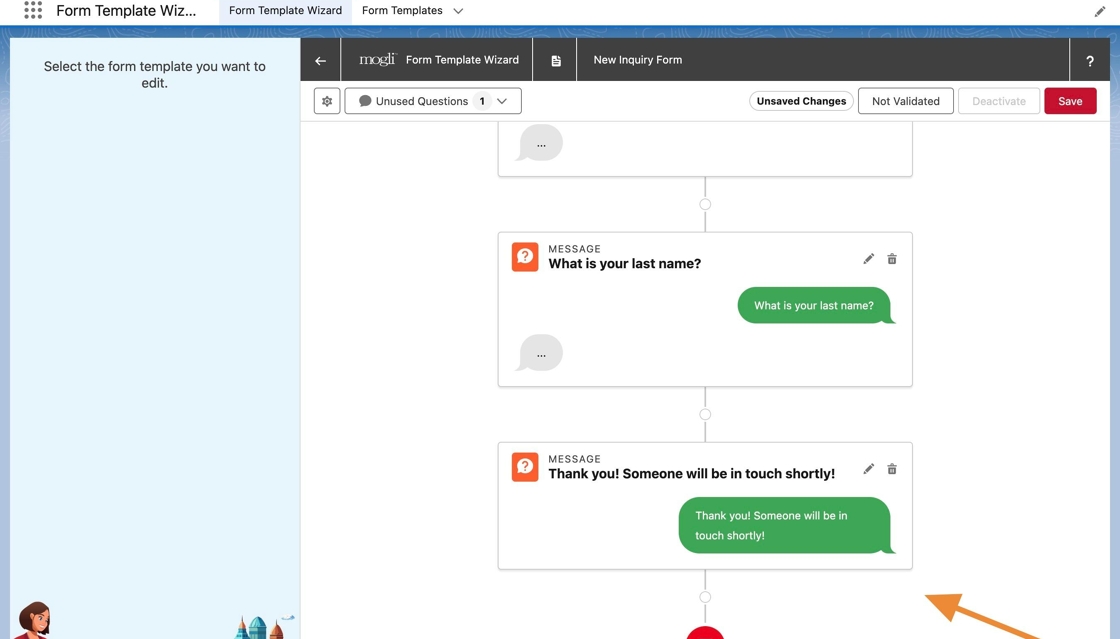
18. Now scroll to the top of the canvas to add the email question back to the form as the first question. Click on the Add Question node at the top of the form, below the start icon.
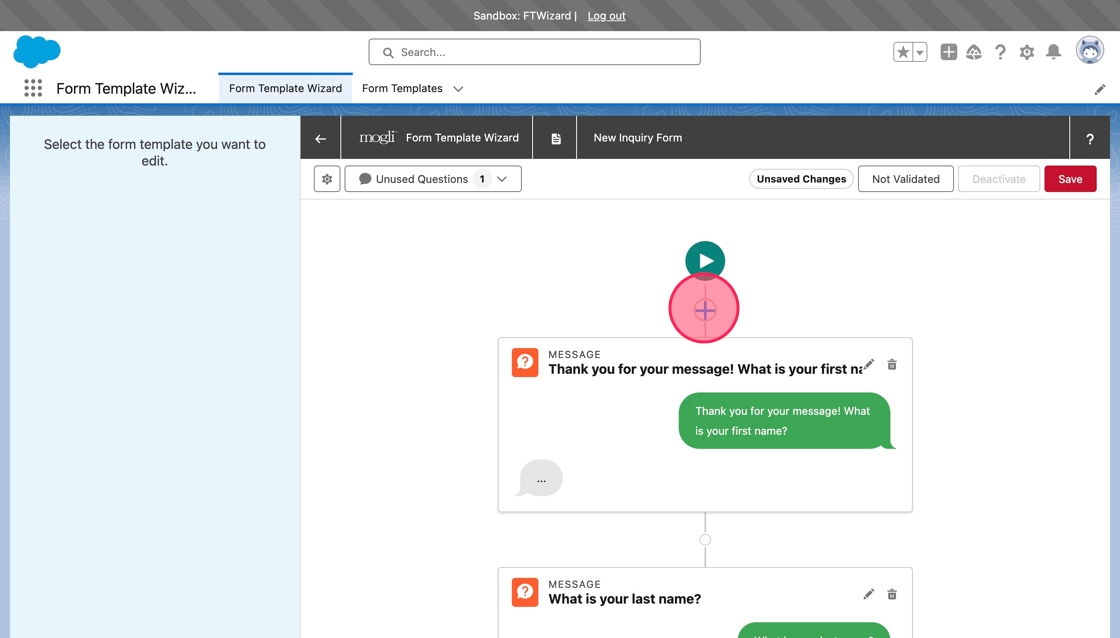
19. Select Existing Question again.
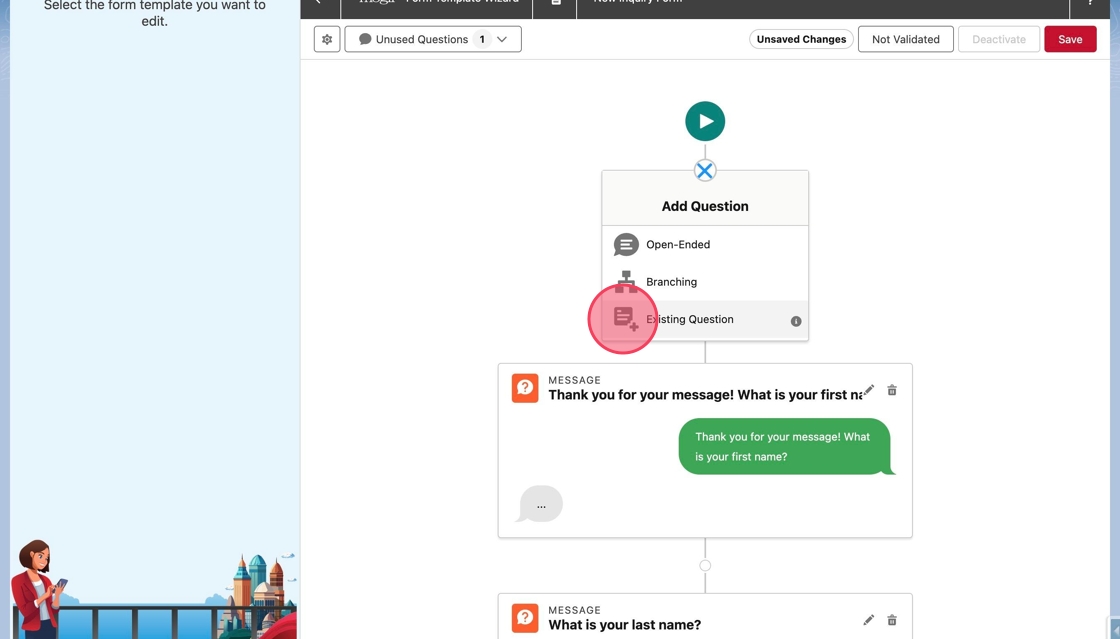
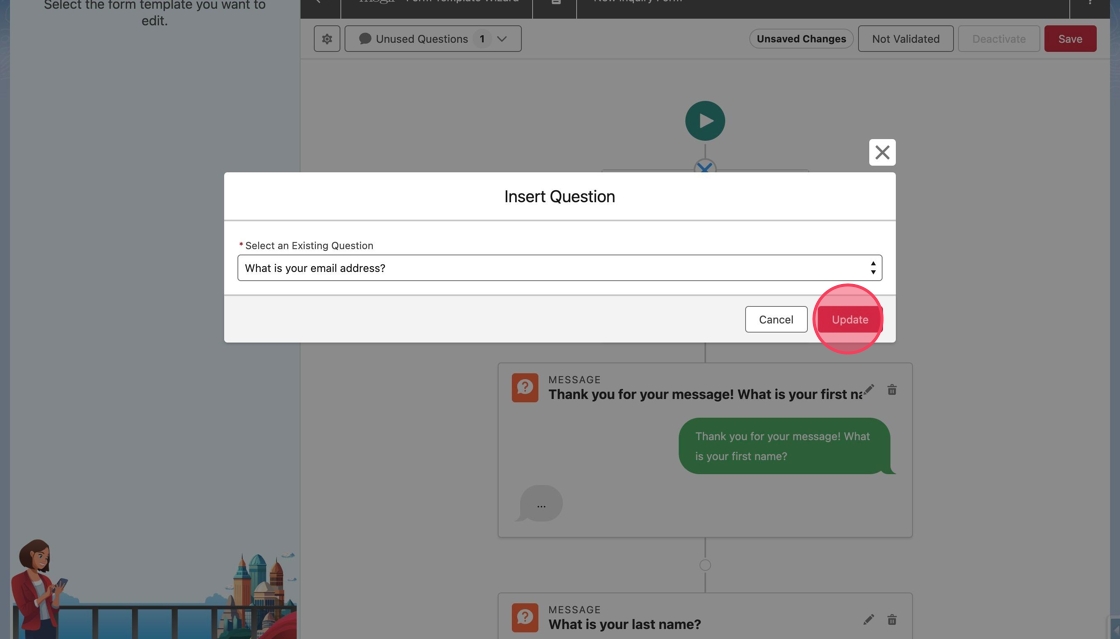
20. Select What is your email address? from the drop down for Select an Existing Question.
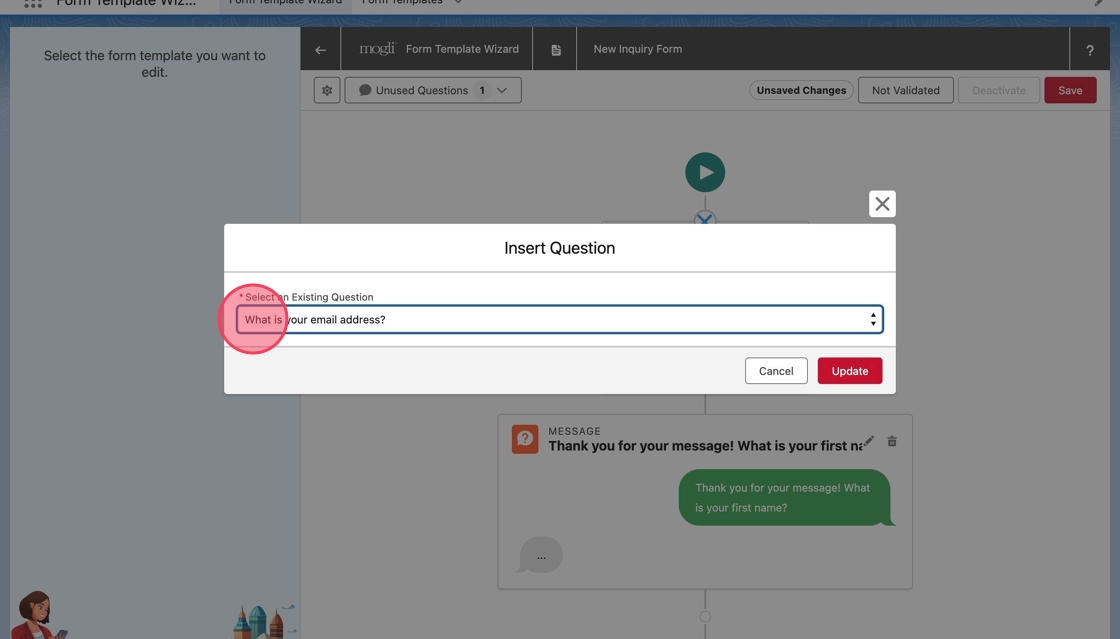
21. Click Update to add it back to the form.
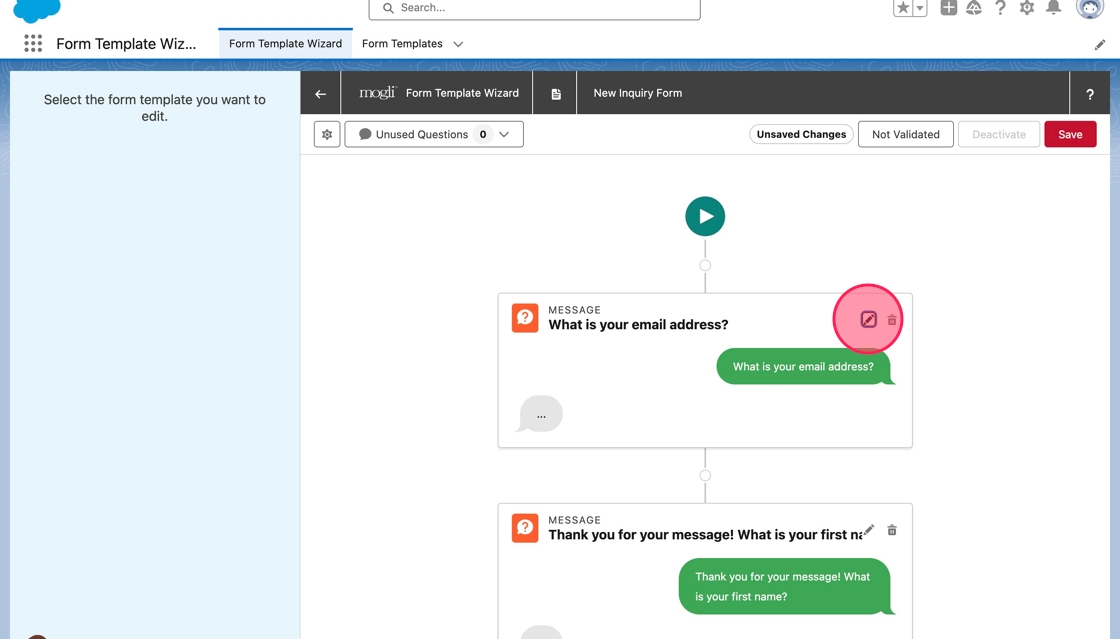
22. The email question is added back to the form as a new first question, but the text still needs to be updated.
Click on the edit button, the pencil icon, in the question block.
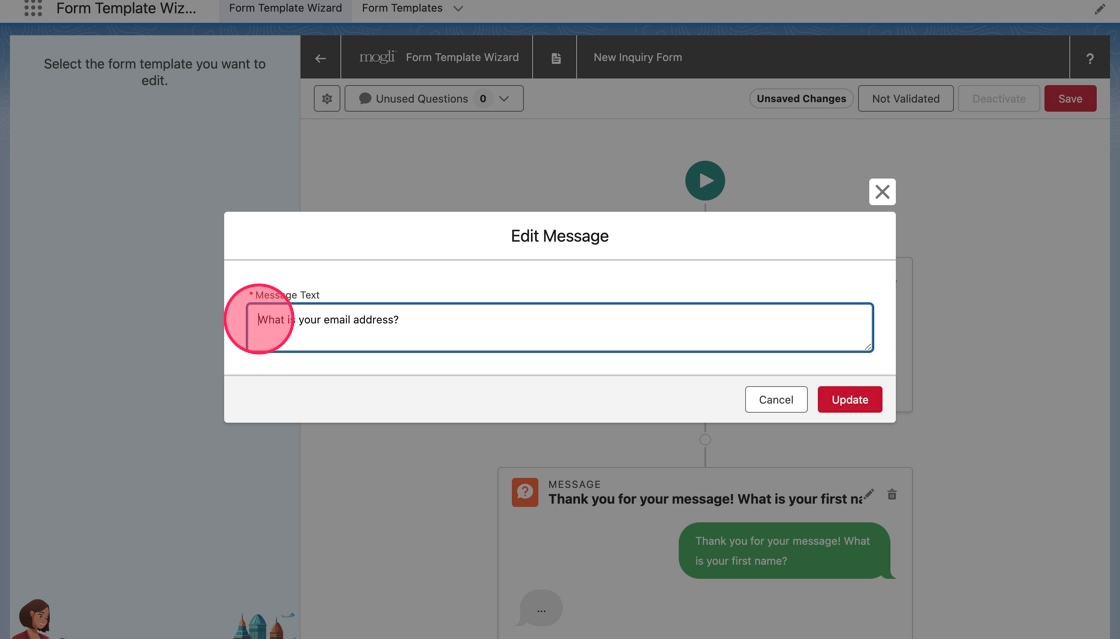
23. The Edit Message modal will open. Click or tab into the Message Text field.
24. Type Thank you for your message! before the existing question message.
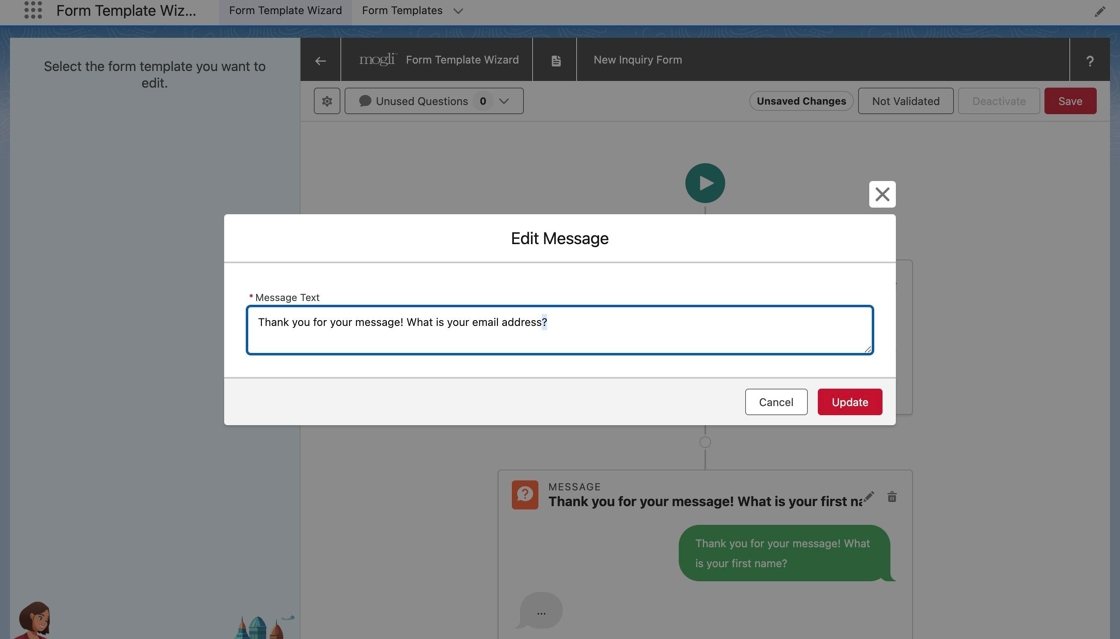
25. Click Update to update the message text.
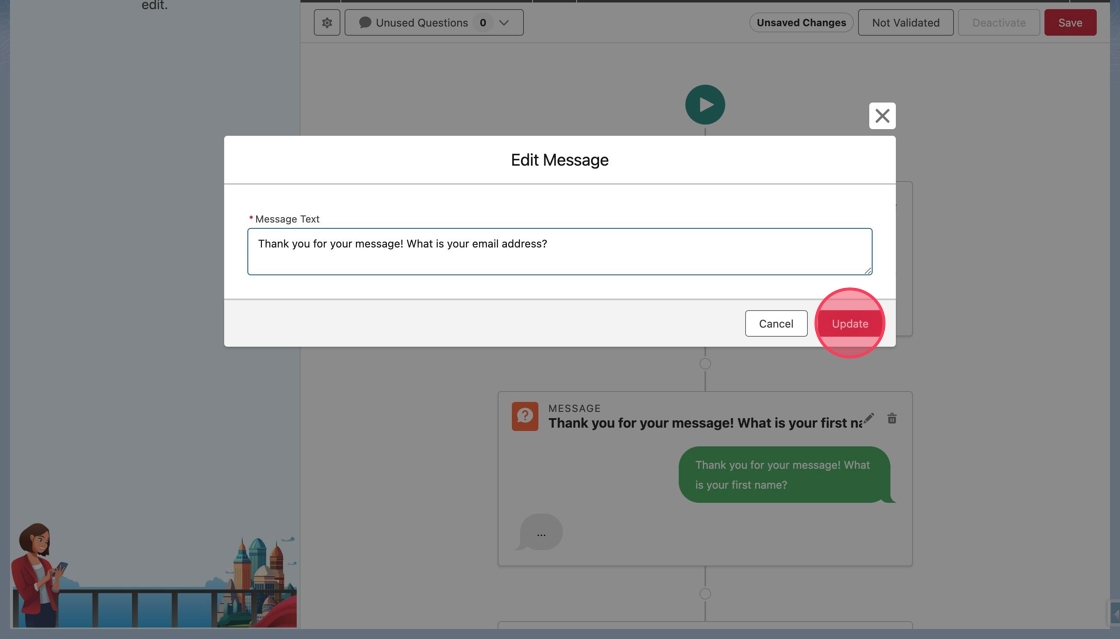
26. The text will be updated on the question in the canvas.
Now, click on the edit button in the original first question to edit the message text.
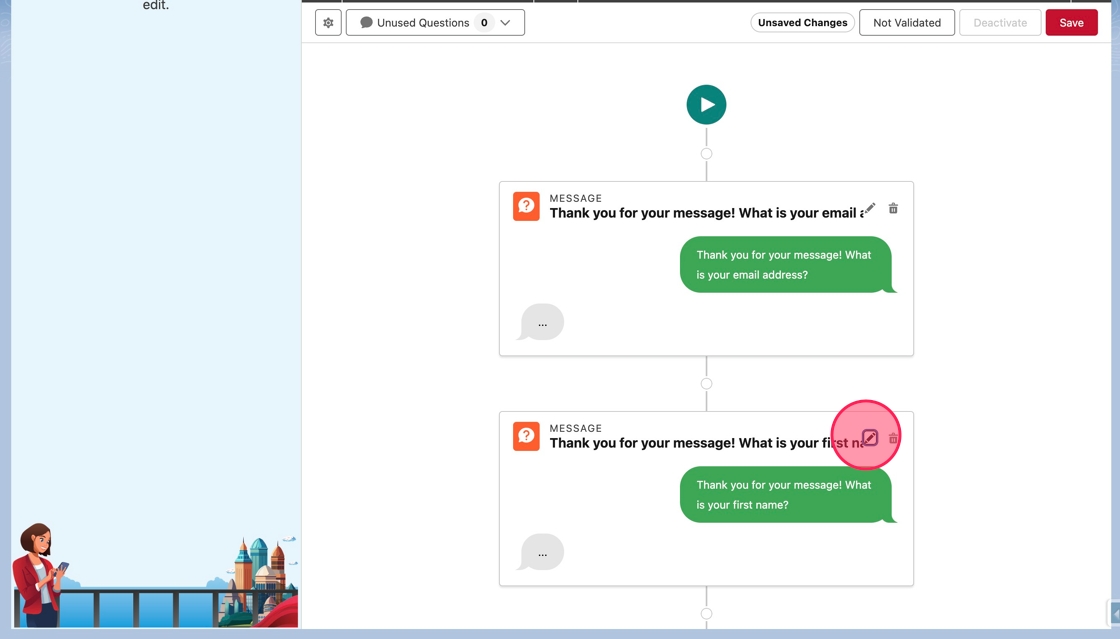
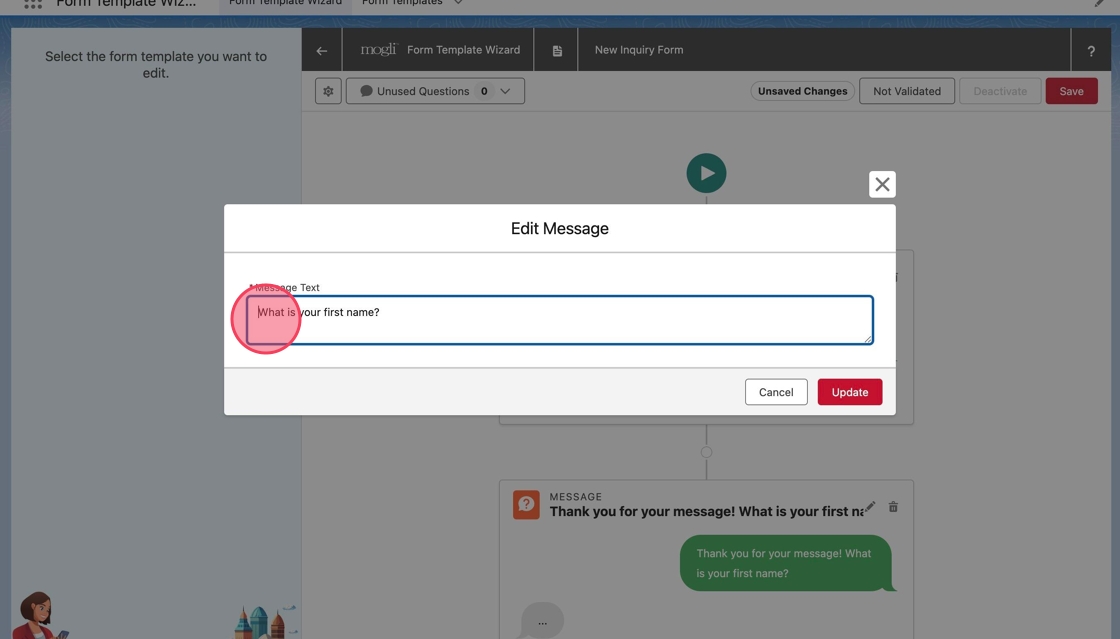
27. Click or tab into the Message Text field and remove Thank you for your message! from the beginning of the message.
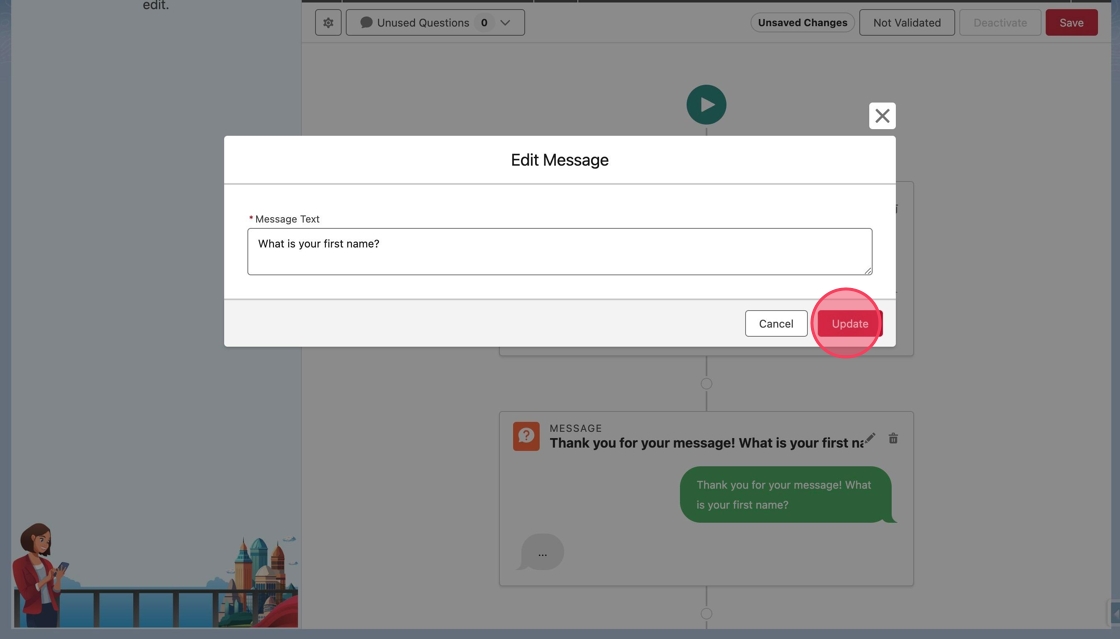
28. Click Update to close the modal and update the question.
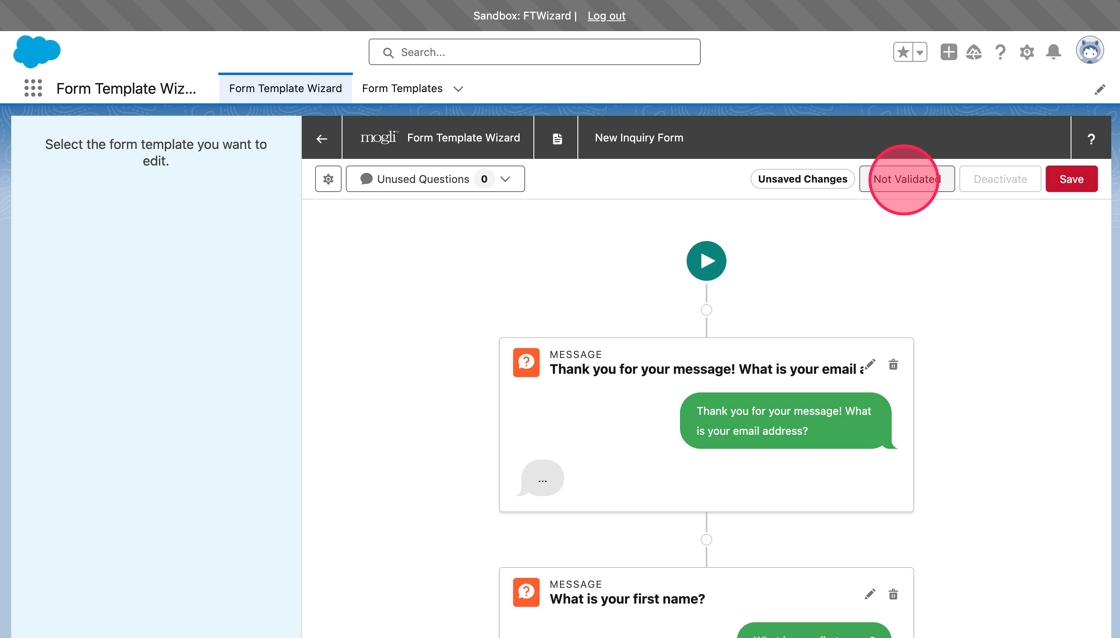
29. Now on the canvas, click Not Validated to save the changes and validate the form.
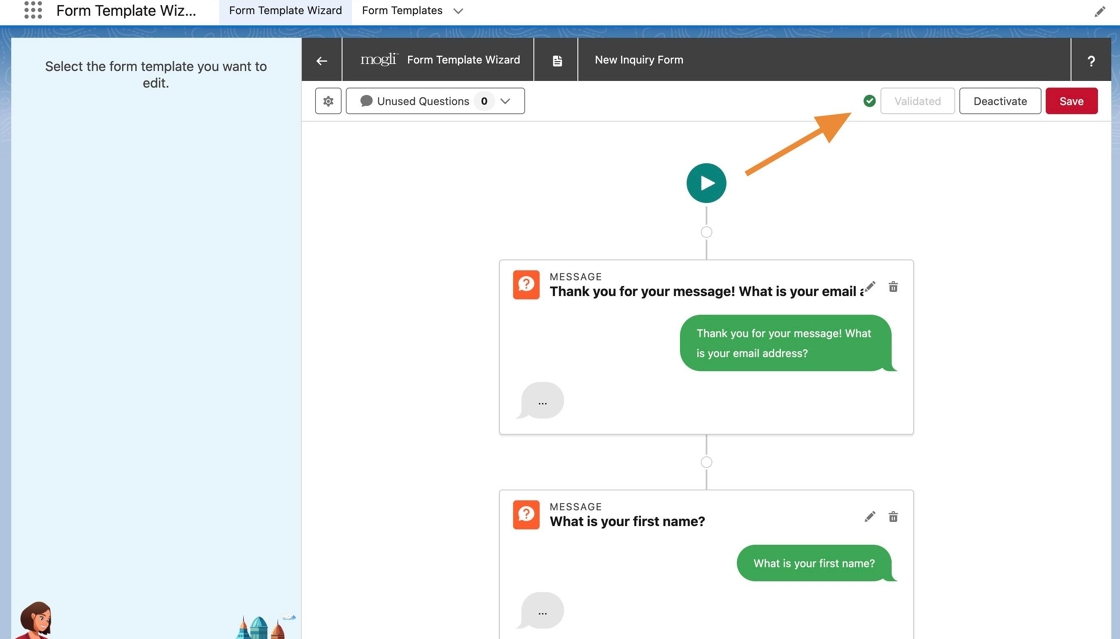
30. A green check icon will indicate if the form is validated successfully.
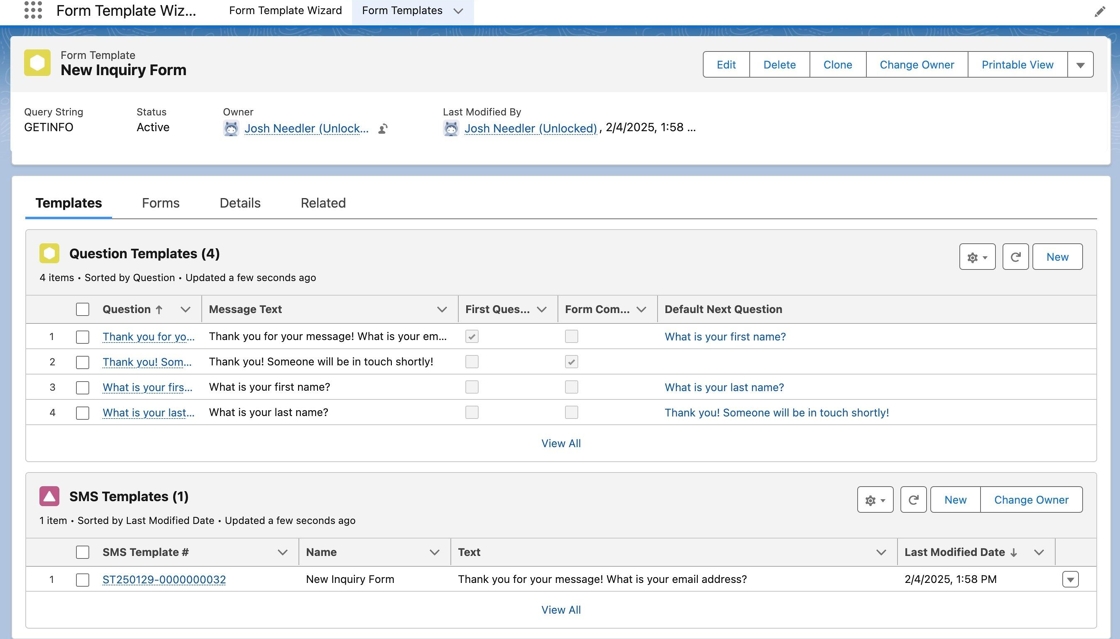
31. Navigate to the form template record, and notice that the changes were saved and reflected.
Edit a Word or Phrase Branching Question
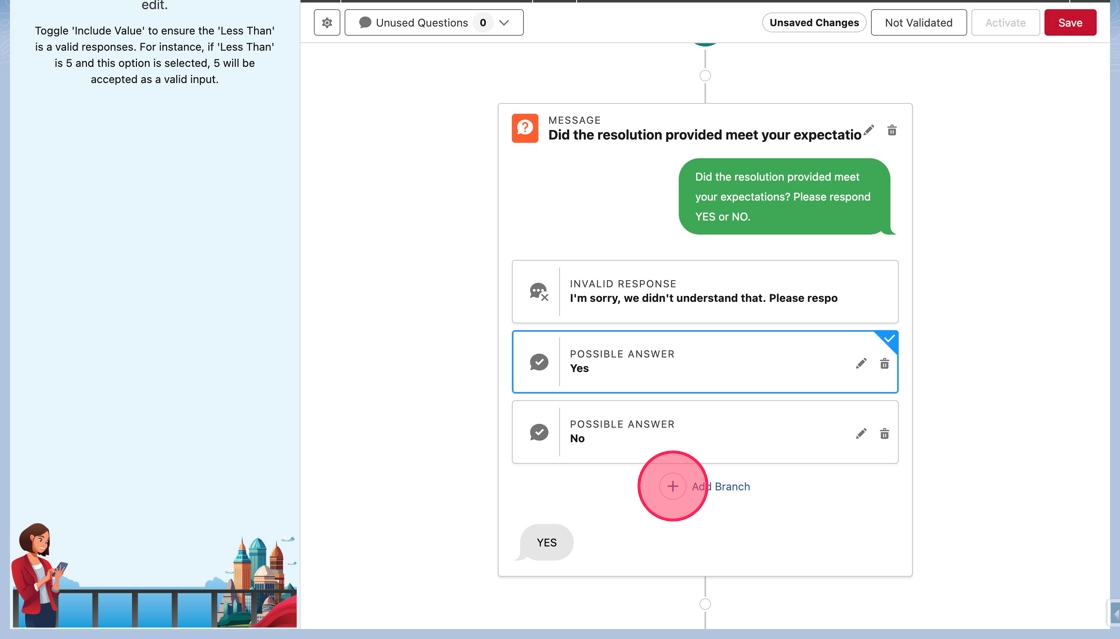
1. A branching question that accepts affirmative and negative responses already exists, but it needs to be edited to handle uncertain responses as well.
On the canvas in the branching question block, click Add Branch to add a new branch.
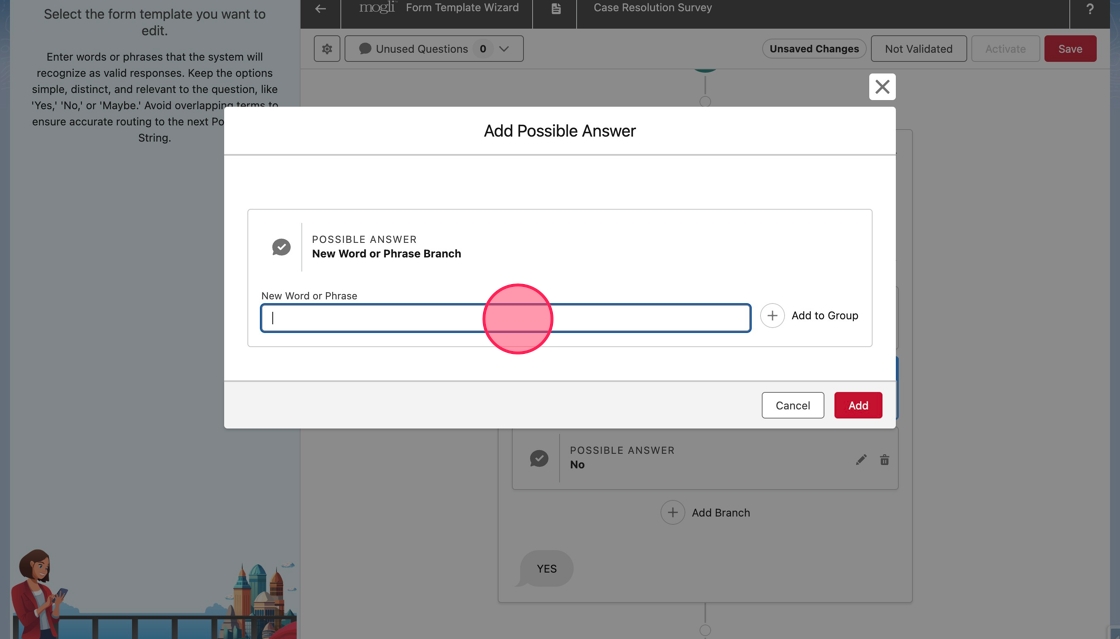
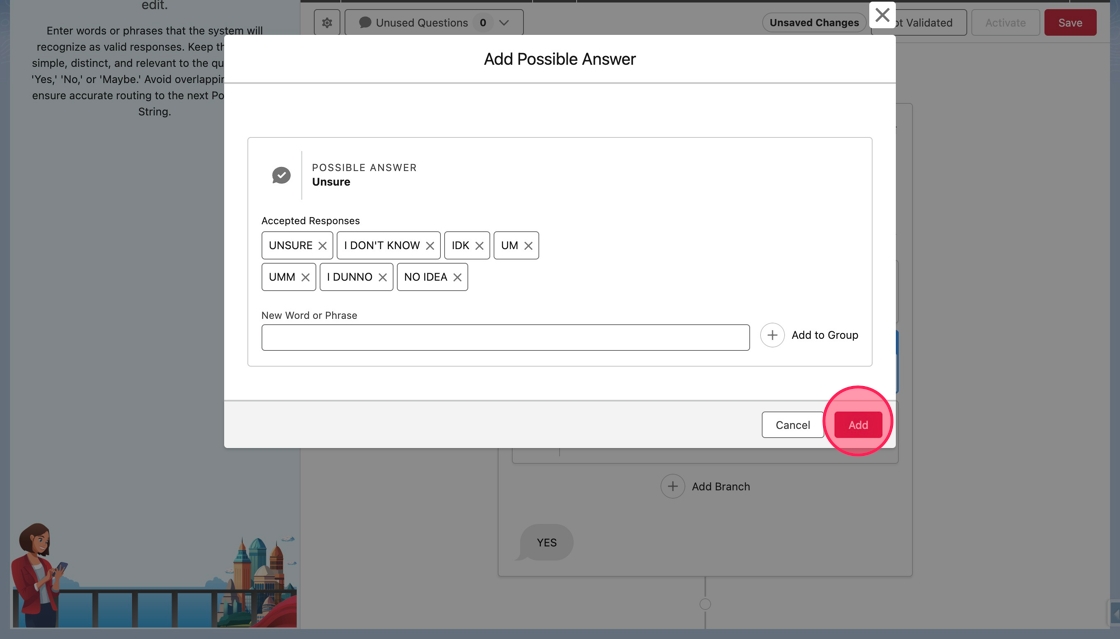
2. In the Add Possible Answer modal, click or tab into New Word or Phrase to add the first uncertain response.
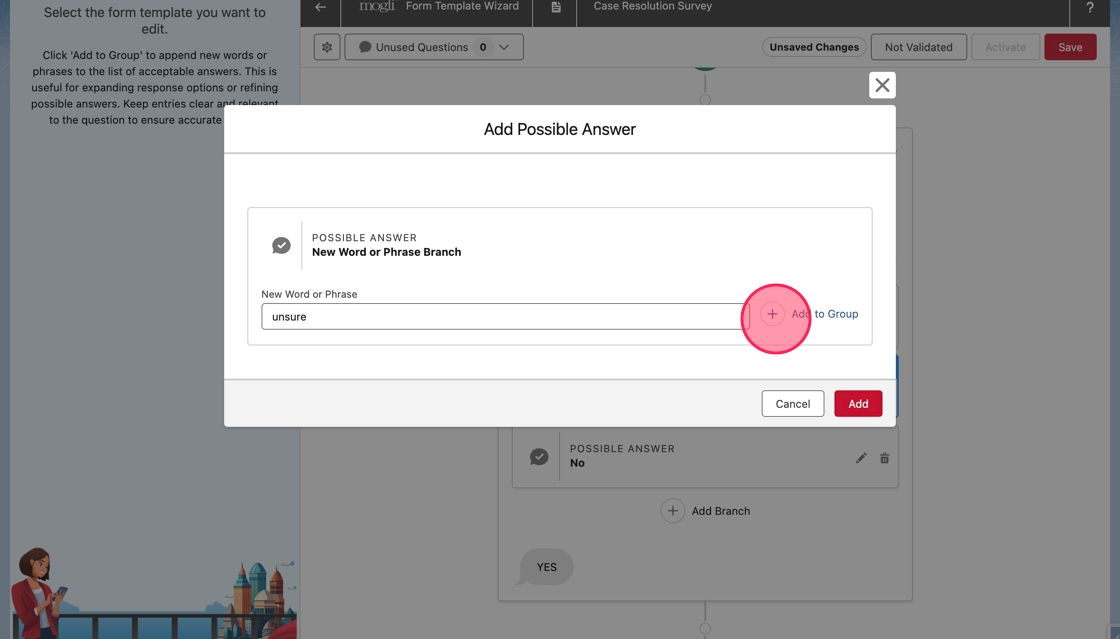
3. Type unsure in the field, and click Add to Group to add it to the accepted responses of the branch.
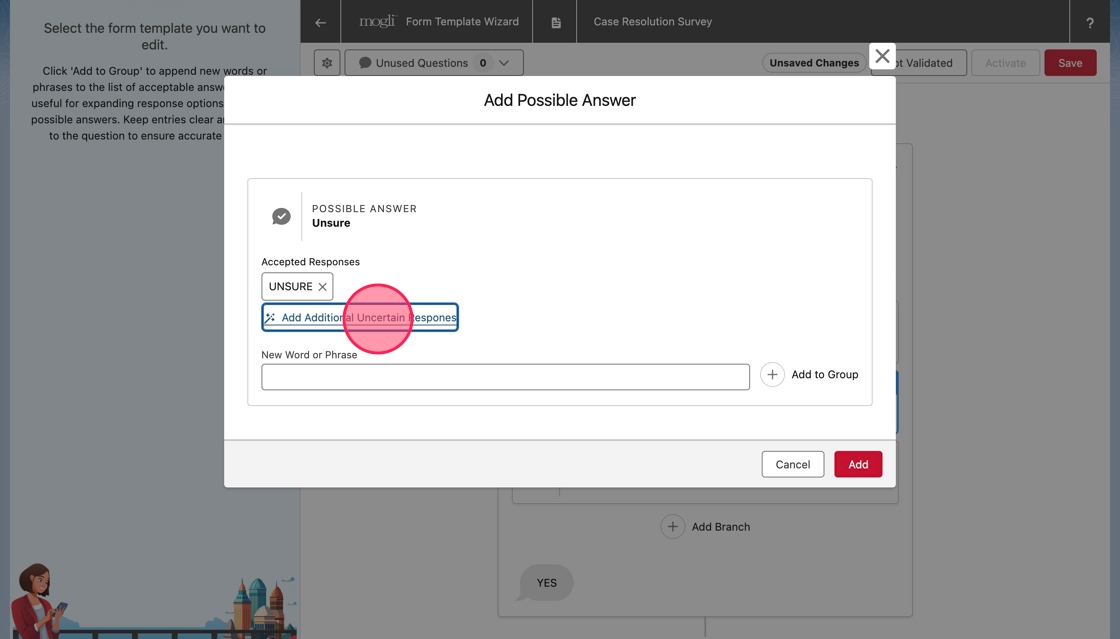
4. The wizard will recognize the word as an uncertain response and suggest adding additional uncertain responses. Click Add Additional Uncertain Responses to add remaining responses.
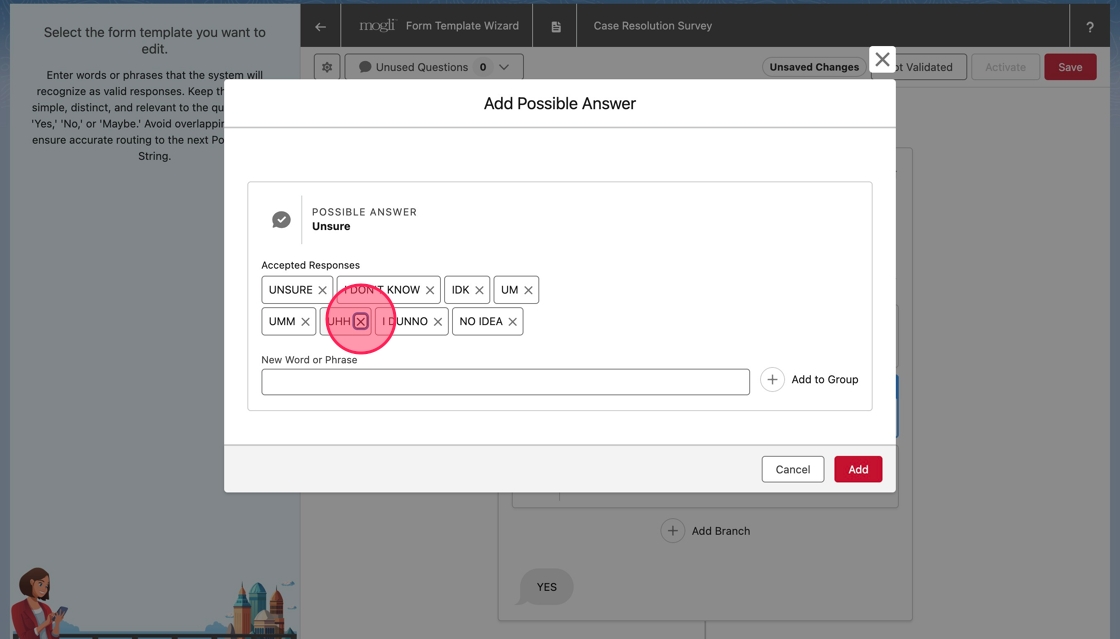
5. The additional responses will be added to the Accepted Responses list. If there are any responses that shouldn't be accepted, they can be removed by clicking the delete button, or X icon, in the pill of the word or phrase.
Click X in the UHH pill to remove it.
6. Click Add to add the branch to the question.
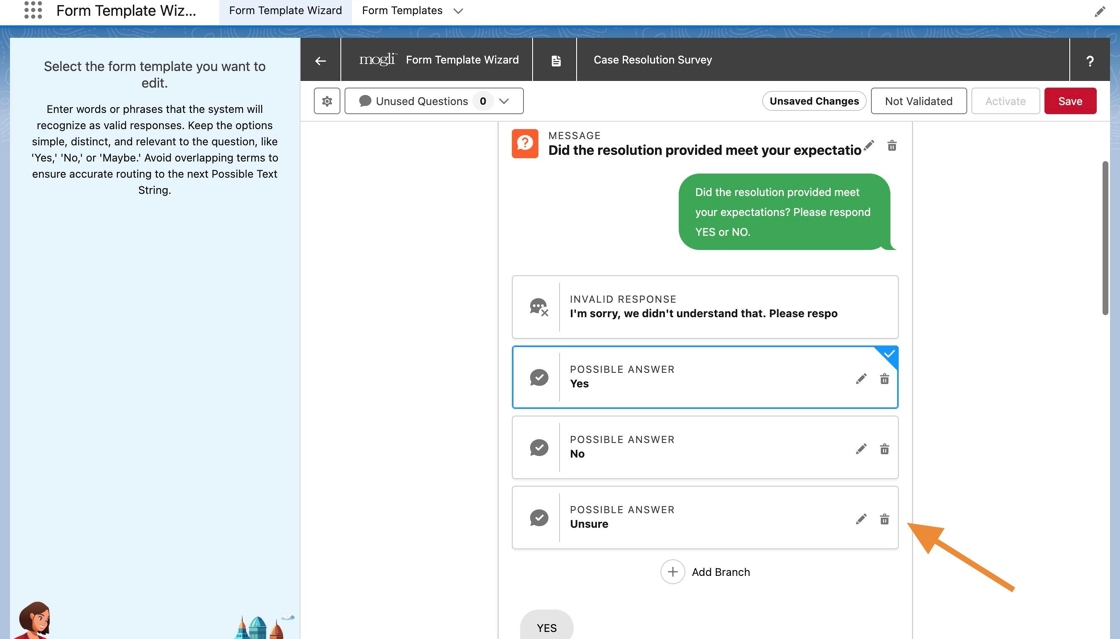
7. The new branch will appear on the canvas.
8. Click on the Invalid Response.
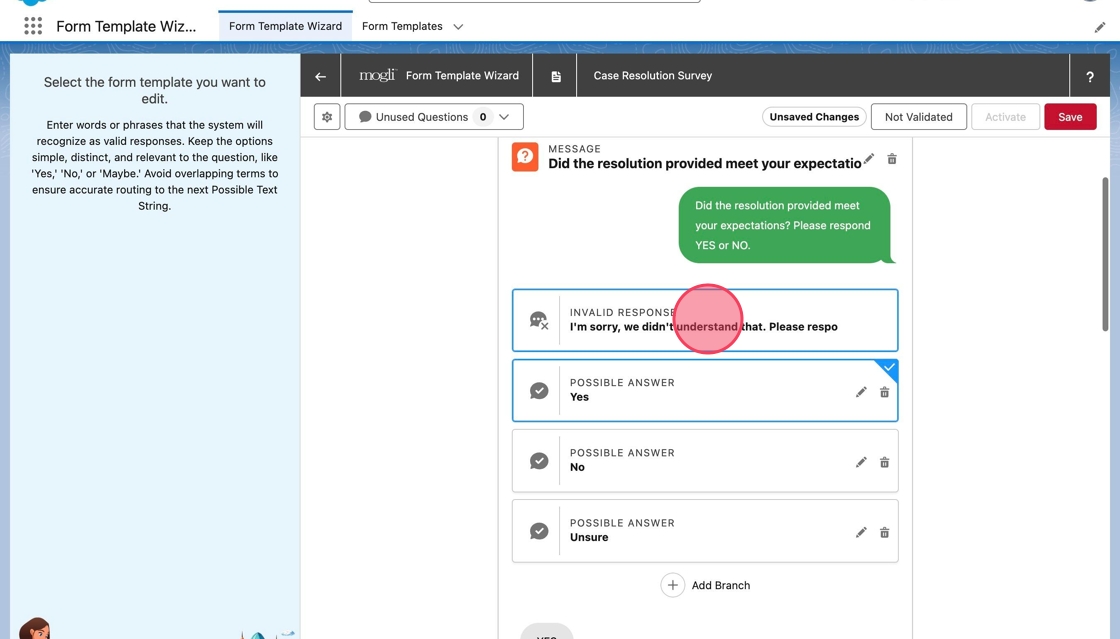
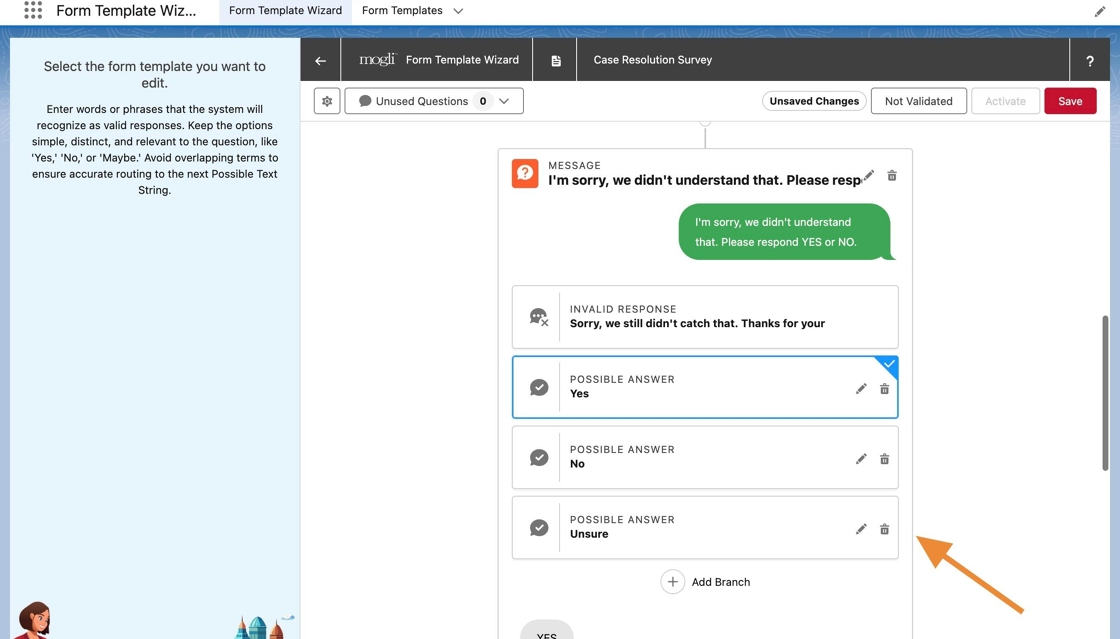
9. Notice on the Invalid Response, the branch was also added.
Edit a Numeric Scale Branching Question
This guide provides a step-by-step approach to effectively edit a numeric scale branching question, allowing users to fine-tune their response options based on specific value ranges.
1. On the canvas, click on the Edit button of the Numeric Scale Branch that should be updated.
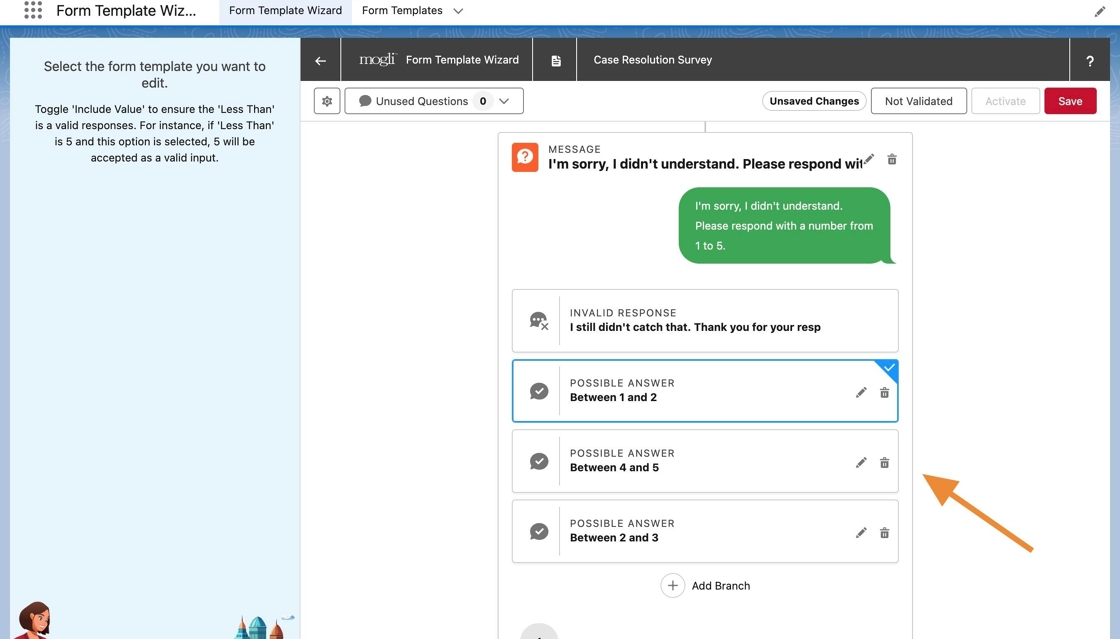
In this example, an existing numeric scale branching question will be updated to include a third branch.
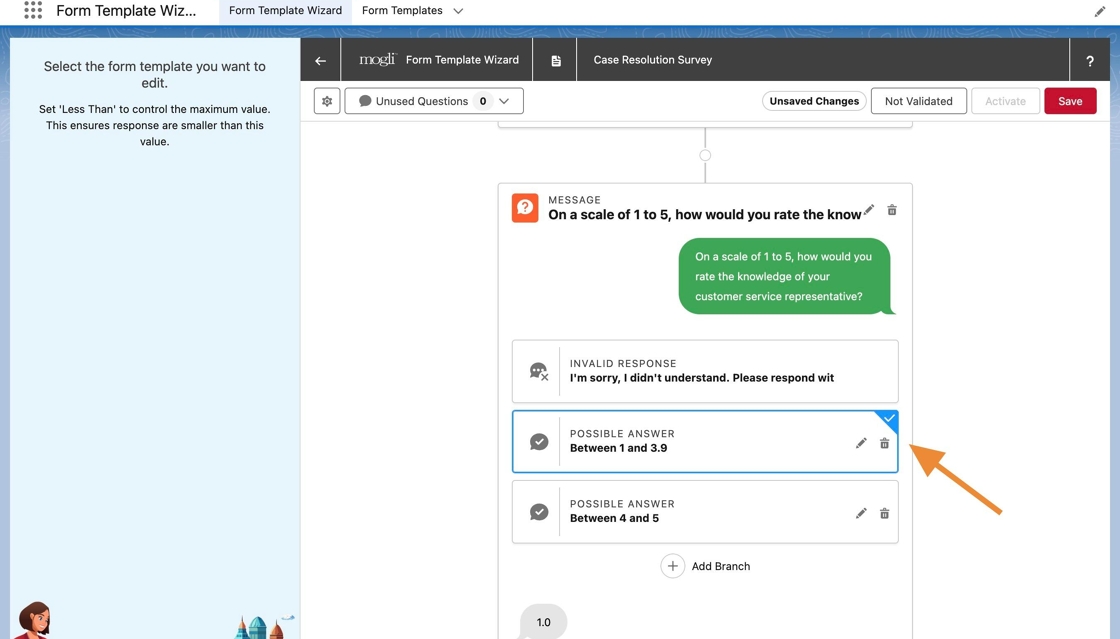
The existing branch that handles values less than 4, will be updated to handle values of 2 or less and a new branch will be created to handle values between 2 and 4.
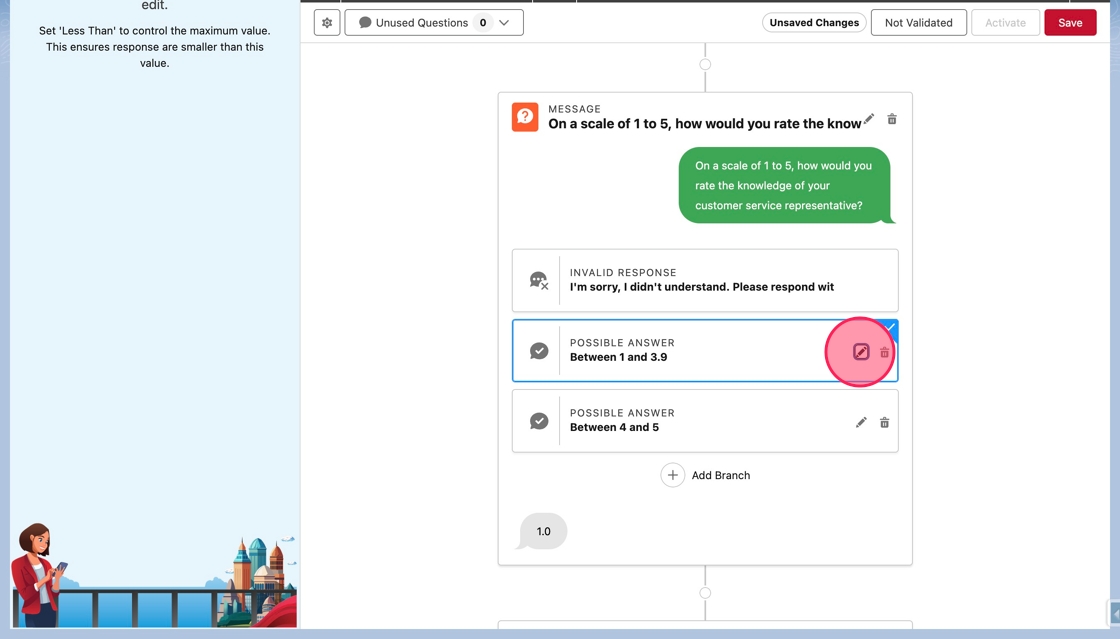
2. The Edit Possible Answer modal will open. Click or tab into the field of the value that should be changed.
To change the current branch to handle values of 2 or less, click or tab into the Less Than field.
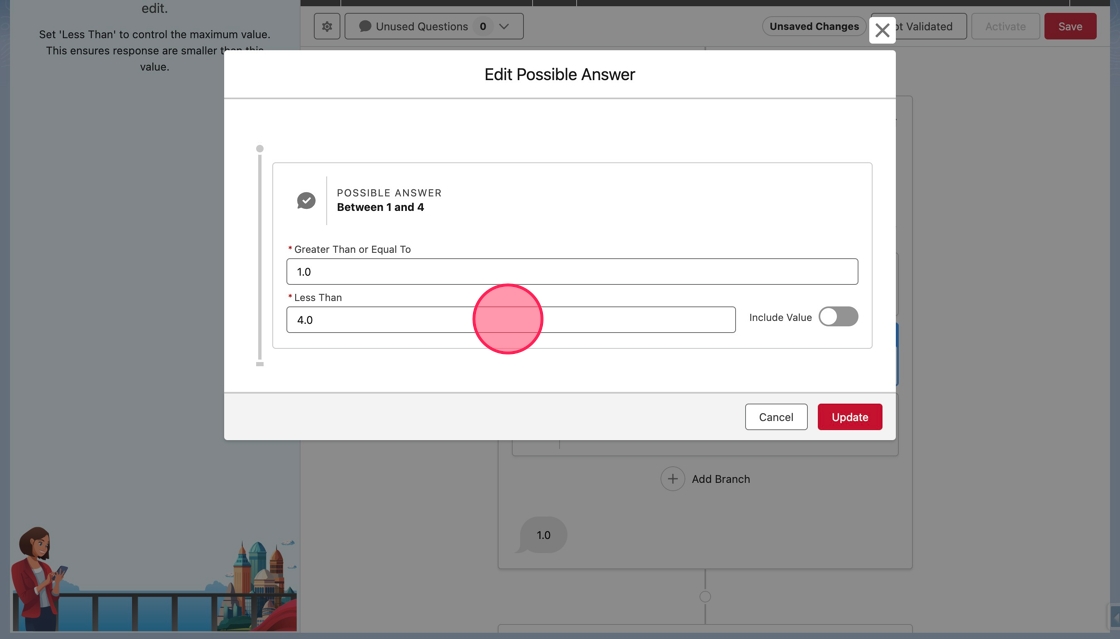
3. Change the value to 2.0.
4. Click here.
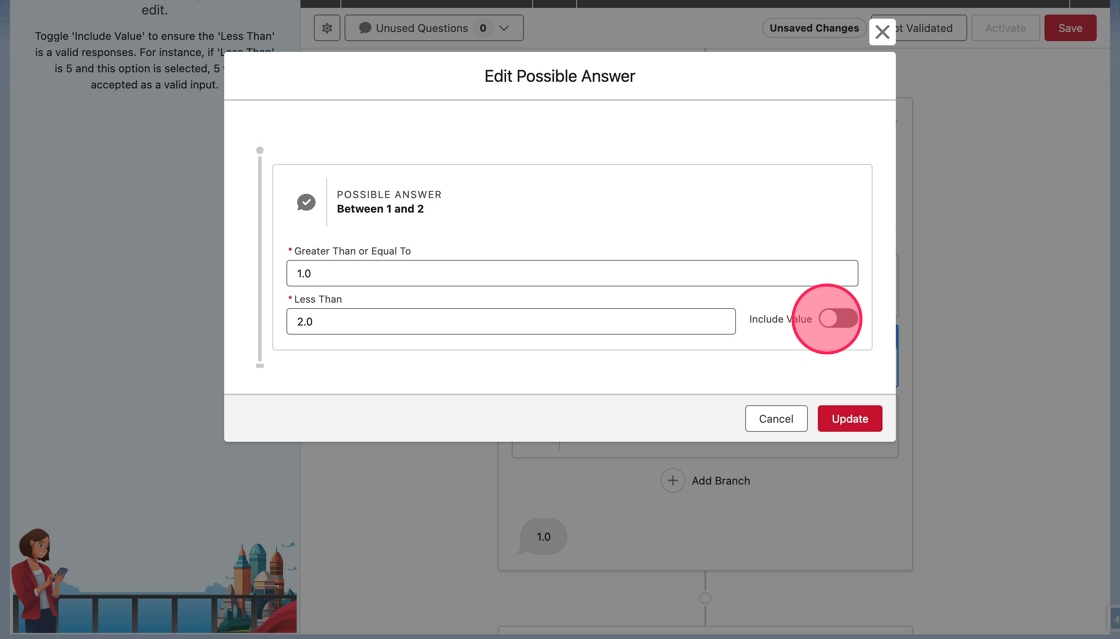
5. Click Update to update the question.
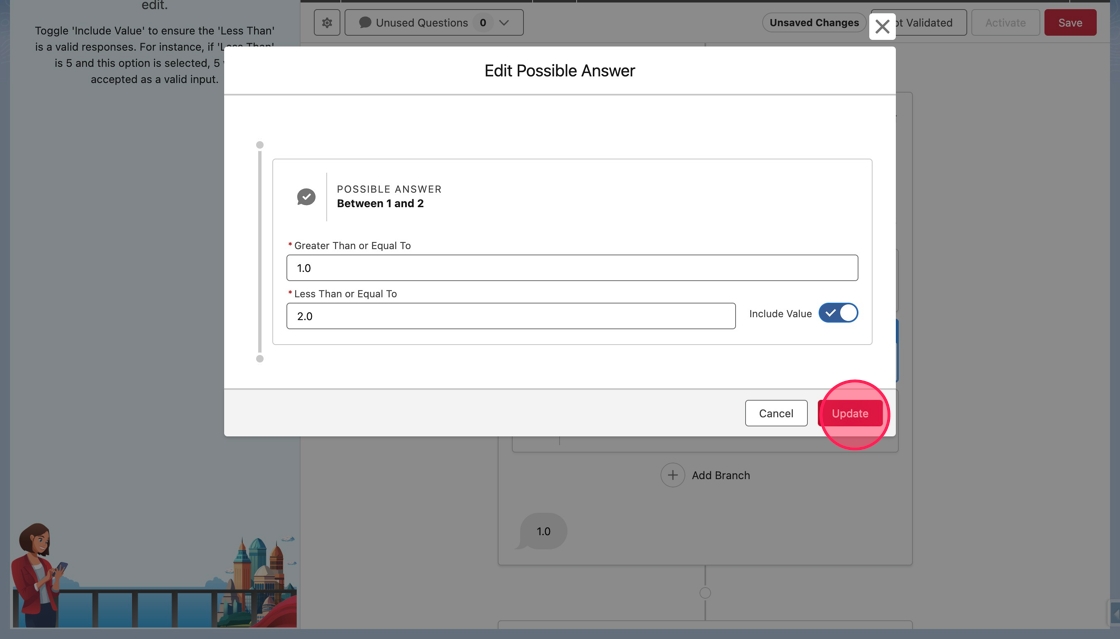
6. Back on the canvas, click Add Branch to add the new branch.
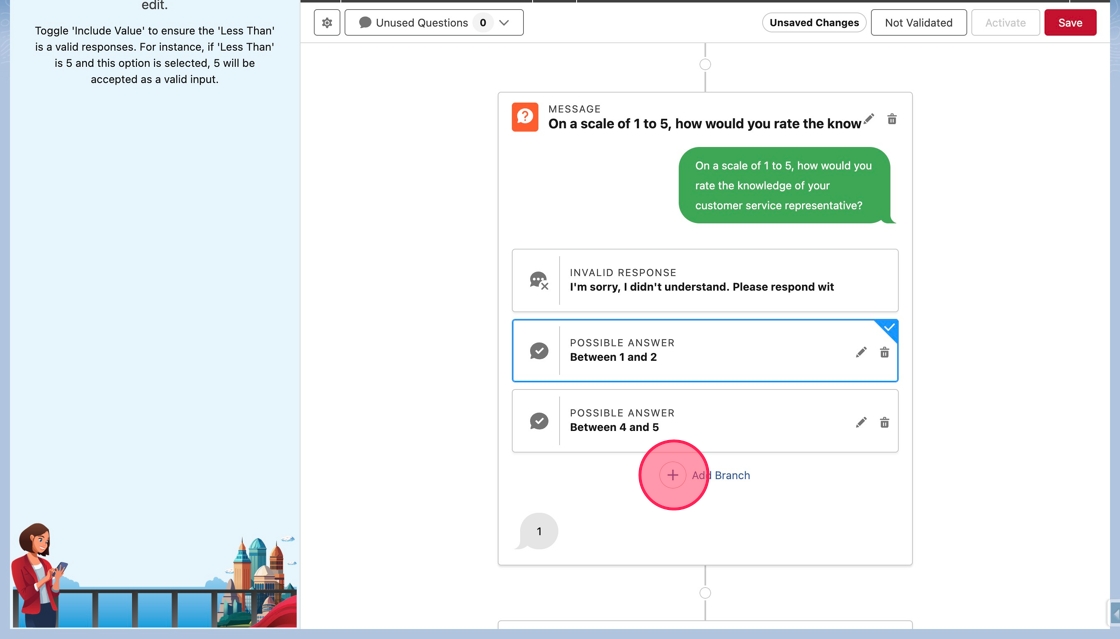
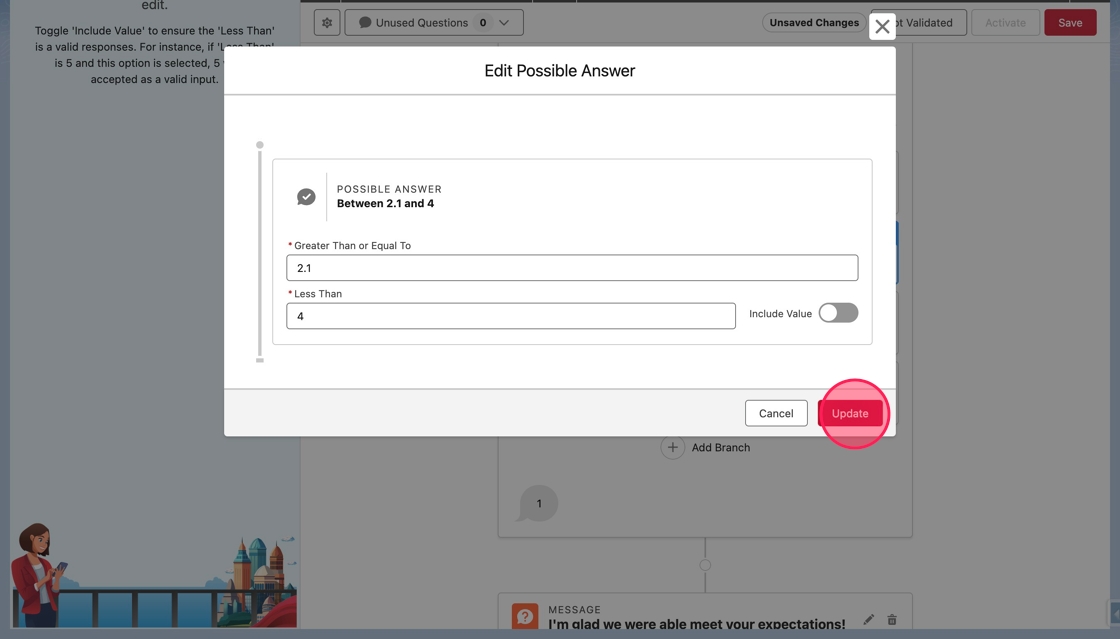
7. In the Greater Than or Equal To field, type 2.1. Because this branch should be for values greater than two, the value needs to be the first increment greater than two. Since this question accepts decimals, the first value is 2.1.
In Less Than or Equal To, type 4. This branch shouldn't include the values equal to 4, but it can be excluded by toggling off Include Value.
Click on Include Value to toggle it off.
Click Update to add the branch.
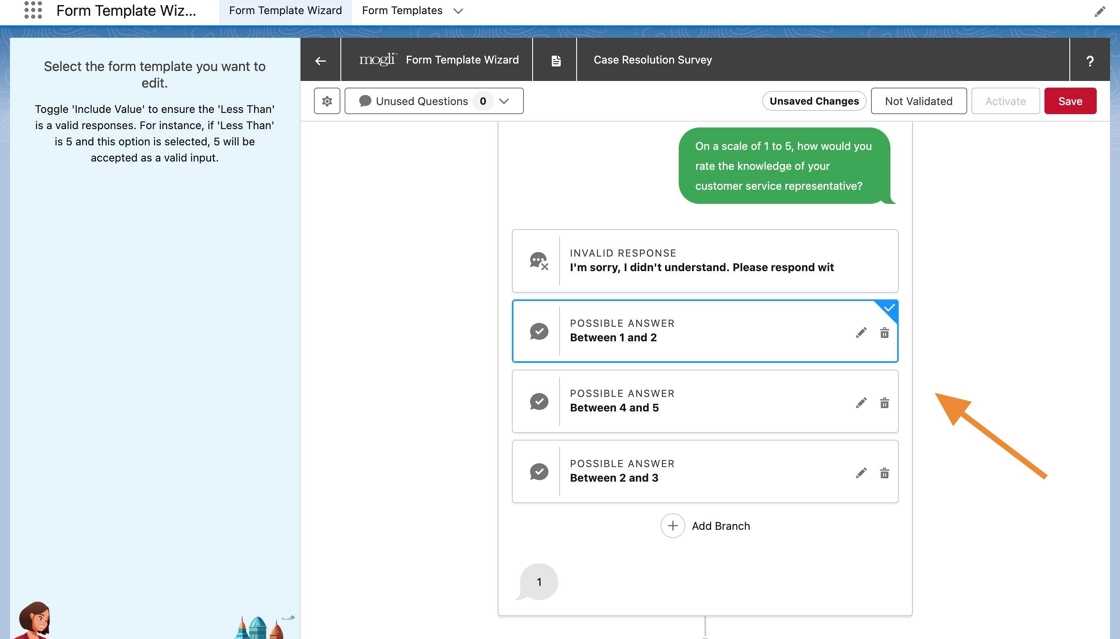
8. Upon returning to the canvas, the branch will be updated.
9. Click on the Invalid Response.
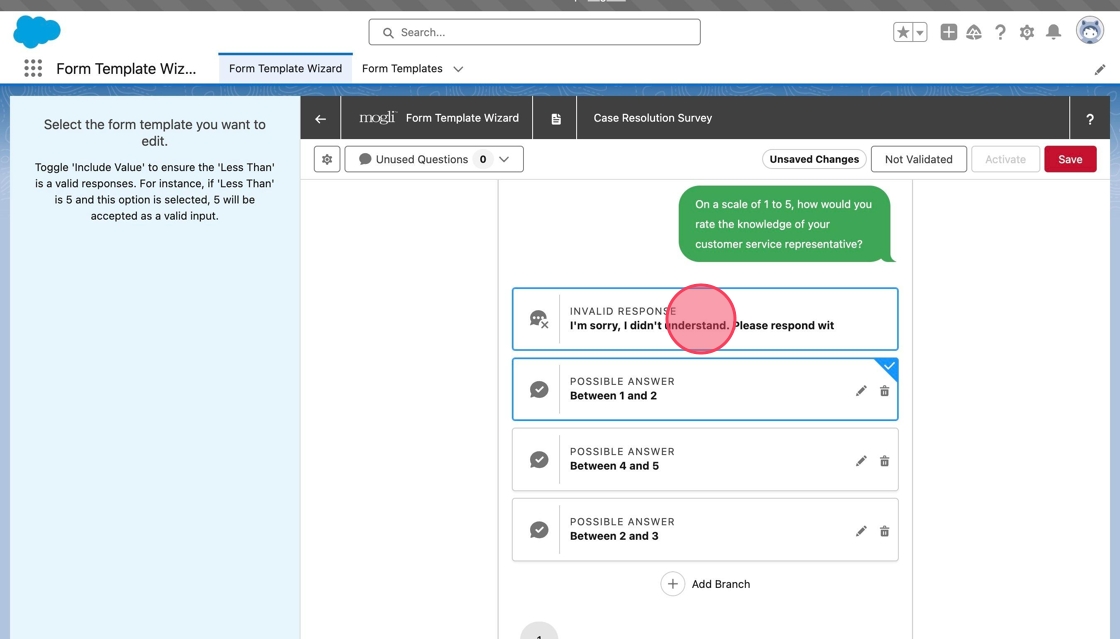
10. Notice the branches were also updated and added to the Invalid Response.
Add a numeric scale branching question
This guide provides clear, step-by-step instructions for creating a numeric scale branching question. It handles branching a form based on numeric responses on a scale and facilitates the inclusion of decimals, ensuring flexibility in data collection.
1. On the canvas, click the Add Question node where the new branching question should be inserted.
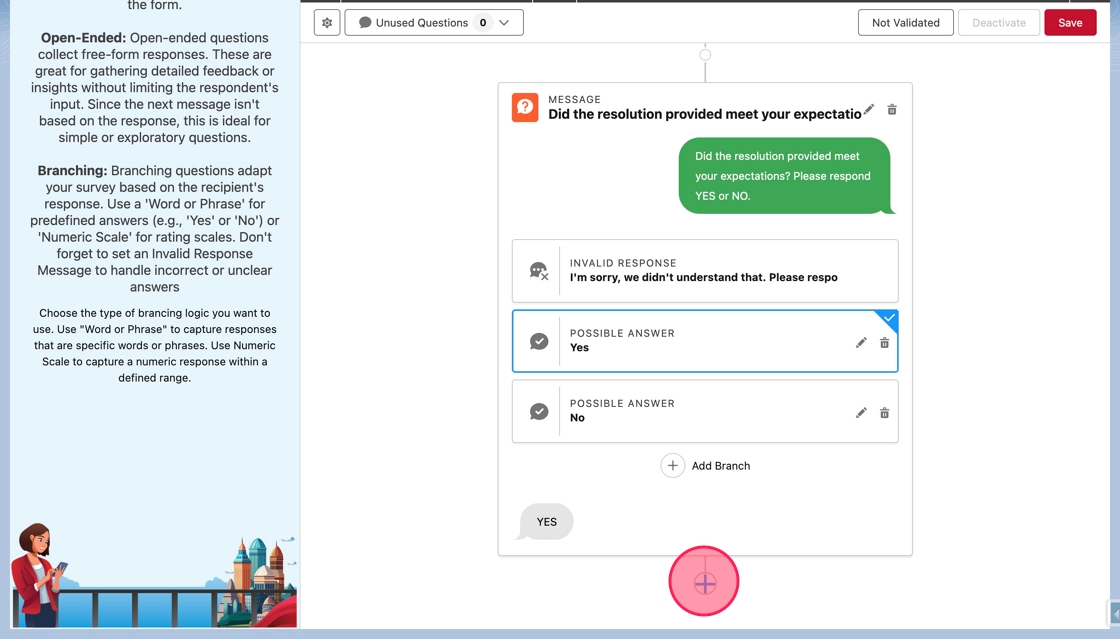
2. In the Add Question menu, select Branching.
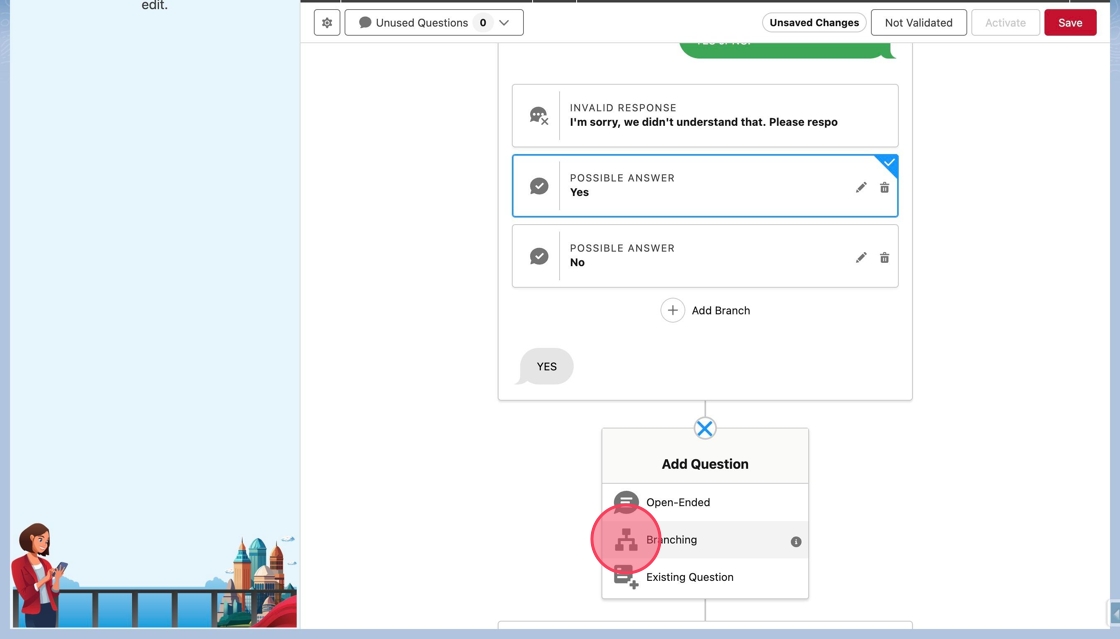
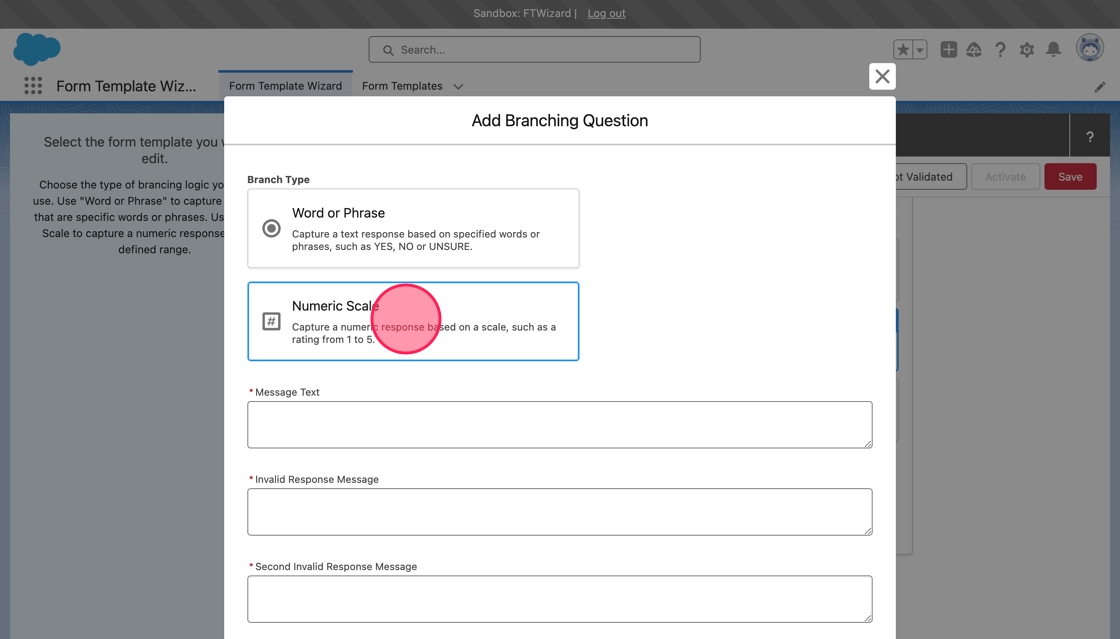
3. The Add Branching Question modal will appear.
In Branch Type, select Numeric Scale. This will create a new Possible Answer that anticipates a numeric response.
4. The Possible Answer block for the Numeric Scale Branch appears, buut above it is a toggle labeled Accept Decimals.
By toggling Accept Decimals on, the Possible Answer will generate an answer bank that accepts responses with a single decimal place, in addition to whole responses without a decimal.
Click on the Accept Decimals toggle to allow decimal responses.
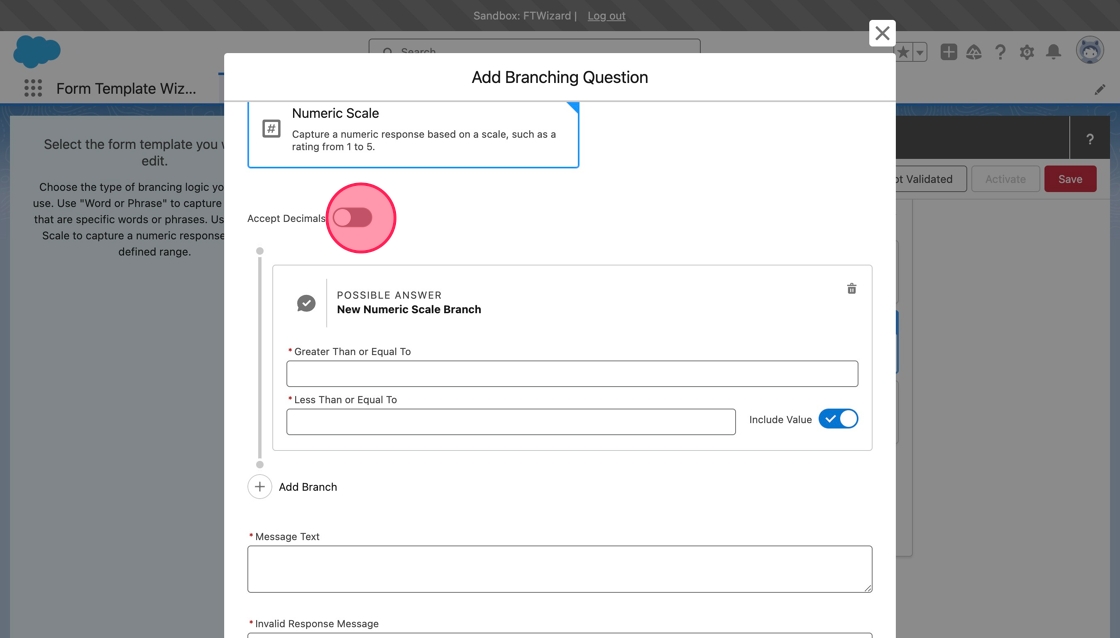
Tip: Currently, only a single decimal place is supported.
Alert: Numeric Branches that have too large of a scale will cause an error. This is because the Possible Answer Text field allows a limited number of characters. The wizard allows a maximum of 25 values in a single numeric scale branch.
5. This question will be based on a scale from 1 to 5. The question will branch into two groups. Responses of 4 and 5 will receive one response, and anything below 4 will receive a different response.
To start, click or tab into the Greater Than or Equal To field. Type 1 in the Greater Than or Equal To field.
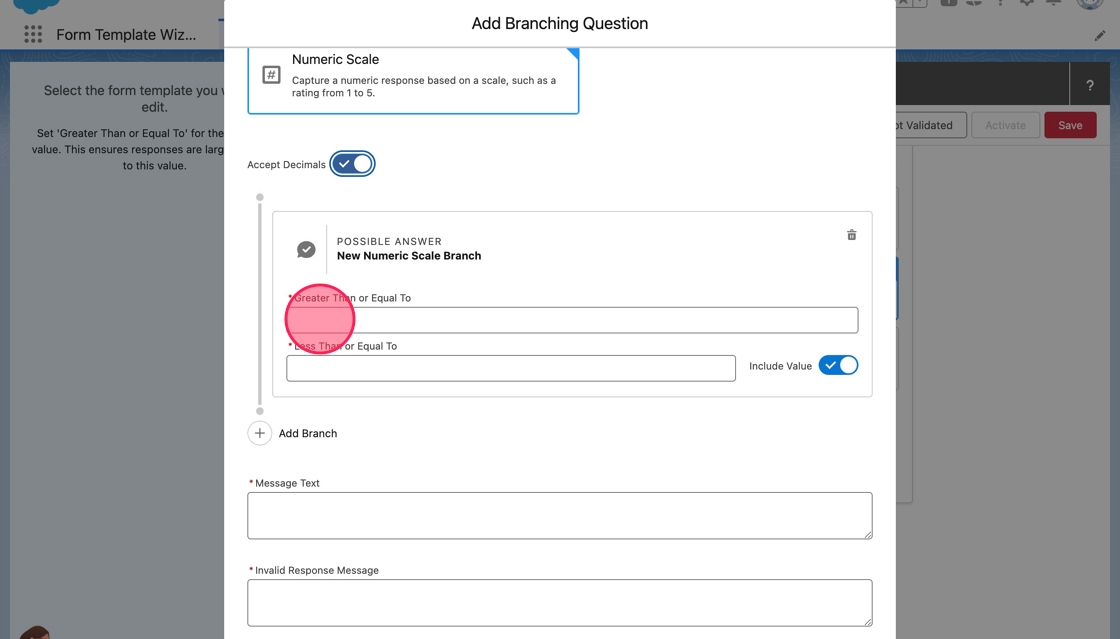
6. Click or tab into the field Less Than or Equal To. Type 4.
7. Because this branch should handle any responses below 4, the number 4 should not be included. To the right of the Less Than or Equal To field, there is a toggle labeled Include Value. When toggled on, the value in the Less Than or Equal To field is included in the branch.
Because this branch should only handle values less than 4, click on the Include Value toggle to toggle it off.
The label will change to Less Than, and now the branch will actually handle values 1 to 3.9.
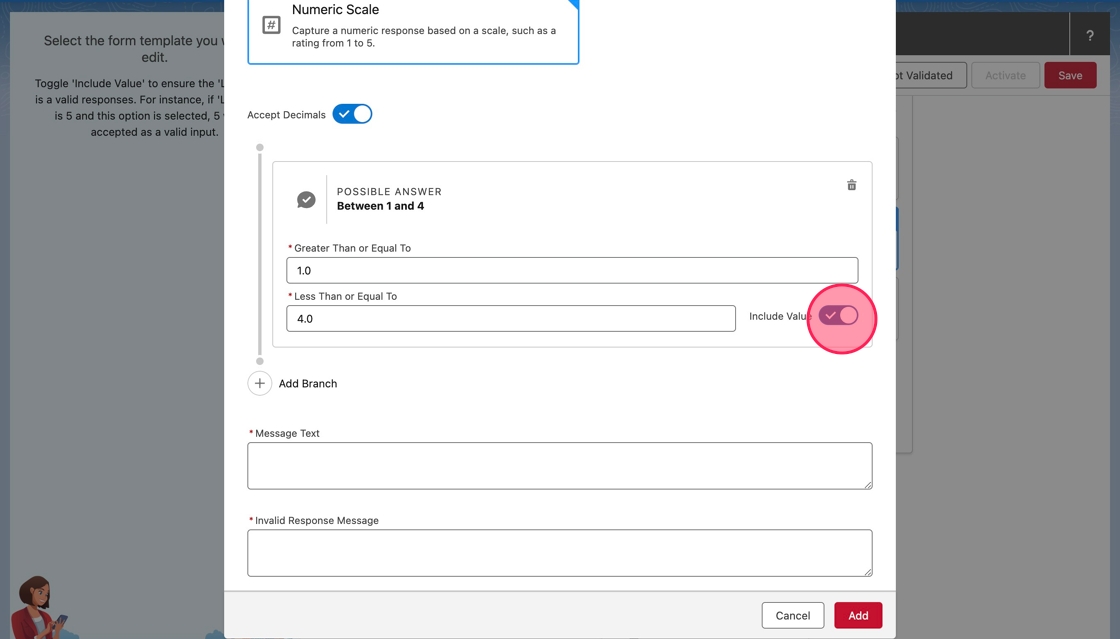
8. Now the second branch to handle values 4 and above is needed. Click Add Branch to add the second branch.
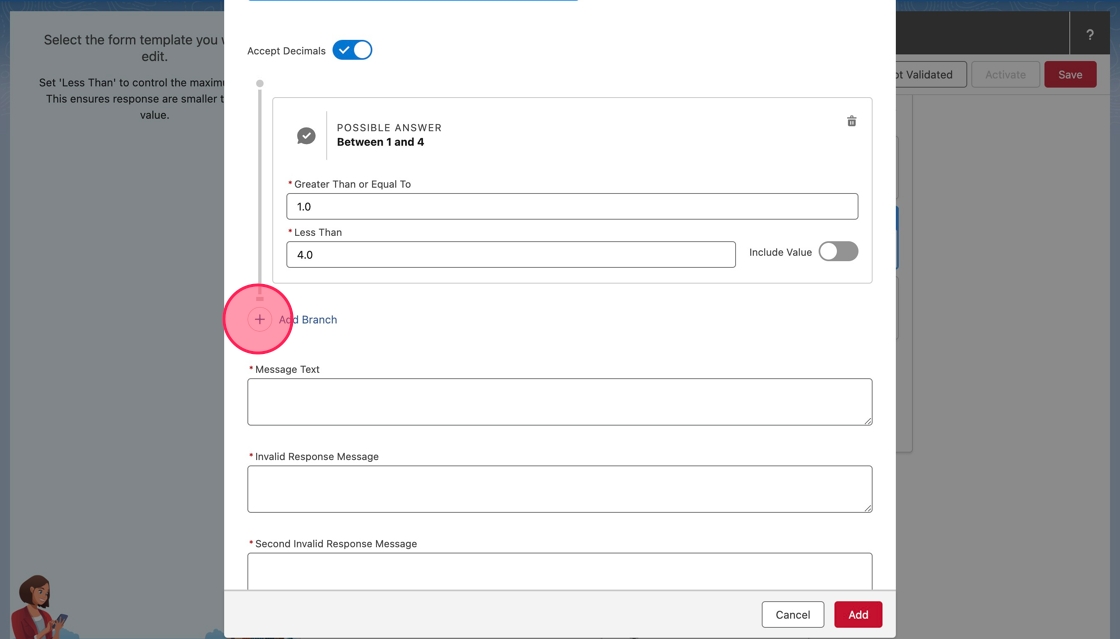
9. Click or tab into the Greater Than or Equal To of the second branch. Type 4.
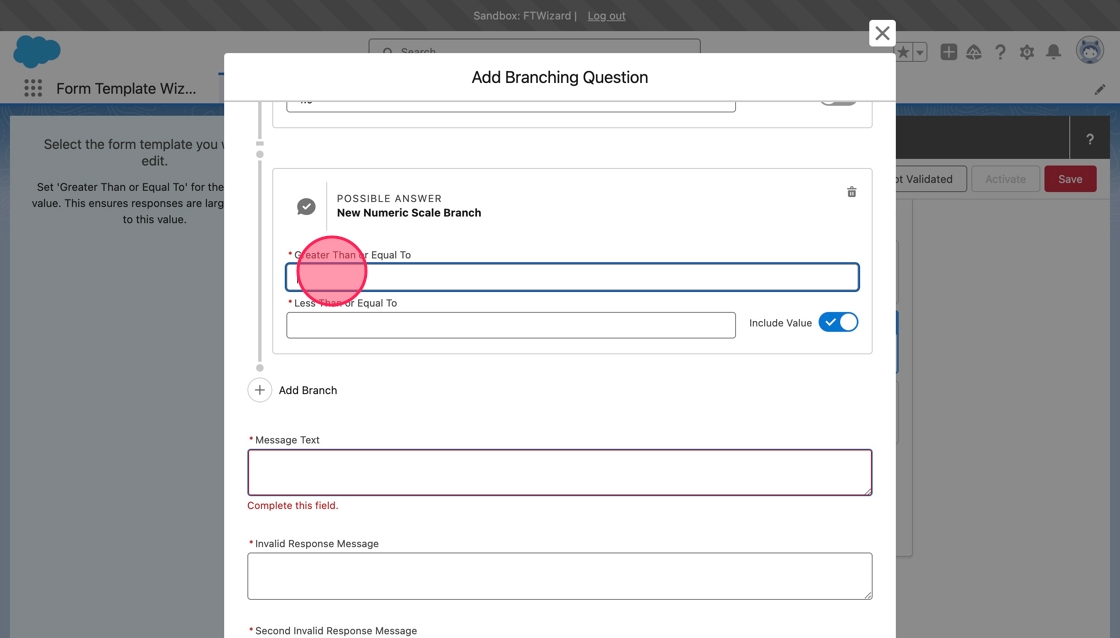
10. Click or tab into the Greater Than or Equal To of the second branch. Type 5. Because 5 should be accepted in this branch, leave Include Value toggled on.
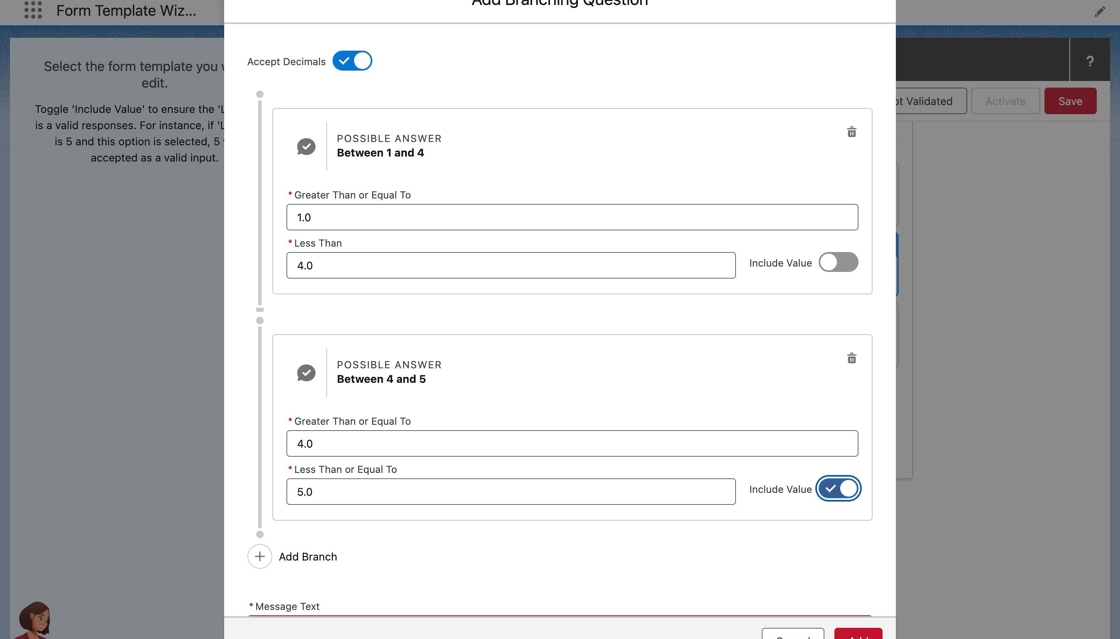
11. Click or tab into the Message Text field.
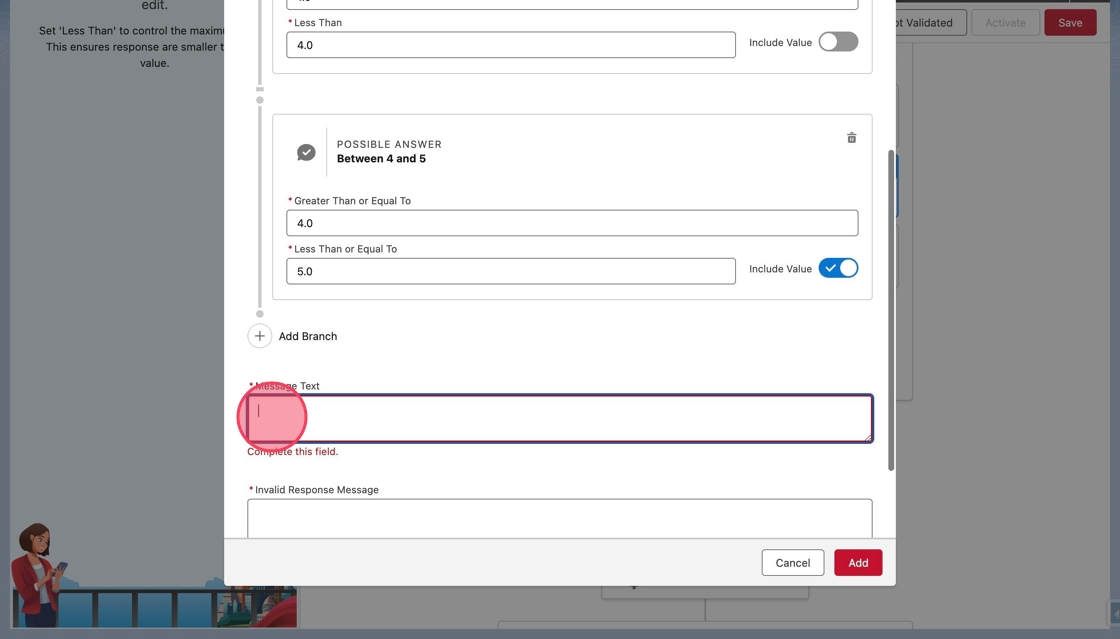
12. Type On a scale of 1 to 5, how would you rate the knowledge of your customer service representative?
13. Click or tab into the Invalid Response Message field.
The Invalid Response Message is what a respondent receives when they respond with something other than what is expected, such as 0, 3.25 or 6.
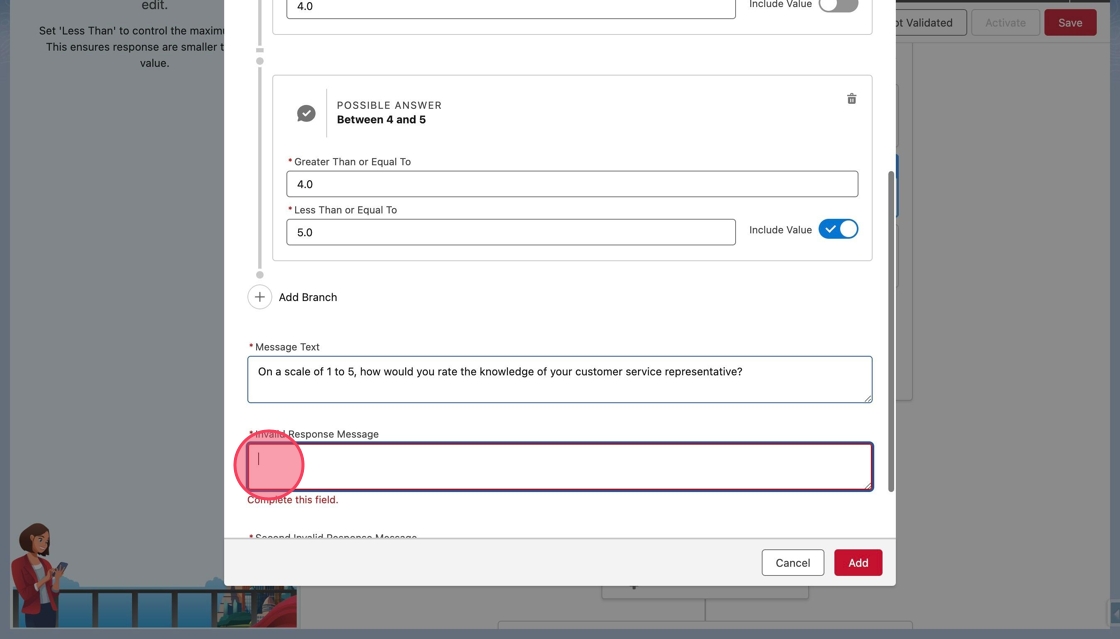
14. Type I'm sorry, I didn't understand. Please respond with a number from 1 to 5. in the field.
15. Click or tab into the Second Invalid Response Message field.
The Second Invalid Response Message is the message returned to a second invalid response.
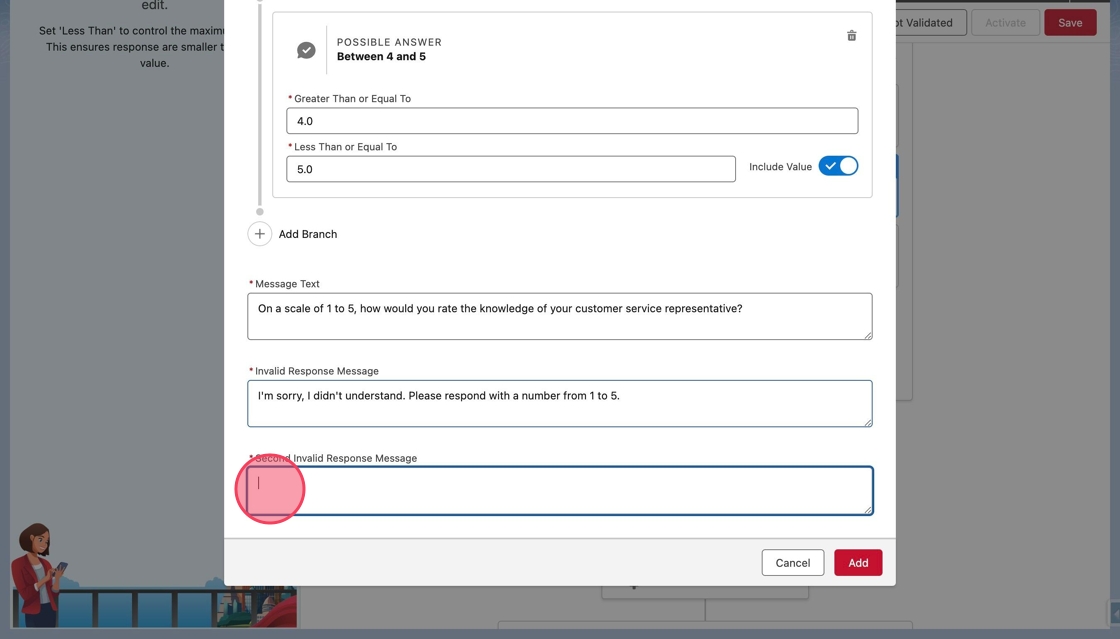
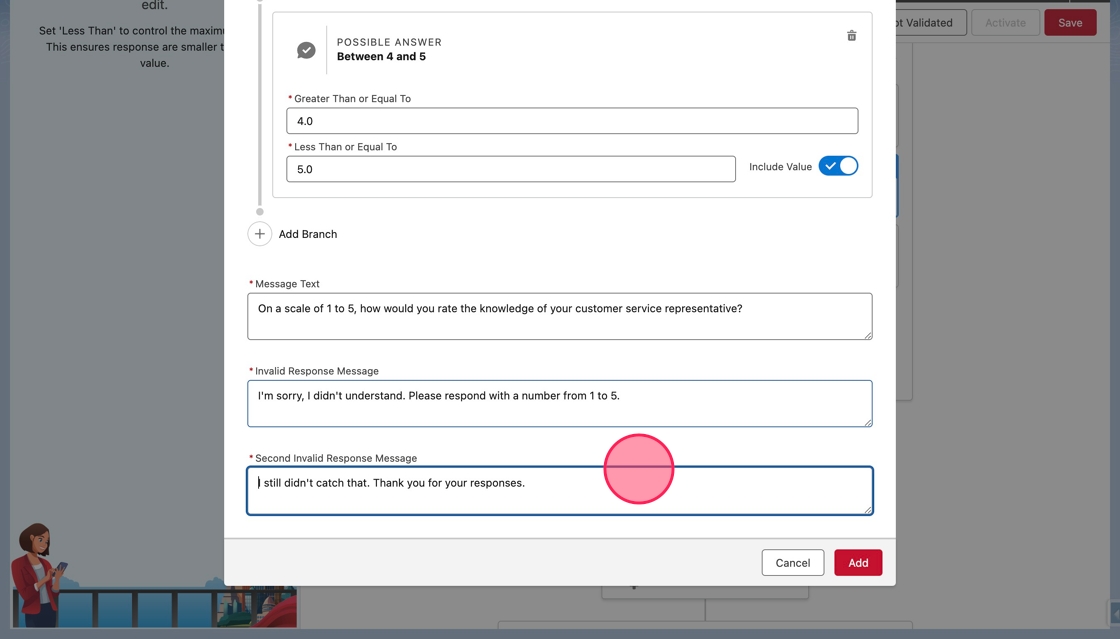
16. Type I still didn't catch that. Thank you for your responses. in the field.
17. Click the "*Second Invalid Response Message" field.
18. Click Add to add the branching question and two invalid response questions to the form.
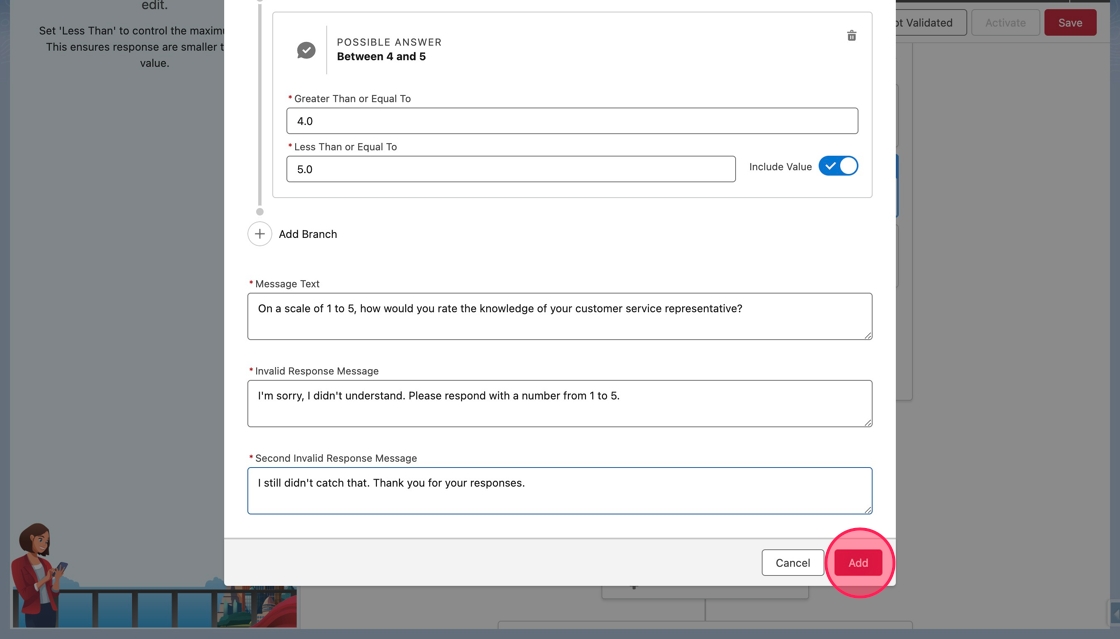
19. The Add Branching Question modal will close and the new branching question will appear on the canvas.
Below the message, the Invalid Response and branches (Possible Answers) will be listed. By default, the first Possible Answer will be selected.
The canvas will display the subsequent questions of the selected branch.