Send a Message with Flow
You can trigger a message to a recipient associated with any Mogli-configured object.
When certain criteria are met, let’s trigger a message to be sent to a Contact.
Sending Bulk Messages?
Check out our new Bulk Send Action in Flows for increased flexibility and control over large-scale Message campaigns.
Note: For use cases requiring the creation of multiple messages per event, we recommend scheduling a consultation with one of our Solutions Engineers.
- From Setup, search and select Flows. Click New.
- Choose your intended flow type and enter flow conditions as you see fit.
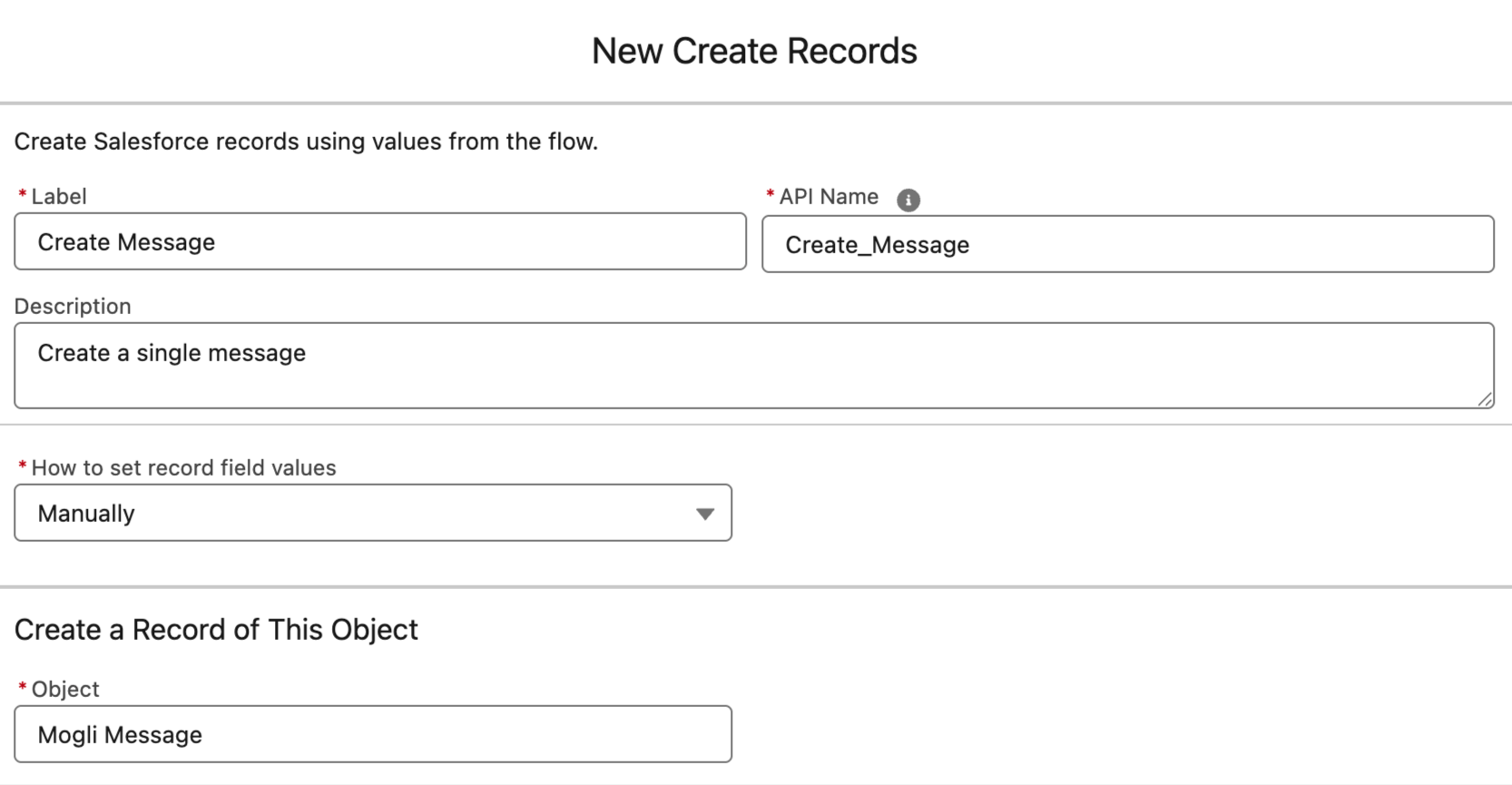
- In the Elements panel, drag a Create Records element onto the canvas. Label it, and then select ‘Manually’ for How to set record field values.
- Choose Mogli Message as your object. (Object name: Mogli_SMS__SMS__c)
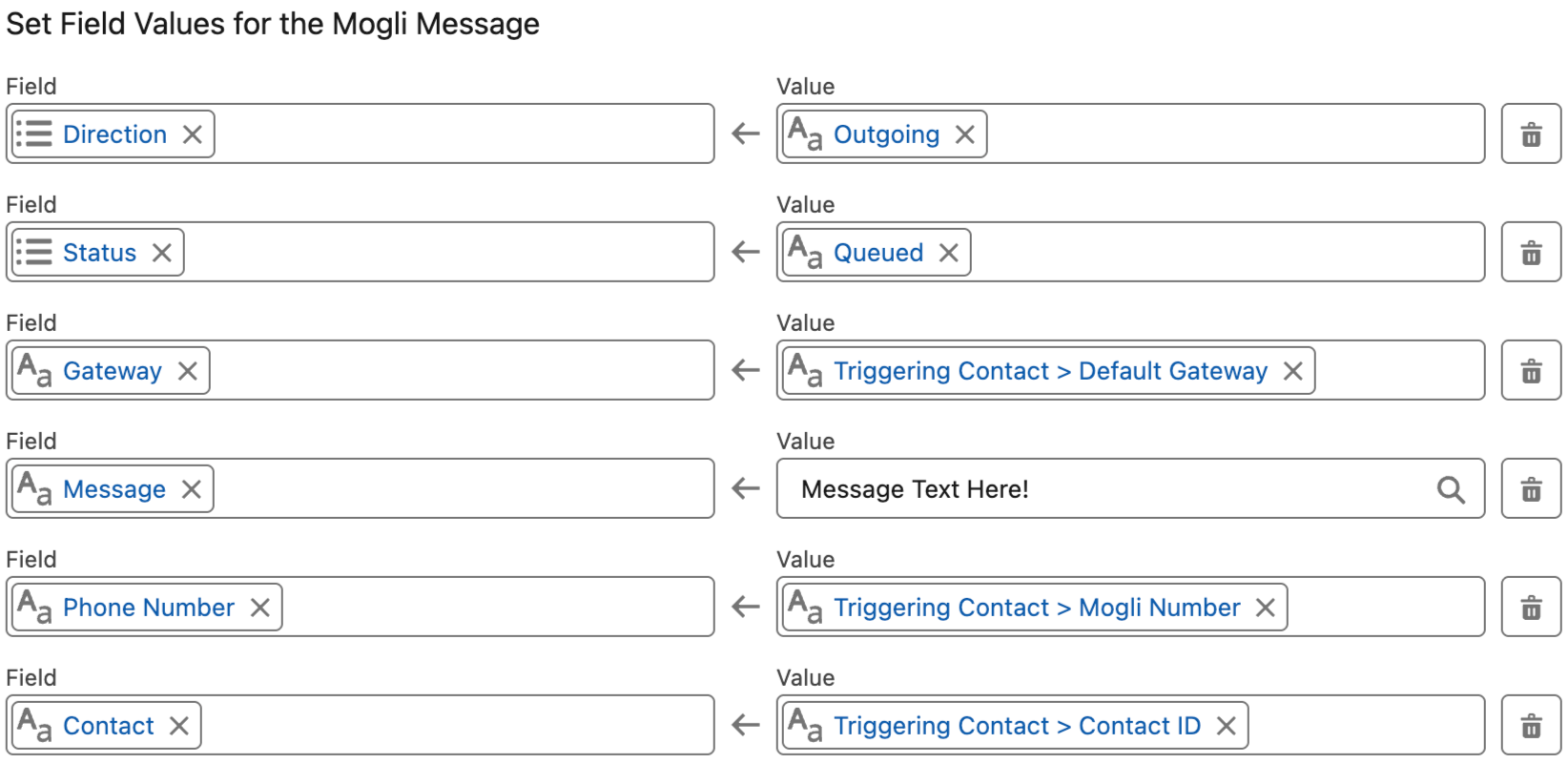
 5. Populate the Field Values as follows and click Save:
- Direction = Outgoing
- Status = Queued (this tells Mogli to send the message right away)
- Gateway = A Gateway ID, variable, or the related record’s Default Gateway.
- Message = A text string, a text formula variable, or the Text field from a Mogli Template (populate using a Get Element). If your Mogli Template includes merge fields, they must be found directly on the object related to your Mogli Message record. If not, use a formula instead.
- Phone Number = the Mogli Number of your recipient.
- Contact (or another Mogli-configured object) = the record ID of your recipient.
Additional Fields to Consider:
- Question Template ID = To initiate a form, populate this field with the ID of the first Question Template in your Mogli Form Template. This is required if the first question of your form includes merge fields.
- Mogli Template = Populate with the name of the Mogli Template you are using or with a friendly name to help keep track of which automation the message was sent from.
 6. When you are done configuring your flow, Save and Activate. Note: It’s highly recommended to include a good description for yourself and your colleagues.
7. Create a test Contact or other pertinent record (if you haven’t already), and be sure that your Mogli Number is correctly populated (+12223334444). Click Edit, set the appropriate criteria on your record, and Save. Check to see if you’ve received the text message.
Automated SMS Best Practices
When creating a Mogli Message record within an automated process, there are important considerations, such as how quickly you’d like the message to be sent and which fields will be required.
Message Consent
It is highly recommended that your flow logic exclude messaging individuals who have opted out. Depending on your configuration, you can handle this check within your Entry Criteria or use a Decision Element to verify opt in status before the message is sent.
Field Considerations
Direction
The Direction for sending automated messages will always be Outgoing.
Status
- Queued: The Status should be set to “Queued” if you’d like the message to be sent as soon as possible.
- Scheduled: When scheduling a message to send at a future Date/Time, populate the following fields:
- Is Batch Transaction = TRUE (checked)
- Scheduled Delivery = The Date/Time you want the message sent. The minimum value is +5 minutes from now [ NOW() +( 5/1440) ]. Due to Salesforce processing limitations, messages may not be received at the exact minute they’re scheduled for delivery. Also, consider the time the automation will take to successfully create and update the Mogli Message records.
- Batch Group ID = Set this field to a unique value each time the automation runs, but keep the value the same for each record created by the automation. For example, you can set this value to the date/time that the automation runs or something similar: “Auto-Remind-01-01-2022-1200-PM-MST” or TEXT(NOW())+"Flow Name". You'll need to create a Formula resource to store this value, then set the Batch Group ID field on the Mogli Message record to the value of the formula. Many individual API calls can cause processing errors and/or duplicate messages. Setting a Batch Group ID ensures the messages are part of a single batch and are sent using as few API calls as possible (~100 records each). Sample auto-generated Batch Group ID: b5841a0d-18fd-4d08-70a1-c254c331d68f.
Contact, Lead, Opportunity, and Other
As objects are configured for Mogli SMS, a lookup field is added to each Mogli Message record. This enables the Mogli Message record to be related to multiple objects and allows fields on the related object to be used as Merge Fields. Populate at least one related object lookup field when creating a Mogli Message record.
Message
Type in the message to send, or use a Get Records element in Flow to find a specific Mogli Template record. Use the Mogli Template’s Text field to populate your message.
When using merge fields within your message, the field must be found directly on the Mogli-Configured object. This means that the object the field exists on must be related directly to the Mogli Message record created via a lookup field.
See our Merge Fields guide for more information. Review the helpful Admin Tip in the Merge Fields For Additional Objects section.
ADMIN TIPS:
- Mogli can configure standard and custom objects such as Cases, Applications, and Appointments so that the information within them can be used in an SMS message.
Example: “Hi {{FirstName}}, your appointment is coming up on {{Appointment_Date__c}} at {{Appointment_Time__c}}. See you soon!” - Alternatively, create a formula field or flow to populate information directly onto the contact record related to the SMS.
- Customize the message within the automation using a if data cannot be merged into the message via a formula field or related record. Example: “Hi ” & {!$Record.Name} & “, how are you?”
- Mogli can configure standard and custom objects such as Cases, Applications, and Appointments so that the information within them can be used in an SMS message.
Phone Number
The Phone Number field must use the following API format: “+12223334444”. This field is most often populated using the Mogli Number field from the Mogli-configured object related to the new SMS record.
“+1” represents the Country Code and can consist of more than one digit. See Conversation Prep for more details about Mogli Number formatting.
Gateway
If this field is kept blank, the global Default Gateway will be used. This value is defined in the MogliSMS Lightning App in Mogli Settings.
Reference the Default Gateway field on the related object to use the most common outbound phone number used to contact the individual. This value is typically set by the record owner. If there is no value in the Default Gateway field, the message will be sent from the global Default Gateway as specified in Mogli Settings.
You may also populate this field by using a Get Records element in flow to capture the ID of a specific Gateway record.
Question Template ID
If you are initiating a Mogli Form via automated message, populate this field with the ID of the first Question Template in your Mogli Form Template. If you are not initiating a Mogli Form, leave this field null.
Mogli Template
Enter the Mogli Template name or a descriptive friendly name to help identify which automation sent the message. This is a text field that can be populated by entering the text directly or by referencing a field from a Get Records element.