New Features
💬 Modern Message Bubble Design The new outbound message bubbles feature a default blue background and a modern asymmetrical shape with one squared corner, while the Gateway display is now condensed to appear only on the most recent message in a series to declutter the thread.
📋 Enhanced Message Detail Message bubbles now integrate channel information and customizable headlines for system integrations directly within the bubble, while long gateway names are truncated for space and the media display is updated to allow users to easily view and modify all attachments.
🤝 Improved Conversation Flow & Status enhance navigation and transparency, scheduled messages now appear in italics until delivery, the date/time pill remains pinned at the top while scrolling, and contact avatars are precisely bottom-aligned, with the added functionality of clickable error symbols to reveal interactive debug details.
Improvements
Enhanced Scheduling Control: Independent Management of Mogli Background Apex Processes
Mogli Message Scheduling Guardrail: Ensuring Timely and Successful Message Delivery
Configuration Guardrail: Enforcing a Reliable Mogli API Setup
Current User Fields Available in Bulk SMS
Removed the 2,000 Recipient Attachment Limitation
Mapped Value Field on Possible Answer Record
Uploading URL Media
Inactive Gateway Enforcement for Bulk Messaging
Enhanced Scheduling Control: Independent Management of Mogli Background Apex Processes
Gain more control over your background processing. We’ve separated Mogli Cleanup Jobs into three individual utilities, allowing you to customize the frequency of message sending, record association, and segment retrieval independently. Click Migrate to enable these separate controls. Note: This will not disrupt your current scheduled setup.
Important Note: Moving forward, clients will need to schedule the Send Mogli Messages Job to send all bulk messages. Previously, this job was only required to send Scheduled messages. Additionally, because the Utilities are being broken up, the Mogli Cleanup Job will need to be aborted on installation.
Previously, most Mogli background tasks were grouped into a single Scheduled Apex Job. Now, you can optimize performance and resource allocation by decoupling these tasks. For example, shift high-load processes such as daily data cleanup to run in off-peak hours, while keeping high-priority jobs running more frequently throughout the day. This level of independent control ensures Mogli operates efficiently and minimizes impact on your org's performance.
How it works
Navigate to the Utilities section of the Mogli Settings to manage Mogli Scheduled Apex Jobs. If the Send Mogli Messages job is not enabled, users will see the following warning in the Bulk SMS Lightning tab as well as the above warning in the Mogli Settings. Users will be unable to create bulk messages without first scheduling the Send Mogli Messages Utility.

Mogli Message Scheduling Guardrail: Ensuring Timely and Successful Message Delivery
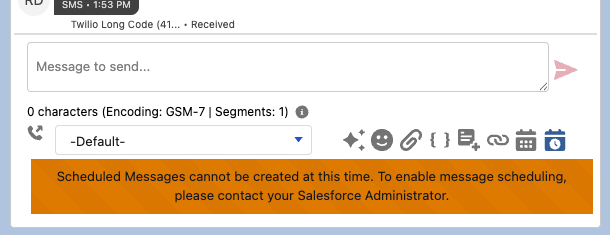
We've implemented a new guardrail to ensure that every scheduled/bulk Mogli Message is processed successfully and on time. This enhancement verifies that the necessary Mogli Utility is active in your Salesforce org before a message can be scheduled/created.
This change reduces delivery failures caused by an accidentally disabled or unscheduled background job. By enforcing this check at the point of message creation, we improve the administrator experience and guarantee a more dependable messaging service for all users.
How it works
The Block If the Send Mogli Messages Utility is not scheduled, the user cannot save or create a new scheduled or bulk Mogli Message records.
Flows and other custom processes will still be able to create messages in the Scheduled status
A similar message is displayed on the bulk messaging component
The Warning Users will see a clear and informative warning message displayed directly in the Conversation view and the Bulk SMS Lightning Component, guiding them to resolve the issue.
Configuration Guardrail: Enforcing a Reliable Mogli API Setup
We've introduced a new configuration guardrail on the Mogli Settings page to ensure a reliable and successful API connection. Certain features, such as Bulk Sends and the Connected App for Inbound Messages, are now dependent on the successful validation and authorization of your Mogli Messaging API Key.
This improvement enforces the correct setup sequence, ensuring that Mogli is ready to manage inbound and outbound messaging before the features are enabled.
This guardrail prevents Administrators from enabling these features prematurely, eliminating common setup errors that lead to message failures and troubleshooting time.
How it works
The system now requires the MessagingAPIKey field on the Application Settings record to be populated and successfully authorized/validated. Until this step is complete, the following fields will remain disabled and uneditable in the Mogli Settings:
Enable_Mogli_Messaging_API_for_Bulk_Sends__c
Enable_Connected_App_for_Incoming_Messages__c
Current User Fields Available in Bulk SMS
Current user merge fields are available via the merge fields selector in the Bulk SMS Lightning Component. Now, when composing bulk messages, you have access to the same current user merge fields that you rely on in the Mogli Conversation view. This ensures consistency across Mogli. You can quickly insert the sender's details directly into your bulk messages.
How it works
The Merge Field Selector in the Bulk SMS message composer component now includes the new Current User option alongside your standard object fields.
Removed the 2,000 Recipient Attachment Limitation
We have removed the previous limitation that restricted bulk sends with attachments to a maximum of 2,000 recipients. Mogli now supports bulk sends to over 2,000 recipients when including an attachment in your message. This addresses a major constraint for users who need to communicate via attachments with larger constituent lists. You are no longer forced to break large campaigns/reports into multiple smaller batches.
How it works
Load the recipient list into the Bulk SMS Lightning Component. When you attach a file or image, you will no longer be restricted by the 2,000 recipient limit.
Mapped Value Field on Possible Answer Record
A new field, Mapped Value, has been introduced on the Possible Answer record.
This field allows administrators to define a specific, standardized value that will be used to create or update a target Salesforce record field when a recipient provides the corresponding answer in a Mogli form.
Multiple user-provided answers (Possible Answers) can now be configured to map to the same standardized Mapped Value.
This feature improves data integrity, reduces manual effort, and streamlines automation by allowing you to:
Standardize Data: Automatically translate a wide range of user inputs (e.g., "yes," "yep," "sure") into a consistent field value (e.g., "Yes") in Salesforce.
Simplify Automation: Eliminate the need for Salesforce workflow rules, processes, or flows that previously had to parse user responses to determine the correct target field value.
Improve User Experience: Allows users to respond naturally while ensuring the resulting data is always structured.
Ensure Data Quality: Includes validation to gracefully fail and log errors when a Mapped Value's data type (e.g., text "Yes") is incompatible with the target Salesforce field's data type (e.g., a Number field).
How it works
1. Configuration
When editing a Possible Answer for any Question Template, the new Mapped Value field is now visible. Clients upgrading from a previous version will need to add the Mapped Value field to the page layout.
The administrator enters the standardized value (e.g., "Yes", "true") that should be populated in the target Salesforce field (defined in the parent Question Template).
2. Form Submission and Record Upsert
If the Mapped Value field on the Possible Answer record is populated, that Mapped Value is used to update the corresponding Salesforce record field.
Case Insensitivity: The user's response is matched to the Possible Answer text, but the value written to the record is exactly the text entered in the Mapped Value field, respecting its case.
3. Error Handling and Validation
Data Type Mismatch: Before upserting, Mogli performs a check. If the data type of the Mapped Value does not align with the target Salesforce field (e.g., attempting to map the text "Yes" to a Boolean field), the upsert is prevented.
The form submission will fail gracefully.
The Debug field on the resulting Mogli Forms record will be populated with an error message indicating the data type mismatch.
The form will continue if there are more Question templates
Required Fields: If a Mapped Value is required for a target Salesforce field and the configuration leaves the Mapped Value blank for an answer, the record creation/update will fail with an error indicating the required field is missing (and this failure will also be logged in the Debug field).
Null/Empty Mapping: If a Mapped Value is intentionally left blank on the Possible Answer record, the target Salesforce field will be updated using the text in the Possible Answer
Uploading URL Media
The system now accepts a user-provided external URL in the Mogli Template record and within the UI components for Mogli Conversation and Bulk SMS Lightning.
This feature addresses a need to easily attach files, especially those that change frequently (like contact cards), to enhance message deliverability.
Improved User Experience & Efficiency: This feature streamlines the process of attaching files. It removes the need to upload a file to Salesforce/Mogli whenever the source file changes. Users can simply paste a URL from a public hosting service
Dynamic Content Delivery: Users can now send dynamic content, such as a vCard (.vcf) containing up-to-date contact information or a weekly updated PDF brochure. If the file is updated at the source URL, users do not need to update their Mogli Template.
How it works
The user provides a publicly accessible URL in one of three locations: the Mogli Template record, the Mogli Conversation View (1:1), or the Bulk SMS Lightning Component.
Attaching URL to a Mogli Template:
Navigate to the Mogli Template Record
Go to the Mogli Templates object.
Click on the specific template record you want to modify.
Edit the Template
Click the Edit button on the Mogli Template record page.
Look for the field labeled URL Attachment
If you are upgrading from a previous version of Mogli, the field will need to be added to the page layout
Paste the file's direct, public URL into the URL Attachment field.
The URL does not need to be included in the message text
Inactive Gateway Enforcement for Bulk Messaging
We've implemented a new enforcement check to ensure that bulk messages respect your Gateway status. Previously, bulk messages sent via the Default Gateway could bypass the "Inactive" status check when the Mogli Messaging API (MMAPI) was enabled, allowing outbound messages to process despite the Gateway being deactivated.
This update aligns MMAPI validation logic with individual Gateway record statuses. By enforcing this check across all messaging types, we eliminate inconsistencies and ensure that your messaging traffic only flows through authorized, active channels.
How it works
The Block If the designated Global Default Gateway is marked as Inactive, bulk messages will now error and fail to send, matching the existing behavior of 1:1 messaging.
The Validation Mogli now performs a real-time status verification on the Global Default Gateway before any bulk send is initiated.
Proactive Prevention The system will now prevent users from populating the Default Gateway field with a Gateway record that is currently inactive, stopping configuration errors at the source.Configuration
Bug Fixes
Fixed an issue where the Attachment Checkbox on Mogli Message records was not being marked as true when sending bulk messages with an attachment.
Fixed an issue where the arrow next to a Mogli Folder with a long name within the Conversation View did not appear in the correct place.
Fixed an issue where a missing Apex class in Mogli Permission sets caused Mogli Settings to load improperly.
Fixed an issue where the Hold_Status__c field in Application settings was causing the Form Template process to break.
Fixed an issue where the segment limit feature would not work for messages being created with 9+ segments.
Fixed an issue where the SMSProcessorBatch would loop endlessly.
Fixed an issue where Mogli Opt In was still referenced in the package, causing issues when a client attempted to create a field with Mogli Opt In as the label.
Fixed an issue where Junction Object notifications were not working properly.
Fixed an issue where users could not schedule multiple Mogli Forms to be delivered at the same time to the same recipient.
Fixed an issue where Latest SMS Info records were not being updated for bulk message sends.
Fixed an issue where the cursor in Firefox is not behaving correctly when typing message content.
Fixed an issue where notifications pagination stopped working until the browser was refreshed.
Fixed an issue where the Merge Field Selector was not opening when typing ‘{{‘ in the text area of the bulk messaging component.
Fixed an issue where users would see a component error in the Mogli Inbox if LWS is disabled.
Fixed an issue where the Limited Access users could not access Mogli AI even with the Mogli AI permission set.
Fixed an issue where a component error would display when attempting to edit the frequency of the Mogli SMS User Acknowledge Clean-up job.
Fixed an issue where outgoing messages created via a flow were not appearing in the conversation view in real-time.
Fixed an issue where the Form Template Migration process in the post-install script was throwing an Apex Exception email during installation.
Fixed an issue where only the last Latest SMS Info record was being updated in the bulk send.
Fixed an issue where Mogli AI actions would fail when using a Person Account record.
Fixed an issue where Contact merge fields were not working when sending from a Person Account.
Humboldt Peak Upgrade Guide
To ensure a smooth and successful upgrade to the Humboldt Peak release, please follow these steps before and after installing the new version.
Before You Upgrade
1. Clean Up Old Messages and Tasks
We have completely overhauled the background processing engine ("Enhanced Scheduling Control"). Clearing legacy tasks prevents old data from conflicting with the new decoupled batch jobs and ensures the new system starts with a clean slate.
Action:
Move Messages: Identify any previous messages stuck in temporary statuses (e.g., Sending API, Queued, or Ready to Send) and update their status to Error.
Clear Async Tasks: Once messages are cleaned, navigate to Async Tasks in the App Launcher and Delete any tasks currently sitting in the queue.
2. Custom Objects Setup (Mogli Integrated Objects)
This step is only required if you have Mogli configured on a custom object that contains a Master-Detail relationship. If you are unsure if one of your custom objects contains a Master-Detail relationship, please reach out to help@mogli.com.
This structural change is required to support the "Enhanced Message Detail" and "Modern Message Bubble Design" for your custom objects, ensuring they render correctly in the new conversation view.
Action:
Navigate to Setup > Custom Metadata Types.
Locate the Mogli Integrated Object section.
Add a Master/Detail relationship field to this object.
Populate the API Name of your custom object into this new Master/Detail field.
After You Upgrade
1. Configure the New "Mogli Display" Field
This field powers the new "Modern Message Bubble Design." If this field is left empty for custom objects, the Bulk SMS list view will fail to load, and message bubbles will not display header information correctly.
Action:
Navigate to Setup > Custom Metadata Types > Mogli Integrated Object.
Scroll to Page Layouts and click Edit.
Add the new Mogli Display field to the layout and remove the deprecated display field.
Populate this field for all your Mogli Integrated Custom Object records.
2. Update Page Layouts for New Features
Mapped Value: Allows you to standardize fuzzy user data (e.g., mapping "yep" to "True") to improve automation reliability.
URL Attachment: Enables "Dynamic Content Delivery." You can now link to external files (like a hosted PDF or vCard) that update automatically, without needing to re-upload files to Salesforce every time the content changes.
Action (Forms):
Navigate to Setup > Object Manager > Possible Answer.
Click on Page Layouts, select your active layout, and drag the new Mapped Value field onto the layout.
Action (Templates):
Navigate to Setup > Object Manager > Mogli Template.
Click on Page Layouts, select your active layout, and drag the new URL Attachment field onto the layout.
3. Reset Bulk Jobs (Optional)
This optional step separates the "Mogli Cleanup Jobs" from the "Send" jobs. Clicking Migrate activates this "Independent Management", allowing you to schedule heavy cleanup tasks during off-peak hours while keeping high-priority sending jobs running frequently.
Action:
Click on the Mogli Settings tab.
Scroll down to the Utilities section.
Click the Migrate button.
(1).png)
4. Enable Merge Field Preview
The new "Live Merge Field Preview" and updated Mogli Inbox rely on modern Lightning Web Components security standards. Enabling LWS prevents component errors and ensures you can see live data previews while typing.
Action:
Navigate to Salesforce Setup > Session Settings.
Ensure the Lightning Web Security (LWS) setting is Enabled.