Overview of Grays Peak
New Features
Mogli AI Conversation Summary empowers users to quickly generate a summary of lengthy SMS conversations.
Mogli AI Message Recommendation is designed to anticipate your needs, this feature helps you craft timely and effective replies.
Select Emoji allows users to quickly and easily add a wide variety of emojis to their messages, enriching communication and making interactions more expressive.
Any Merge Field allows users to easily insert any merge field from the current record (e.g., Contact, Lead) or its parent records directly into your 1:1 messages from the Mogli Conversation View and Bulk SMS Lightning Tab.
Improvements
Improvements in Grays Peak focus heavily on clarity, reliability, and performance for administrators and users.
🏅 View Mogli Template on Mogli Message Records
🩺 Automated Connected App Health Check
⏰ Real-time Mogli Settings Changes
🔴 Managing Notifications+ in Mogli Settings
📣 Bulk SMS Lightning: Gateway Not Assigned Notification
🐞 Full Debug Information for 1:1 Mogli Messages
🌀 Preventing Past Mogli Message Scheduling
📋 Related Lists: New Naming Conventions Applied
📎 Send Multiple Mogli Forms Simultaneously
📈 Optimize Mogli Inbox Queries to Improve Performance
☝️ Add Display Sequence for User’s Assigned Gateway Mode
✅ Connected App Enablement Confirmation
Resolved Issues & Bugs
Overall, the resolved issues & bugs in Grays Peak focus on eliminating user-facing bugs and ensuring data integrity and stability for core Mogli functionalities.
General Enhancements & User Experience
Messaging & Templates
Forms & Scheduling
Performance & Integration
Notifications
more on our resolved issues & bugs
✨ New Features
Interested in Mogli AI?
Check out Mogli AI, connect with your Account Manager, or reach out to help@mogli.com
📝Mogli AI Conversation Summary
Mogli AI Conversation Summary empowers users to quickly generate a summary of lengthy SMS conversations. Mogli AI Conversation Summary aims to significantly enhance your productivity by providing instant insights. Mogli AI is a transformative addition designed to dramatically improve how you manage and respond to SMS conversations
This release introduces an AI functionality designed to make your messaging more efficient and insightful.
Dedicated Mogli AI Conversation Summary Button A new, easily identifiable "Conversation Summary" button is now available within the Mogli Conversation View, providing a direct access point to these new capabilities.
Conversation Summary Engine
Quick Insights Generate concise, AI-powered summaries of your SMS conversations.
Configurable Scope Easily define the time frame (start date, end date) and maximum number of messages to be included in the summary, with smart defaults for recent activity.
Editable & Savable The generated summaries are fully editable, allowing you to refine the AI's output, and can be saved for future reference directly from the component.
🏃♀️ | 🧠 | 🔁 | ✅ |
|---|---|---|---|
Boosted Efficiency | Actionable Intelligence | Enhanced Follow-Up & Consistency | Streamlined Decision Making |
More on Mogli AI & Conversation Summary
💬 Mogli AI Message Recommendation
We are excited to introduce the Mogli AI Message Recommendations feature, integrated into your Mogli Conversation View. This leverages artificial intelligence to analyze your ongoing conversations and provide instant, contextually relevant suggestions for your next message. Designed to anticipate your needs, this feature helps you craft timely and effective replies.
This release introduces an AI-powered feature to streamline your messaging workflow:
Intelligent Response Suggestions A new "Message Recommendations" option (accessible via the Mogli AI button) now provides AI-generated suggestions for your next reply, tailored to the context of the conversation.
Effortless Insertion With only a few clicks, the recommended message can be instantly inserted into your message input field, ready for review or immediate sending.
Fully Customizable Output All AI-generated recommendations are completely editable, allowing you to refine, personalize, or adjust the message to perfectly fit your communication style and specific needs.
⏱️ | 🏅 | 🔁 | 🌀 |
|---|---|---|---|
Accelerated Response Times | Enhanced Message Quality | Improved Consistency | Reduced Cognitive Load |
More on Mogli AI & Message Recommendation
😊 Select Emoji
We're excited to introduce a new, readily accessible Emoji Selector within both the Mogli Conversation View and Bulk SMS Lightning component. This enhancement allows users to quickly and easily add a wide variety of emojis to their messages, enriching communication and making interactions more expressive.
In Mogli Conversation View
Navigate to the Mogli Conversation View for any contact.
Locate the message input field at the bottom of the conversation.
Click on the smiley face icon (emoji selector trigger) next to the message input field.
A pop-up window displaying emojis will appear.
You can:
Browse through the categories (e.g., "Smileys & Emotion," "Animals & Nature").
Use the search bar at the top to find specific emojis by keyword (e.g., type "thumb" for 👍).
Click on the desired emoji to insert it into your message.
The emoji selector will automatically close.
Continue typing your message or send it.
In Bulk SMS Lightning Component
Open the Bulk SMS Lightning Component.
Locate the message input field for your bulk message.
Click on the smiley face icon (emoji selector trigger) next to the message input field.
A pop-up window displaying emojis will appear.
You can:
Browse through the categories.
Use the search bar to find specific emojis by keyword.
Click on the desired emoji to insert it into your message.
The emoji selector will automatically close.
Continue typing your message or send your bulk SMS.
🖇️ Any Merge Field
We're excited to announce a significant enhancement to message personalization in Mogli! You can now easily insert any merge field from the current record (e.g., Contact, Lead) or its parent records directly into your 1:1 messages from the Mogli Conversation View and Bulk SMS Lightning Tab. This feature enables flexibility in personalizing messages with relevant and dynamic content.
This enhancement empowers users to create personalized and contextually rich messages with minimal effort.
Intuitive Merge Field Selector
Dedicated Button A prominent "Merge Field" button has been added to both the Mogli Conversation View and Bulk SMS Lightning Component message input areas.
Consistent UI/Animations The button's appearance and animations are consistent with other interactive elements in the Conversation View, ensuring a familiar and smooth user experience.
Intelligent Pop-up Simply typing {{ in the message text field will automatically trigger the merge field selector pop-up, offering a quick shortcut to personalization.
Contextual and Accessible Merge Field List
User-Specific Access The merge field list intelligently displays only the fields that the user has at least read access to, ensuring data security and preventing selection of unauthorized fields.
Recipient Focus by Default When the merge field selector opens, it defaults to displaying fields from the Recipient object (e.g., Contact, Lead), making the most common merge fields immediately accessible.
Navigation to Parent Records Easily navigate to parent objects (e.g., Account from Contact, or Opportunity from Contact via Account) to access related merge fields. Lookup and Master-Detail fields are indicated with a > symbol (e.g., Contact > Account).
Quick Search Functionality A search bar within the merge field list allows you to filter and find the exact merge field you need.
Smart Merge Field Insertion and Display
Automatic Value Conversion When a merge field is selected, it is automatically converted to its actual field value and displayed in the message text field in bold and blue for clear identification. This provides a preview of the personalized message.
Dynamic Text Conversion If a character is removed from the bold and blue merge field value (indicating an edit), the text automatically reverts to regular, unformatted text, allowing you to modify or remove the inserted value freely.
Inserting Merge Fields from the Conversation View or Bulk SMS Lightning Tab
There are two ways to open the merge field selector:
Option 1: Using the Merge Field Button
Navigate to the Mogli Conversation View for a specific record or open the Bulk SMS Lightning Component.
Locate the message input field.
Click the "Merge Field" button (often represented by an icon like { } or a merge field symbol) located near the message input field.
Observation: The button will highlight blue, and the merge field selector pop-up will appear.
Option 2: Typing {{ in the Message Field
Navigate to the Mogli Conversation View for a specific record or open the Bulk SMS Lightning Component.
In the message input field, type {{ (two curly braces).
Observation: The {{ will turn blue, and the merge field selector pop-up will immediately appear.
Once the Merge Field Selector is Open:
Select the Object:
By default, the Recipient object (e.g., Contact, Lead) will be selected, and its fields will be displayed. The breadcrumb footer will show the object name (e.g., Contact).
To access fields from the current user, click on the dropdown in the top left-hand menu and select User. The breadcrumb footer will update accordingly.
To navigate to a parent record (e.g., Account from Contact), look for fields with a > symbol (e.g., Account >). Click on these fields to display the fields of the linked object.
Observation: The breadcrumb footer will update to reflect the new object (e.g., Contact > Account). You can click on previous objects in the breadcrumb to go back.
Find the Merge Field:
Scroll through the list of available merge fields.
Use the search bar at the top of the merge field list to quickly filter results (e.g., type "first" to find First Name).
Insert the Merge Field:
Click on the desired merge field from the list.
Observation: The merge field selector will close, and the selected merge field's value will be inserted into your message text field, appearing bold and blue.
Editing Inserted Merge Fields
If you need to edit or remove an inserted merge field, simply click into the bold and blue text in the message field. As soon as you remove a character from the value, the text will revert to regular, unformatted text, allowing you to modify it as needed.
🏅 Improvements
👓 View Mogli Template on Mogli Message Records
Benefits
Improved Clarity and Context: The user can instantly see which template was used for a specific SMS record without having to dig through separate records or remember details. This makes understanding the purpose and content of each SMS much easier.
Easier Data Analysis: By having the template directly linked, the user can quickly identify trends. They can answer questions like:
"Which templates are we using the most?"
"Which templates are generating the most replies?"
"Are certain templates more effective for specific campaigns or customer segments?"
Enhanced Reporting Capabilities: The core benefit is the ability to report on template usage and performance easily. This leads to more insightful reports about campaign effectiveness.
Reduced Manual Effort: No more manual cross-referencing between SMS records and templates to gather information for reports.
Better Decision Making: With clear data on template performance, users can make informed decisions about which templates to refine, retire, or create, optimizing their SMS communication strategy.
How it Works
A new field, Mogli_SMS__Mogli_Template__c, will store the name of the related Mogli Template as a string.
Configuration
Clients installing for the first time will not need to take any action. Clients upgrading will need to add the field to the SMS Page Layout.
Important Considerations
This field is populated with the Template's name as a string, not the Mogli Template ID.
Human-readable: Immediately understandable to users viewing the SMS record.
Lack of Referential Integrity: If the template name changes, the historical SMS records will still show the old name. This breaks the link and makes historical reporting inaccurate.
Also, if users are sending automated messages they must ensure the Mogli Template name is entered within the automation in order to ensure they are populated.
Reporting Limitations: While you can report on the name, you can't easily jump to the actual template record.
🩺 Automated Connected App Health Check
Benefits
Proactive Issue Detection: Automatically identifies and alerts administrators to potential Mogli API connectivity problems before they impact users or processes.
Reduced Downtime & Disruption: Minimizes the time Mogli services are unavailable by enabling a quick response to configuration or authorization issues.
Improved Reliability: Ensures dependable Mogli functionality for all users.
Reduced Manual Effort: Eliminates the need for administrators to manually check the Connected App's status, freeing up their time.
Enhanced Peace of Mind: Provides confidence that critical Mogli integrations are continuously monitored and validated.
How it Works
The job runs on a custom schedule, verifying the Mogli API connection via both the authorized user and the API key. It also confirms the authorized user's validity and permissions.
Configuration
Navigate to the Utilities tab of the Mogli Settings and select Schedule next to the Mogli API Health Check utility.
Grays Peak Release Document - Google Docs - 15 July 2025
Important Considerations
You can verify the successful scheduling of the Health Check by navigating to Apex Jobs and confirming the presence of the HealthCheckScheduled Apex Class.
User & Permissions: The job needs a user with System Administrator permissions to run successfully.
API Key Validity: The Mogli API key being checked must be active and correctly configured.
Failure Notification: An administrator will be alerted if the job detects a problem.
Performance Impact: The job does not need to run as often as other scheduled Apex Jobs
⏰ Real-time Mogli Settings Changes
Benefits
Improved User Experience (UX): Provides a seamless and modern interface where changes are immediately visible.
Increased Efficiency: Users save time by not having to manually refresh the page after every change.
Reduced Confusion & Errors: Eliminates uncertainty about whether a change has been successfully applied, preventing potential re-dos or mistakes.
Enhanced Confidence: Users feel more confident that their actions are immediately registered and correct.
How it Works
Mogli Settings now update in real-time. Any changes you make will appear immediately on screen, so there's no need to refresh your browser.
🔴 Managing Notifications+ in Mogli Settings
Benefits
Increased Efficiency: Reduces the time and effort administrators spend navigating between different areas to configure Mogli and Notifications+ features.
Faster Onboarding: New administrators can more quickly understand and manage Mogli settings when they are all in one place.
How it Works
If you have the Notifications+ package, all your settings are now consolidated. Just go to the dedicated Notifications+ section in Mogli Settings to manage them.
Configuration
New Notifications+ Users: If you don't already have access to the Notifications+ tab in Mogli Settings, please contact Customer Support to enable it. No action is required for existing users or users installing for the first time.
Important Considerations
Notifications+ Package Required: This consolidated settings management is only available for Salesforce orgs that have the Mogli Notifications+ package installed and active.
Administrator Permissions: Users must have the necessary Mogli Administrator permissions (or a custom profile with equivalent access) to view and modify settings within the Notifications+ section of Mogli Settings.
No Impact on Active Notifications: Changes made to settings will apply to future notifications. Existing, active notifications will continue to run based on the settings applied at the time of their creation.
Contact Customer Support: If you believe you should have access to Notifications+ settings but do not see the dedicated section, please contact Mogli Customer Support for assistance.
📣 Bulk SMS Lightning: Gateway Not Assigned Notification
Benefits
Empowers User Action: Users are immediately aware of the problem and understand why they can't send messages, allowing them to take prompt corrective action (e.g., contact an administrator).
Reduces Support Tickets: Inquiries related to "why can't I send SMS?" will be preempted by the clear, in-app notification, lowering the burden on support teams.
Improves User Experience: Users have a smoother, less confusing experience, as they're not left guessing why the functionality isn't working as expected.
How it Works
When your organization uses "Users Assigned Gateway Mode" for Bulk SMS, and you haven't been assigned a Mogli Gateway, a prominent banner will now appear at the top of the Bulk SMS Lightning Tab. This banner will notify you that a gateway assignment is required, guiding you to resolve the issue before attempting to send messages.
Important Considerations
Gateway Assignment Management: This feature highlights the necessity of correctly assigning Mogli Gateways to users when "Users Assigned Gateway Mode" is active. Administrators must ensure users who need to send Bulk SMS have an appropriate gateway assigned.
Visibility for Relevant Users: The banner will only appear for users who are affected by the missing assignment. Users with a correctly assigned gateway, or those in organizations not using "Users Assigned Gateway Mode," will not see this banner.
Administrator Action Required: The banner serves as a notification mechanism. It does not automatically assign gateways. Users seeing the banner will need to contact their Salesforce Administrator or Mogli System Administrator to resolve the underlying gateway assignment.
Contextual Display: The banner is specifically designed to appear on the Bulk SMS Lightning Tab. It will not appear on other Mogli components or standard Salesforce pages.
Feature Dependency: This functionality is contingent on the organization utilizing the "Users Assigned Gateway Mode" within Mogli's configuration. If the organization uses a the Default gateway assignment method, this banner will not be relevant.
🐞 Full Debug Information for 1:1 Mogli Messages
Benefits
Consistent Debugging Information: Ensures that no matter how the message was created or its status, administrators and support teams have predictable and reliable debug data, reducing guesswork.
How it Works
To provide more comprehensive insights into message delivery, the Debug field on Mogli Message records will now consistently populate with relevant technical data for all message statuses, not just failures. This includes messages that are sent successfully. This ensures that the Debug field always contains valuable information to help you understand the message's journey and effectively diagnose any delivery or behavior anomalies.
🌀 Preventing Past Mogli Message Scheduling
Benefits
Eliminates Confusion & Errors: Prevents users from mistakenly attempting to schedule messages for past dates, avoiding confusion about why a message isn't sending or appearing as expected.
Ensures Message Deliverability: By strictly enforcing future scheduling, the system guarantees that all scheduled messages have a valid, upcoming send time, preventing issues related to past-dated sends.
Streamlined User Experience: Provides a clearer and more intuitive scheduling process, as users are guided to select valid dates and times.
How it Works
To ensure all Mogli Messages are scheduled for valid send times, the system now restricts date and time selections to the current moment or any point in the future.
This applies to both:
The Mogli Conversation View
The Bulk SMS Lightning Web Component
If you attempt to select a date or time in the past within these components, the system will prevent the selection and prompt you to choose a valid future date and time. This ensures clarity and prevents accidental scheduling errors.
Important Considerations
Impact on Existing Scheduled Messages: This enhancement affects only new scheduling attempts.
Automation: This feature specifically addresses user interaction within the UI components (Conversation View, Bulk SMS LWC). It does not inherently change how messages might be scheduled via a Salesforce automation (e.g., Apex, Flows).
User Training: While intuitive, a brief mention in user training or quick guides can reinforce that scheduling is strictly future-dated to avoid any initial confusion.
📋 Related Lists: New Naming Conventions Applied
Benefits
Better Alignment with Branding: Using "Mogli Messages" and "Mogli Forms" reinforces Mogli's branding and differentiates its specific functionalities from generic "SMS" or "Forms."
Reduced User Confusion: Prevents users from having to interpret different labels for the same underlying Mogli functionality.
How it Works
To enhance clarity and consistency across the Mogli platform, the labels for our core communication objects within Related Lists have been updated.
You will now consistently see:
"Mogli Messages" instead of "SMS"
"Mogli Forms" instead of "Forms"
These updated labels will appear on all Mogli Integrated Objects where these related lists are displayed.
📎 Send Multiple Mogli Forms Simultaneously
Benefits
Support for Complex Workflows: Enables more sophisticated and parallel communication workflows, such as a customer filling out a feedback survey while also updating their contact preferences.
Increased Engagement Opportunities: Opens up possibilities for more dynamic and continuous engagement with recipients, as they can interact with different forms as needed.
Enhanced Communication Flexibility: Allows organizations to gather diverse information or engage recipients on multiple fronts simultaneously, rather than being restricted to one form at a time.
How it Works
You can now simultaneously engage the same Mogli Number with multiple active Mogli Forms. This enhancement allows you to send and manage different forms to the same recipient concurrently.
Key Requirement
To enable multiple active forms to the same recipient, each form must originate from a different Mogli Gateway. Our system currently supports this multi-form functionality only when each active form utilizes a unique gateway.
Important Considerations
Gateway Requirement: The primary consideration is that each active Mogli Form sent concurrently to the same Mogli Number MUST originate from a different Mogli Gateway.
Recipient Experience: While technically possible to send multiple forms, carefully consider the recipient's experience. Sending too many forms at once could lead to recipient fatigue or confusion. It's recommended to strategically design your communication flow.
📈 Optimize Mogli Inbox Queries to Improve Performance
Benefits
Enhanced User Experience (UX): A fast-loading Inbox reduces frustration and provides a smoother experience, encouraging greater adoption and consistent use of Mogli.
Reduced Waiting Time: Eliminates the wasted time spent waiting for the Inbox to load, allowing users to immediately jump into responding to or sending messages.
More Reliable Performance at Scale: Ensures that Mogli remains a highly performant tool even for large, complex organizations with numerous active gateways, supporting their growth without degradation of service.
How it Works
We've implemented significant performance optimizations within the Mogli Inbox. These improvements are designed to ensure that the Inbox loads rapidly and remains responsive, even in Salesforce organizations with a large number of active Mogli Gateways. Our enhancements focus on efficiently processing gateway-related data, allowing you to access and manage your SMS conversations without delay, regardless of your organization's scale.
Important Considerations
Unified Gateway Access Mode: When assigning Mogli Gateways to a user for Inbox access, administrators must select a single, consistent access mode that applies to all gateways assigned to that user. This mode must be either "All" (full access to messages on that gateway), "Owned" (access only to records the user owns on that gateway), or "None" (no Inbox access for that gateway).
No Mixed Assignments: It is not possible to apply different access modes (e.g., "All" for one gateway and "Owned" for another) to multiple gateways assigned to the same user.
Administrator Planning: Administrators should plan their user-to-gateway assignments with this "all or nothing" mode in mind, determining the appropriate access level for a user across all their assigned gateways.
☝️ Add Display Sequence for User’s Assigned Gateway Mode
Benefits
Improved Workflow Efficiency: Users save time by arranging their gateways in a preferred order, drastically reducing scrolling and searching, especially for those managing many gateways.
Faster Gateway Selection: Quick access to frequently used gateways
Personalized User Experience: The ability to customize the display order makes the Mogli interface more intuitive and tailored to individual user needs.
Enhanced Productivity: By streamlining the gateway selection process, users can manage their SMS conversations and bulk sends more fluidly and effectively.
How it Works
You can now personalize the order in which your assigned Mogli Gateways appear in your conversation views and when sending Bulk SMS. To do this, simply set a value in the Display Sequence field on the Gateway User object.
The lower the number you enter, the higher that gateway will appear in your list. For instance, a gateway with a '1' in the Display Sequence field will be the first one you see, helping you quickly access your most preferred gateways.
Configuration
For existing Mogli clients, a new field, "Display Sequence," needs to be added to the Gateway User record page layout to enable its functionality.
Follow these steps to configure the new field:
Go to the specific Gateway User record linked to your Gateway.
Edit the page layout for the Gateway User record.
Locate and drag the Display Sequence field onto the desired section of the layout.
Save your changes to the page layout.
Edit the Display Sequence as needed
Important Considerations
Display in Specific Modes: This feature is primarily designed for use when your organization is operating in Users Assigned Gateway Mode.
Numerical Input: The "Display Sequence" field relies on numerical input. Users should understand that "1" is the highest priority (first in the list), and subsequent numbers follow that order. Large gaps in numbers (e.g., 1, 5, 100) will still display in numerical order (1 then 5 then 100), but could leave room for future insertions.
No Impact on Functionality: This feature strictly controls the display order. It does not affect gateway functionality, permissions, or which messages are routed through which gateway. It's a purely visual and organizational convenience for the user.
✅ Connected App Enablement Confirmation
Benefits
Prevents Accidental Configuration Errors: The confirmation step acts as a safeguard, reducing the likelihood of administrators inadvertently saving incorrect or unintended Mogli settings.
How it Works
To provide an extra layer of security and awareness, a new confirmation modal will now appear when you attempt to enable the Mogli Connected App within Mogli Settings.
This modal will present a clear summary of the changes and their potential impact on your Salesforce instance. You will be required to review this information and explicitly confirm your decision before the Connected App is fully enabled. If you do not confirm, the action will be canceled, and the Connected App will remain disabled.
Important Considerations
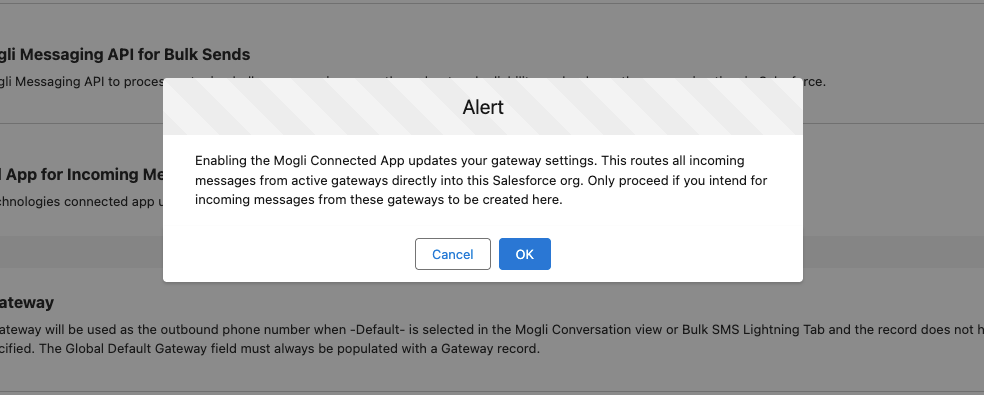
Administrator Action: This confirmation modal will appear specifically for Salesforce Administrators (or users with equivalent permissions) who are enabling or re-enabling the Mogli Connected App within Mogli Settings.
Purpose: The modal's purpose is to act as a final verification step. It does not introduce new configuration options but rather prompts the administrator to confirm their understanding of the action's implications before proceeding.
🐞 Resolved Issues & Bugs
General Enhancements & User Experience
Improved Conversation View Error Handling: The Visualforce Conversation View component will no longer display an error message at the bottom.
Resolved Component Error in Mogli Inbox: Clicking a Contact/Lead name from the Inbox list view immediately after selecting an unread message will no longer result in a component error.
Character Counter Fix in Conversation View: When all text is removed from the Mogli Conversation View message composer, the character counter will now correctly reset to 0.
Consistent WhatsApp Message Statuses: WhatsApp messages in Salesforce will now accurately reflect the status received from Twilio.
Corrected WhatsApp Free-Form Message Display: The WhatsApp hours remaining display will now accurately reflect the remaining time, resolving the issue of it being stuck on 24 hours.
Messaging & Templates
Attachment Removal Fixed: When switching from a Mogli template with an attachment to one without, the attachment will now be removed as expected.
WhatsApp Template Usage Correction: Users can no longer select and send non-WhatsApp templates outside of the 24-hour WhatsApp communication window.
Bulk Send Twilio Template ID Fix: When sending bulk messages with a WhatsApp template to a large number of recipients, the Twilio template ID will now be correctly populated on the created Mogli Messages.
Forms & Scheduling
Scheduled Forms Creation Logic: Mogli Forms will now only be created once the initiating Mogli Message is updated to the "Queued" status.
Long SMS Responses Saved: Responses to Mogli Form questions exceeding 255 characters will now be successfully created in Salesforce.
Schedule SMS Component Error Fixed: Scheduling a message from the conversation view without populating a time will no longer result in a console log or component error.
Form Template Wizard Validation for Branches: Validation will now be triggered when adding branches to a question in the Form Template Wizard, ensuring proper data input order.
Performance & Integration
Optimized Salesforce API Calls: Mogli Apex Class should no longer cause Salesforce errors due to excessive API calls.
Improved Mogli Inbox Performance: Optimized Mogli Inbox code, with restrictions on notifications (clients must choose All, Owned, or None for all Gateways), resolves slowness issues for some clients.
Incoming Message Attachment Fix: Mogli Messages will now be created in Salesforce even if a client receives two or more attachments with the connected app enabled.
Bulk SMS Lightning LWC Caching Fix: When sending multiple bulk messages without refreshing the browser or navigating away, the campaign lookup will now be correctly populated for subsequent messages.
Notifications
Resolved Unwanted Anonymous Lead Notifications: Users will no longer receive notifications for anonymous leads if they have notifications disabled, even if they are assigned to a gateway.
⚙️Installation Instructions
Standard Package Upgrade
To upgrade to Grays Peak, first review our Mogli Upgrade Guide. Then click the following link and carefully follow the instructions below.
Important: Ensure you are logged into the correct Salesforce environment (production or sandbox) before clicking the link, as the installation will proceed in the environment you are currently logged into.
Permission Sets
When upgrading to a new version, we recommend either using the original, out-of-the-box permission sets provided with the latest package or recloning the new managed permission sets after the upgrade as opposed to cloned permission sets from our managed packed to ensure proper access and functionality.
Enable Lightning Web Security (LWS) on your organization
In order to ensure full functionality, the organization must have LMS enabled. Learn more here.
Sending Scheduled Messages
When sending a scheduled message in Grays Peak and above, the send time will now be picked up by our Mogli Scheduled Apex Jobs. This means the timing will be the chosen send time plus 5-10 minutes, depending on the time set up between bulk jobs. You can check the Bulk Apex job timing by going to Mogli Settings and scrolling down to the Utilities section.
Enabling the Mogli Form Template Wizard
If you are upgrading from Mount Elbert, you can skip this step, otherwise you will need to enable the Mogli Form Template Wizard.
Before you can start using the Mogli Form Template Wizard, you'll need to complete a quick, one-time configuration:
Go to Setup in your Salesforce environment.
In the left-hand navigation, find and click on Tabs.
On the Tabs page, click the button to create a New Lightning Component Tab.
When prompted to select a Lightning Component, search for and choose Mogli_SMS:formTemplateWizard.
Name the tab "Mogli Form Template Wizard"
Before you Begin
Make sure all Mogli messages in a status of “Queued” and “Ready to Send” are moved to an error status. Create a list view within the Mogli Messages tab filtered on Status. Select all messages and change the status to “Error”.
Clear out all Async Tasks, click on the App Launcher and type in “Async Tasks” then switch the list view to “All”. Delete any old tasks. Note: Messages must be moved to error before completing this step or they will send.
Enabling the Connected App (If Not Already Completed)
If you have not yet enabled the Connected App as part of a previous upgrade, please review our Enabling the Connected App article for detailed instructions or follow these steps:
Navigate to Mogli Settings: In your Mogli SMS Lightning App, go to the 'Mogli Settings' tab.
Request or Authorize API Key:
If you do not have a Mogli API key, click 'Request API Key' and follow the prompts.
If you already have an API key, and have not authorized the Mogli API, click 'Authorize'. A new tab will open; click 'Allow'.
Important Note: This authorization step must be performed by a Salesforce System Administrator with the Mogli Sys Admin permission set assigned. Mogli cannot perform this action via subscriber access.
Enable Mogli Messaging API for Bulk Sends:
If you have already authorized the API (which may be the case if you use Mogli URL or Mogli Scheduler), locate the 'Enable Mogli Messaging API for Bulk Sends' toggle and switch it to 'Enabled'.
Security Note: Once enabled, the toggle will be disabled in the Mogli Settings UI to prevent accidental disabling without Mogli support.
Enable Connected App for Incoming Messages:
Locate the 'Connected App for Incoming Messages' toggle and switch it to 'Enabled'.
Security Note: Once enabled, the toggle will be disabled in the Mogli Settings UI to prevent accidental changes back to the Site Guest User without Mogli support.
Important Notes:
Sandbox Installations: As a part of enabling the Mogli Connected App, there is an automated process to update gateway webhooks to receive message callbacks. If you are enabling the Connected App in a Sandbox, please be sure that your Production gateways are not present in your Sandbox. If they are, you can also check the “Inactive” checkbox on the gateway record within your Sandbox before enabling the Connected App. Failure to check your Sandbox gateways could result in an issue with incoming messages received over these gateways.
Referencing Site Guest User in a Flow: Before enabling the Mogli Technologies Connected App (which switches from the SMS Site Guest User to authorized users), please check any custom Flows that use the Site Guest User. These Flows will no longer function after the switch.
When sending a scheduled message, the send time will now be picked up by our Mogli Scheduled Apex Jobs. This means the timing will be the chosen send time plus 5-10 minutes, depending on the time set up between bulk jobs. You can check the Bulk Apex job timing by going to Mogli Settings and scrolling down to the Utilities section.
Please contact our Technical Support team via help@mogli.com if you have any questions or need assistance. You can also use this link to get Grays Peak installed in your Sandbox or Production Org.