New Features
Mogli Hub
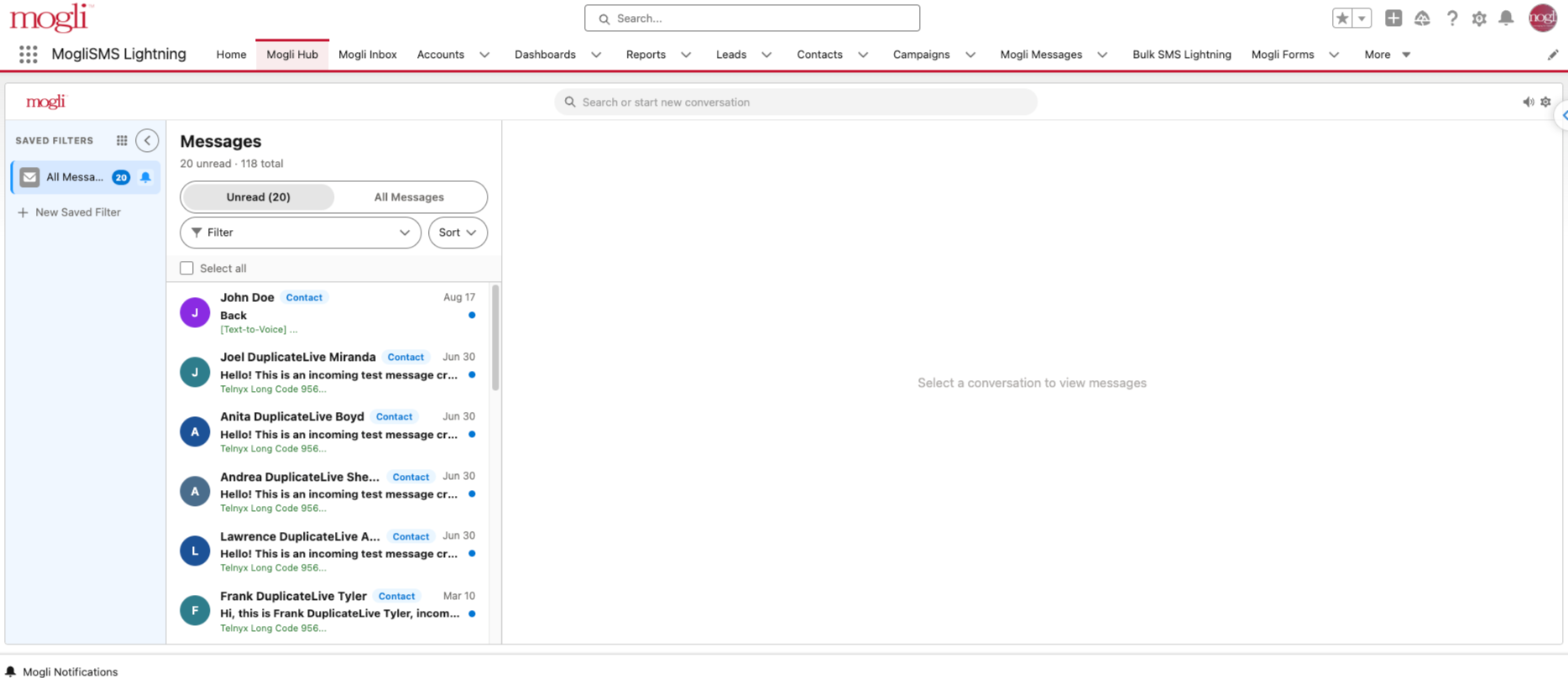
The Mogli Hub is a modern Lightning Web Component (LWC) that replaces the legacy Inbox, Bulk Tab, and Utility Bar with a single, centralized workspace. It is built to eliminate the performance problems of the previous query architecture and reduce the fragmented navigation experience that drove high support volume.
The Hub gives users one place to monitor all inbound SMS activity, filter and organize conversations, and reply — without leaving the component.
Permissions Sets
Admins can clone or assign these permission sets directly within the Salesforce via Setup > Users > Permission Set Assignments.
Mogli Hub: Full Access
Create, update, and manage customized conversation filters
Create and add active Mogli templates to conversations
Full capability to utilize contextual and global search
Mogli Hub: Limited Access
View pre-assigned filters and messaging channels
Send and receive instant messages only
Improvements
Connected App Authorization Alerts
If Mogli SMS ever loses its OAuth authorization in your Salesforce org, a scheduled health check job catches it and lets your team know right away. This runs entirely inside Salesforce — the detection and alert logic is all native Apex, with no dependency on AWS.
Enabling Connected App Authorization Alerts
A system administrator with “Mogli SMS user: System Admin” permission set can
Navigate to Mogli Settings
Navigate to Mogli API health check
Choose your preferred frequency
We recommend at least every 30 minutes
Click Schedule
When a deauthorization is detected, a banner appears on the Mogli Conversation View (Visualforce Page or Lightning Conversation View), and an email titled "Mogli SMS - Connected App authorization lost" goes out to everyone in your org holding the Mogli System Admin permission set. You may notice a cap of 15 recipients — that's Salesforce's own daily org-wide email-send limit, not one Mogli sets.
New in Longs Peak
The authorization-lost banner now also appears in the Hub, not just the Conversation View.
A new safeguard checks your remaining daily email capacity before sending. If your org has more admins than that remaining capacity allows, the system skips the send entirely rather than emailing only some admins — avoiding a partial, inconsistent alert.
WhatsApp Username Support
Users can now send messages to WhatsApp contacts using their BSUID (username-based identifier), supporting customers who have opted for username-based privacy. Feature visibility and configuration are managed via the Mogli SMS User permission set.
Merge Field Button Control via Conversation View Configuration
Admins can now enable or disable the Merge Field button per configuration using the Mogli Conversation View Configuration custom metadata, introduced in Grays Peak. A boolean field controls visibility at the org or component level.
Global Setting: Disable Merge Field Button
A new global Mogli Setting allows admins to disable the Merge Field button across the Conversation View organization-wide.
Global Setting: Disable Emoji Selector
Admins can now disable the Emoji Selector in the Conversation View via Mogli Settings to enforce professional communication standards.
Emoji Selector in Hub Utility Bar
The Emoji Selector icon is now correctly rendered in the Mogli Hub Utility Bar on desktop. A prior logic error treated the Utility Bar as a mobile context, incorrectly hiding the icon.
User's Assigned Phone Number — Gateway Mode in Hub
When the global Gateway Mode is set to "User's Assigned Phone Number," the Hub now correctly restricts the conversation list and Gateway filter modal to only the gateways assigned to that user.
Mogli AI — Updated Model Parameters
Mogli AI custom metadata records (Parameter Sets) have been updated to use current, non-retired model versions:
Anthropic/Claude: claude-sonnet-4-0 → claude-sonnet-4-6
Gemini: gemini-2.0-flash → gemini-2.5-flash
Marketing Cloud URL Sync — Real-Time
Mogli URLs created in Marketing Cloud are now immediately mirrored as Mogli URL records in Salesforce, enabling full tracking and click data access from a single source of truth in Salesforce.
M4MC URL Engagement Tracking in Mogli Prod
URL engagement events originating from Marketing Cloud are now tracked in Mogli Production for accurate billing and usage reporting.
Alert Users on Message Creation Errors
Salesforce Email Alerts are now sent to designated Admins or Users when message creation failures occur, enabling faster triage.
Improved getPerson Performance
Mogli_TextMessageComponentController.getPerson was being called in unnecessary scenarios, resulting in excessive invocation counts in high-volume orgs. Call logic has been tightened to reduce unnecessary execution.
Question Template Character Limit Expanded
The Mogli_SMS__Question_Text__c field on the Question Template object has been migrated from a 255-character standard text field to a long text area, removing the prior character restriction.
External Client App Added to Packaging Org
The External Client App metadata has been added to the Mogli Core packaging org to support modern OAuth integrations and Salesforce 2GP compatibility.
2nd Generation Core Package Migration Readiness
Mogli Core has completed the readiness work required for 2nd Generation Packaging (2GP), enabling modern Salesforce development and CI practices. Backwards compatibility with 1GP-installed orgs is maintained.
Gateway Creation via Mogli Success
Mogli team members can now push Gateway records directly from Mogli Success to a client's Salesforce org, eliminating the need for manual client-side configuration post-provisioning.
Active Form Warning Banner & Notification Carousel UI
When a contact is mid-conversation with an active Mogli Form, the Hub now displays a banner at the top of the conversation warning that new messages may interfere with the form's responses. Clicking the banner opens the underlying form record for inspection, and the banner clears automatically once the form completes — no manual outreach guesswork, no accidental derailed forms.
Bug Fixes
Installing Longs Peak
To install Longs Peak, a Salesforce Administrator must click this link and follow the installation prompts. We recommend checking out Mogli Upgrade Best Practices.
For any additional questions or support email help@mogli.com.
Instructions for upgrading from Humboldt Peak
Clean Up Messages
Clean up all past messages that are stuck in intermediary statuses.
Once messages are cleaned up, clear any sitting Async Tasks.
Ensure proper permissioning
If you're not a system admin, add the Mogli Hub Full Access permission set.
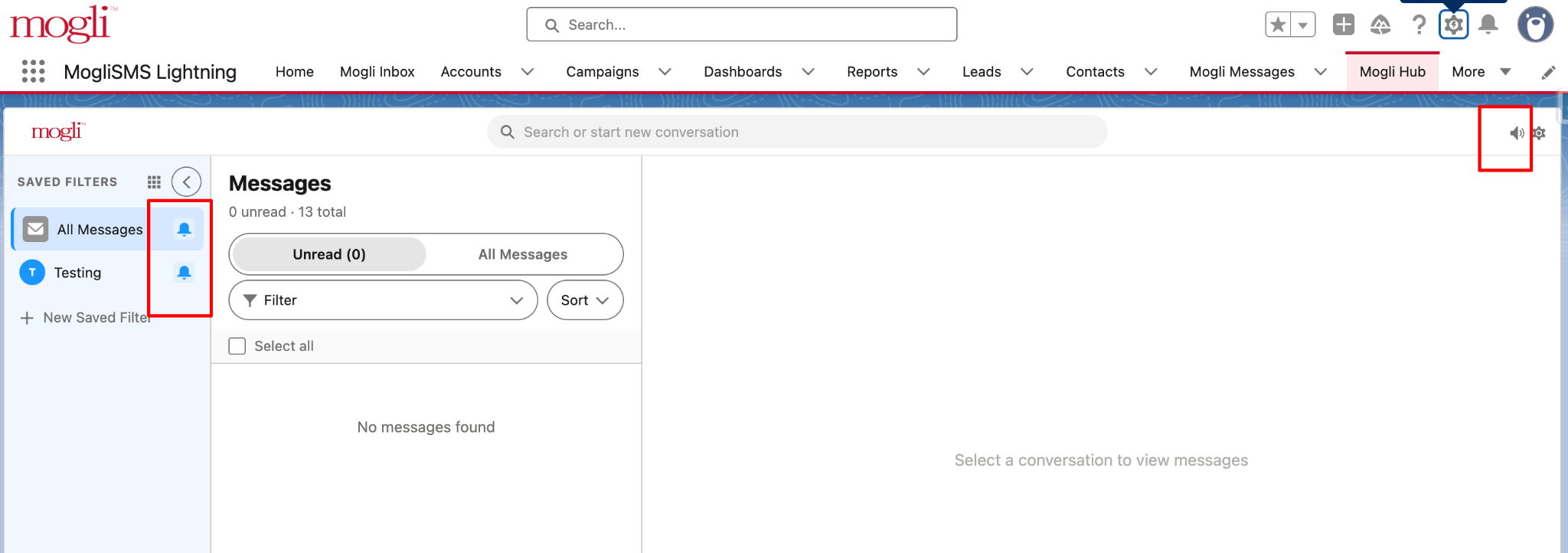
Configure Mogli Hub Notifications Utility
This is a separate utility from Mogli Hub, called "Hub." It can't be added to the Mogli App, but can be added to non-managed apps.
In Mogli Hub, enable both the volume icon and bell icon (top right).
Enabling Connected App Authorization Alerts
A system administrator with “Mogli SMS user: System Admin” permission set can
Navigate to Mogli Settings
Navigate to Mogli API health check
Choose your preferred frequency
We recommend at least every 30 minutes
Click Schedule
Instructions for upgrading from versions before Humboldt Peak
Before Upgrading
Custom Objects
Add the master/detail field to the Visualforce page for Mogli-integrated objects, and check whether the object has a master/detail field.
Populate the master/detail field before proceeding with the upgrade.
After Upgrading
Custom Objects
Add the new Mogli Display field to the Visualforce page, and make sure it has a value populated on your custom objects.
Custom objects need this field populated manually. Out-of-the-box Mogli objects will already have it populated. The bulk list view won't work if this field is empty.
Merge Fields
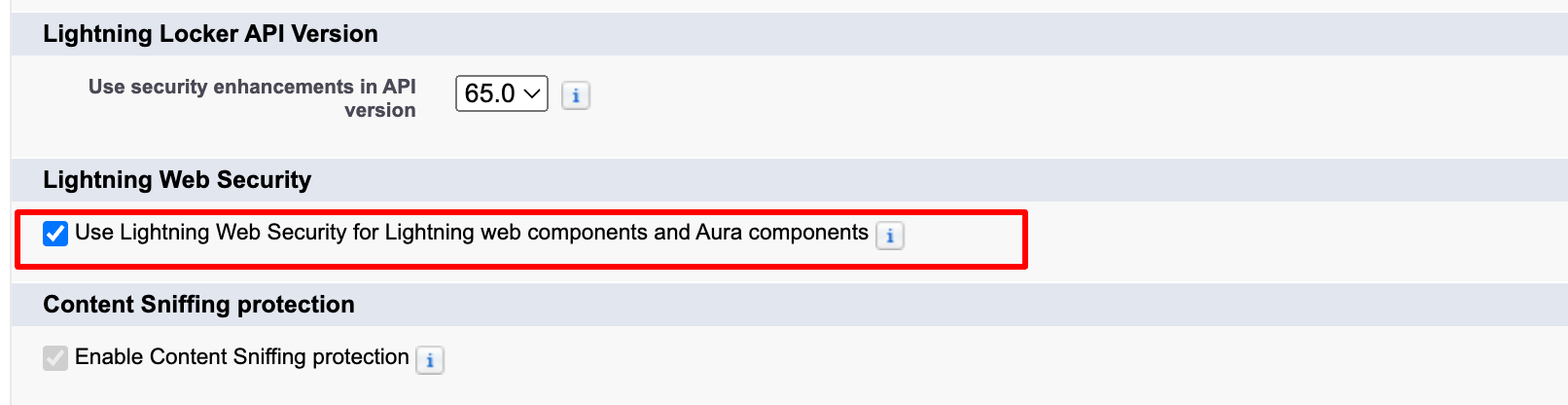
Enable Lightning Web Security in Session Settings so merge field previews work correctly.
Forms
Go to Setup > Object Manager > Possible Answer.
Click Page Layouts, select your active layout, and drag the new Mapped Value field onto the layout.
Templates
Go to Setup > Object Manager > Mogli Template.
Click Page Layouts, select your active layout, and drag the new URL Attachment field onto the layout.
Form Template Wizard
Search for Tabs in the App Launcher, click Add under Lightning Component Tabs, and add the Form Template Wizard.
Enable Connected App Authorization Alerts
A system administrator with “Mogli SMS user: System Admin” permission set can
Navigate to Mogli Settings
Navigate to Mogli API health check
Choose your preferred frequency
We recommend at least every 30 minutes
Click Schedule