Configuring Custom Metadata and prompts
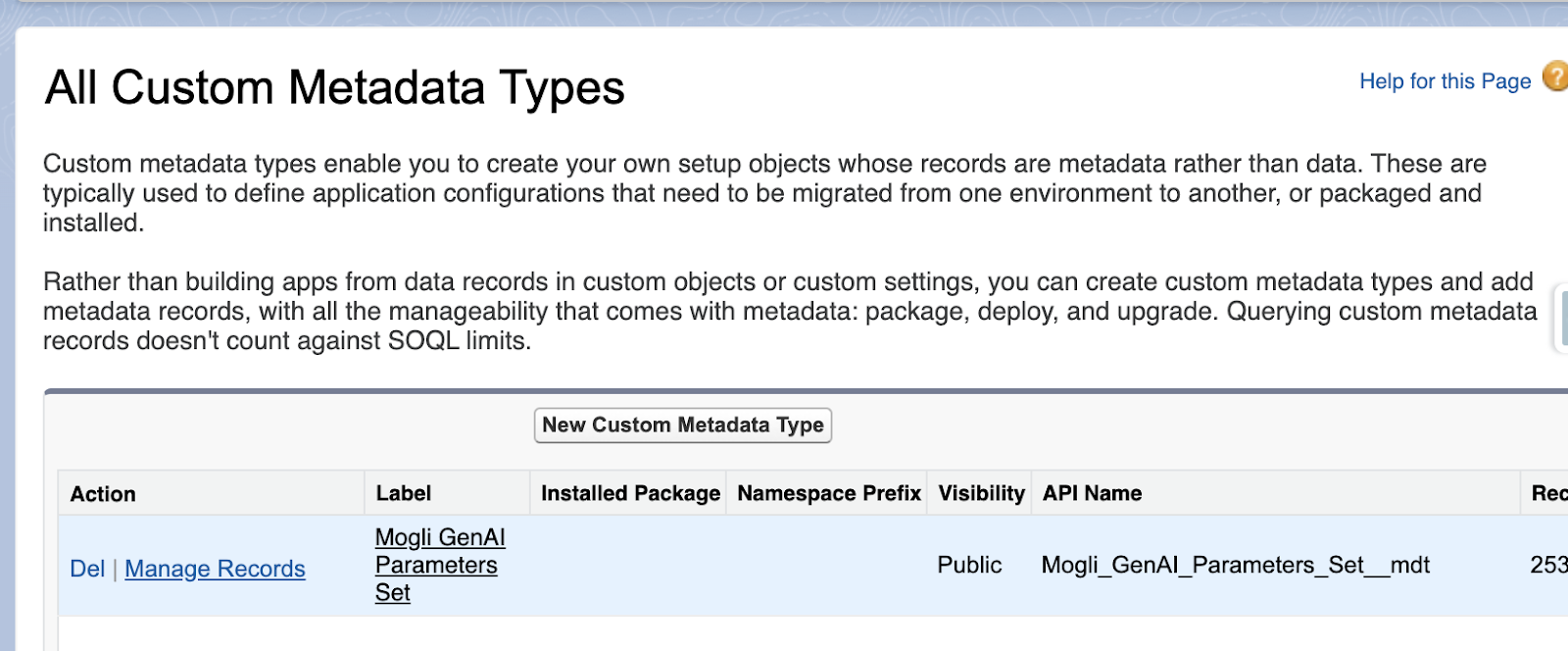
1 | Navigate to Setup > Custom Metadata Types |
|
2 | Click Manage Records (next to Mogli GenAI Parameters Set) | |
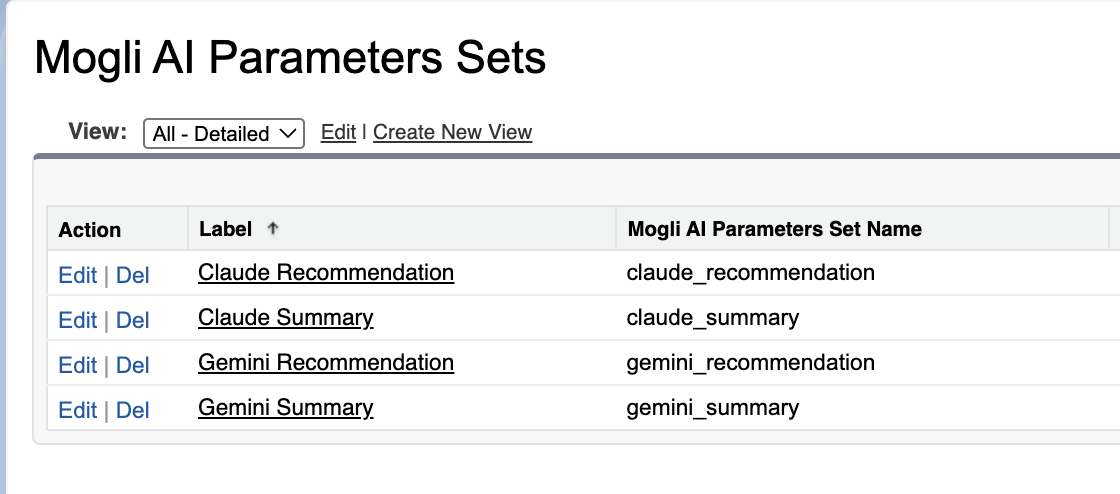
3 | Click the Parameter Set you wish to configure |
|
4 | Click Edit to adjust the out of the box parameter set or Select Clone to create an identical set you can make changes to | |
5 | Update the System Prompt and other settings as needed
| |
6 | Click Save and confirm the changes | |
Prompt Creation
A well-crafted prompt acts as a precise instruction set, guiding Mogli AI to understand the desired result. Investing time in developing clear and detailed prompts ensures that Mogli AI's generated content is usable, targeted, and aligned with the intended purpose, ultimately maximizing the value derived from Mogli AI.
Components of a Great Prompt
🧢 |
✅ |
✏️ |
🌀 |
Define the Role
| Specify the Task
| Describe the Format
| Share any Nuance |
🧢 Define Mogli AI’s Role
Clearly state what role the AI should adopt for the interaction. This helps the AI understand the context and tone required for its responses.
Examples:
"You are a helpful assistant with experience in helping university students and alumni."
"You are an expert Business Development Rep who understands medical device sales."
"You are a marketing specialist."
✅ Specify the Task
Clearly state what you want Mogli AI to do. This is the primary instruction that guides the AI's generation process. Be direct and unambiguous.
Examples:
"Please summarize the following student lifecycle interaction”
"Please analyze the conversation and provide three suggestions for the advisor to send next."
"Please provide a summary and suggested next steps from the following assistant (another BDR) and the prospect (user), focusing on the prospect's responses."
Best Practices for Message Recommendation
If you are prompting Mogli AI to make a message recommendation it is best-practice to include instructions such as:
limit to 160 characters
use emojis emojis sparingly
avoid spam-like language, high-pressure tactics and forbidden (SHAFT) content
take into account that you are a business using Application-to-Person (A2P) messaging goes here
✏️ Describe the Desired Format
Instruct Mogli AI on how the output should be structured, what information to include, and any length or style limitations. This ensures the output is usable and meets your requirements.
Examples:
"Return a brief, overall sentiment and 3-5 keywords that represent the student-to-alumni experience and likeliness to engage."
"Format the result text in HTML formatting, but do not include <HTML> tags.”
"Include 2 to 3 bullet points for the following categories: Main topic discussed and Specific Challenges, and then suggest 2 next steps the BDR should take to help the prospect."
“Make sure to limit the response to 160 characters.”
🌀Share Relevant Nuances
Guide Mogli AI to pay attention to specific aspects of the input or to emphasize certain themes in the output. These instructions help Mogli AI refine the focus, ensuring the output is highly relevant and addresses the most critical aspects of the task.
Examples:
"This should serve to include all key topics to help counselors with large case loads remember what they have discussed with student’s parents."
Be sure to include key points and action items to summarize interactions for the manager’s review."
"Focusing on the prospect's responses."
“Avoid spam-like language, high-pressure tactics, and forbidden (SHAFT) content.”
Reporting on Mogli AI
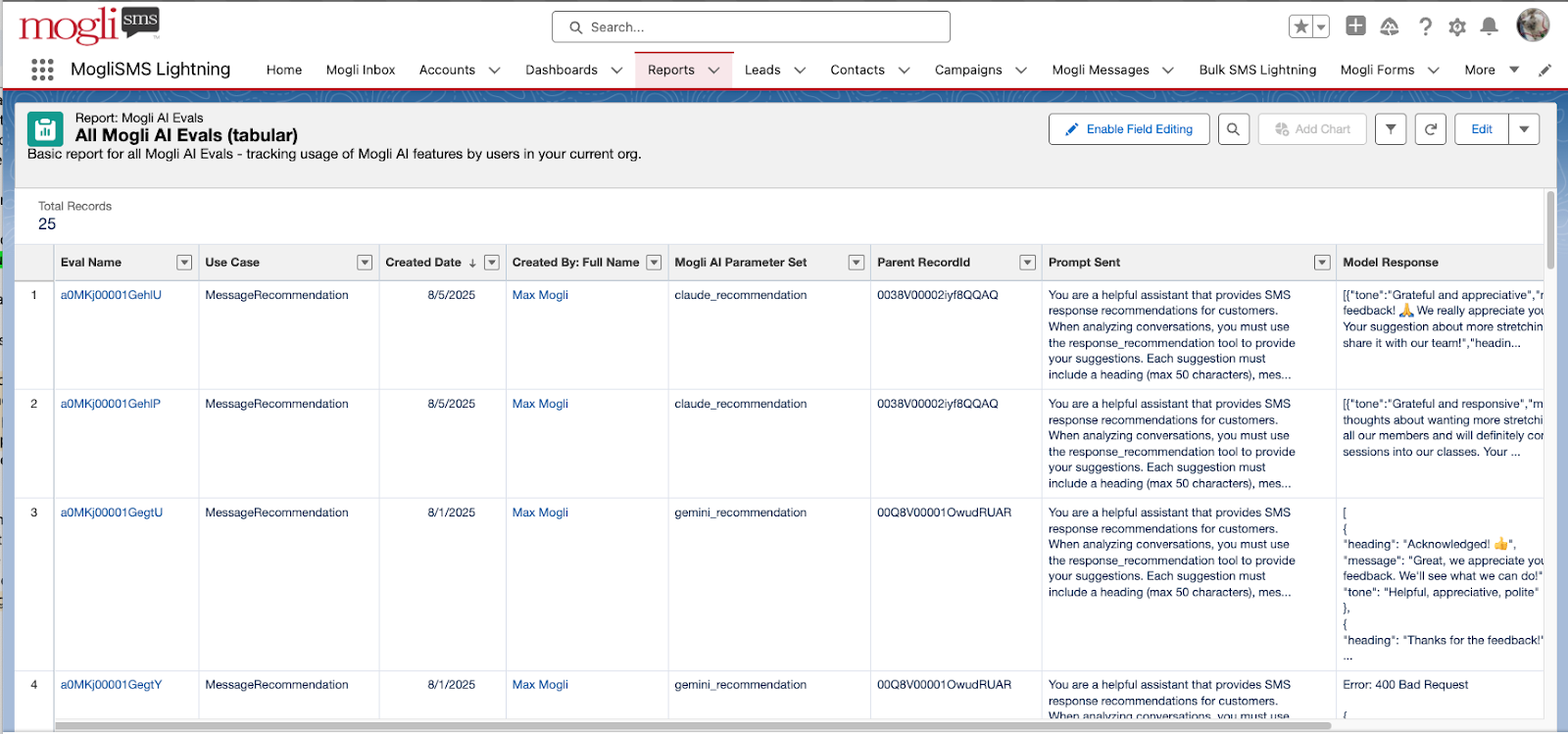
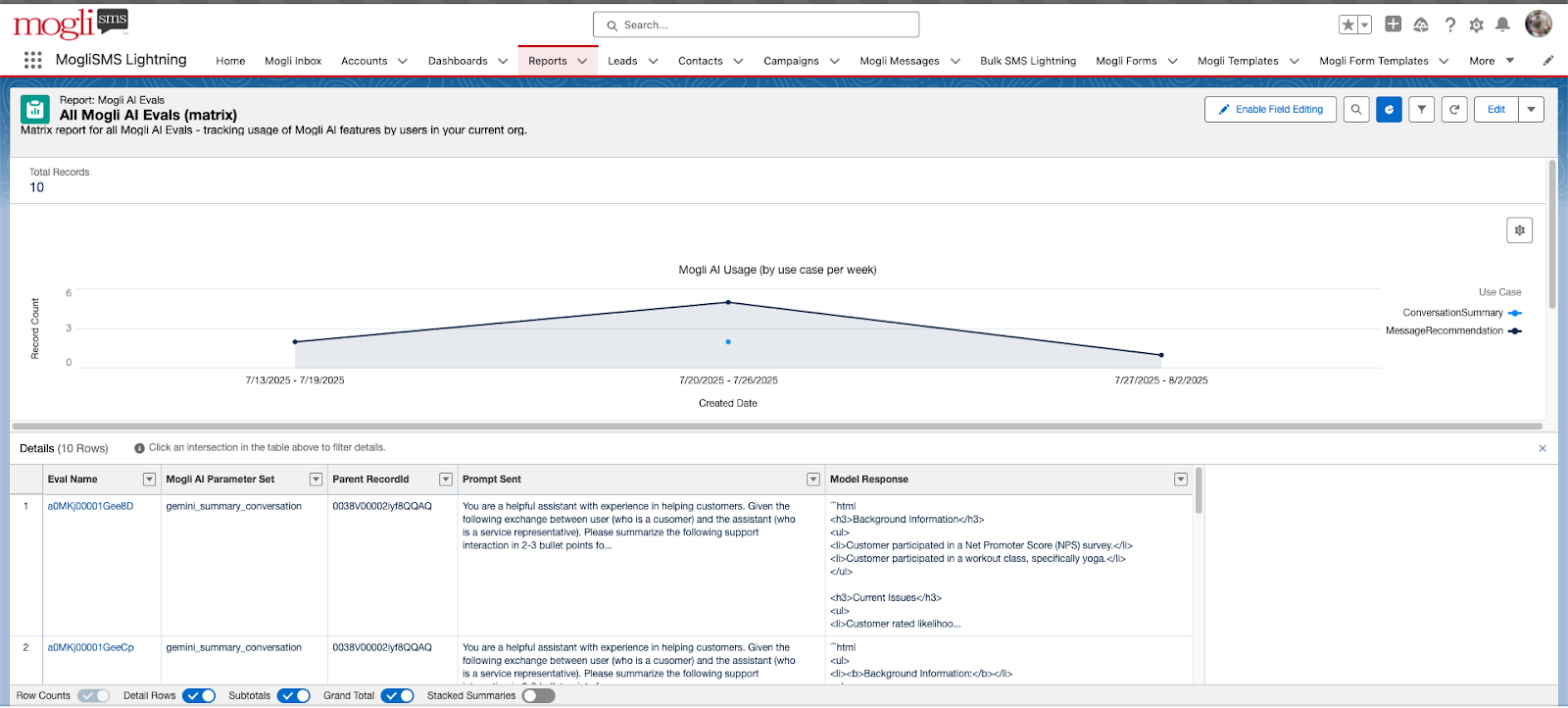
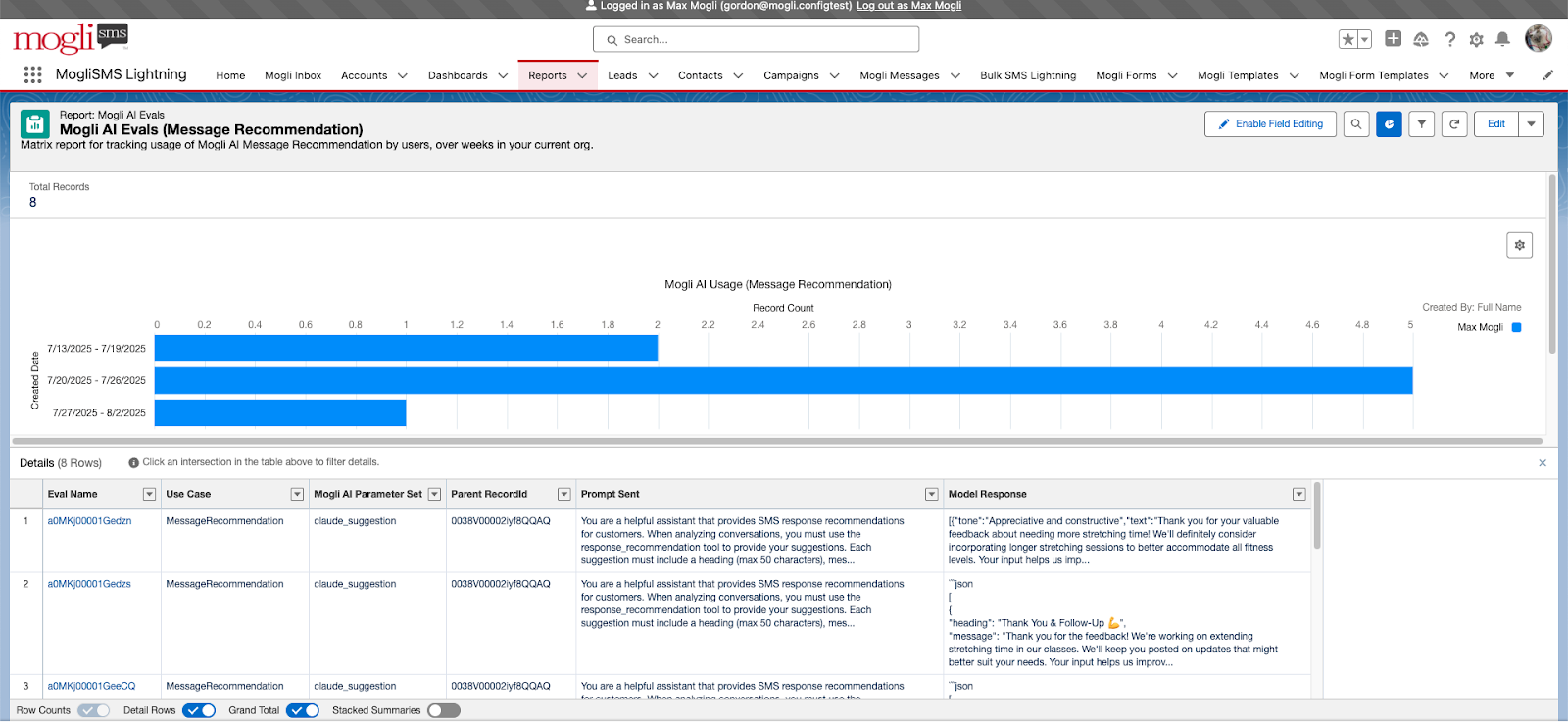
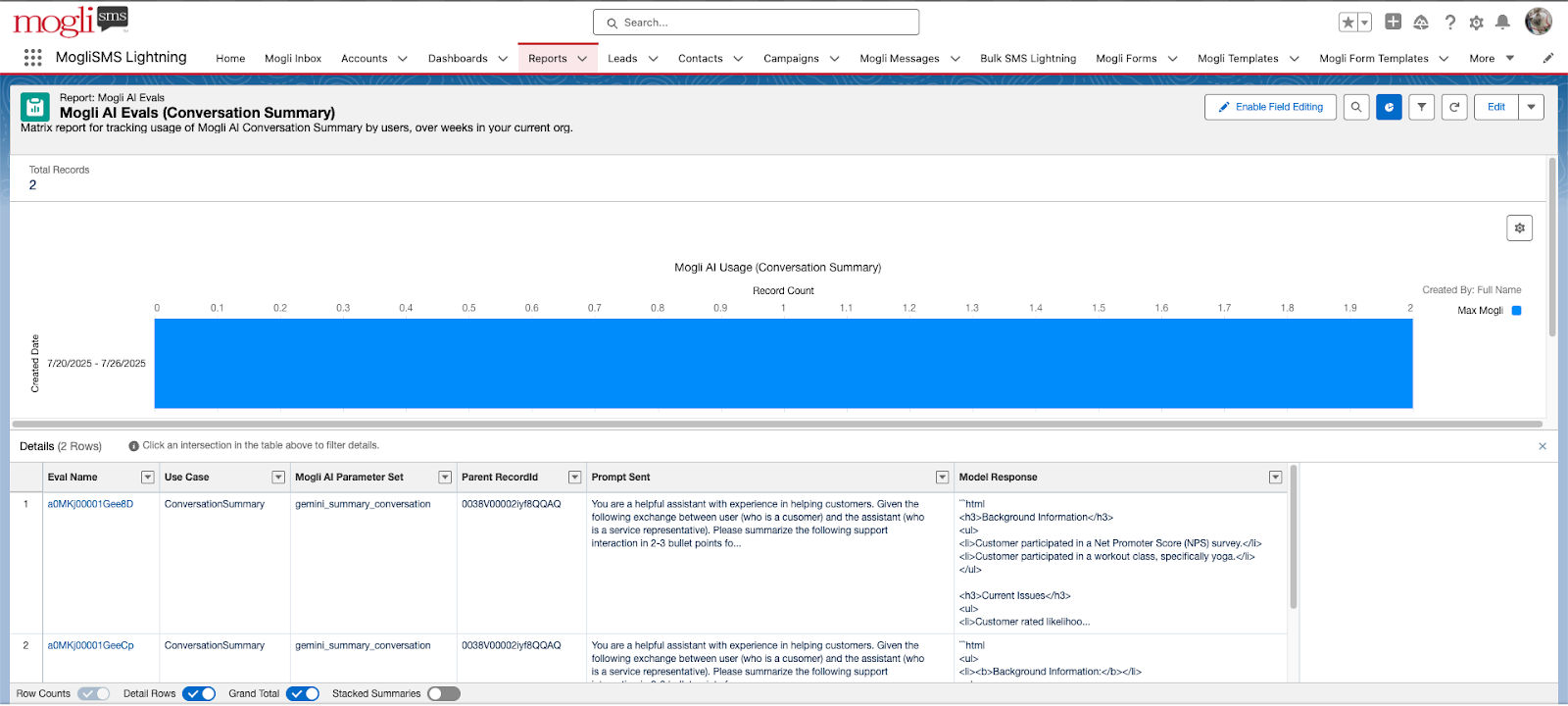
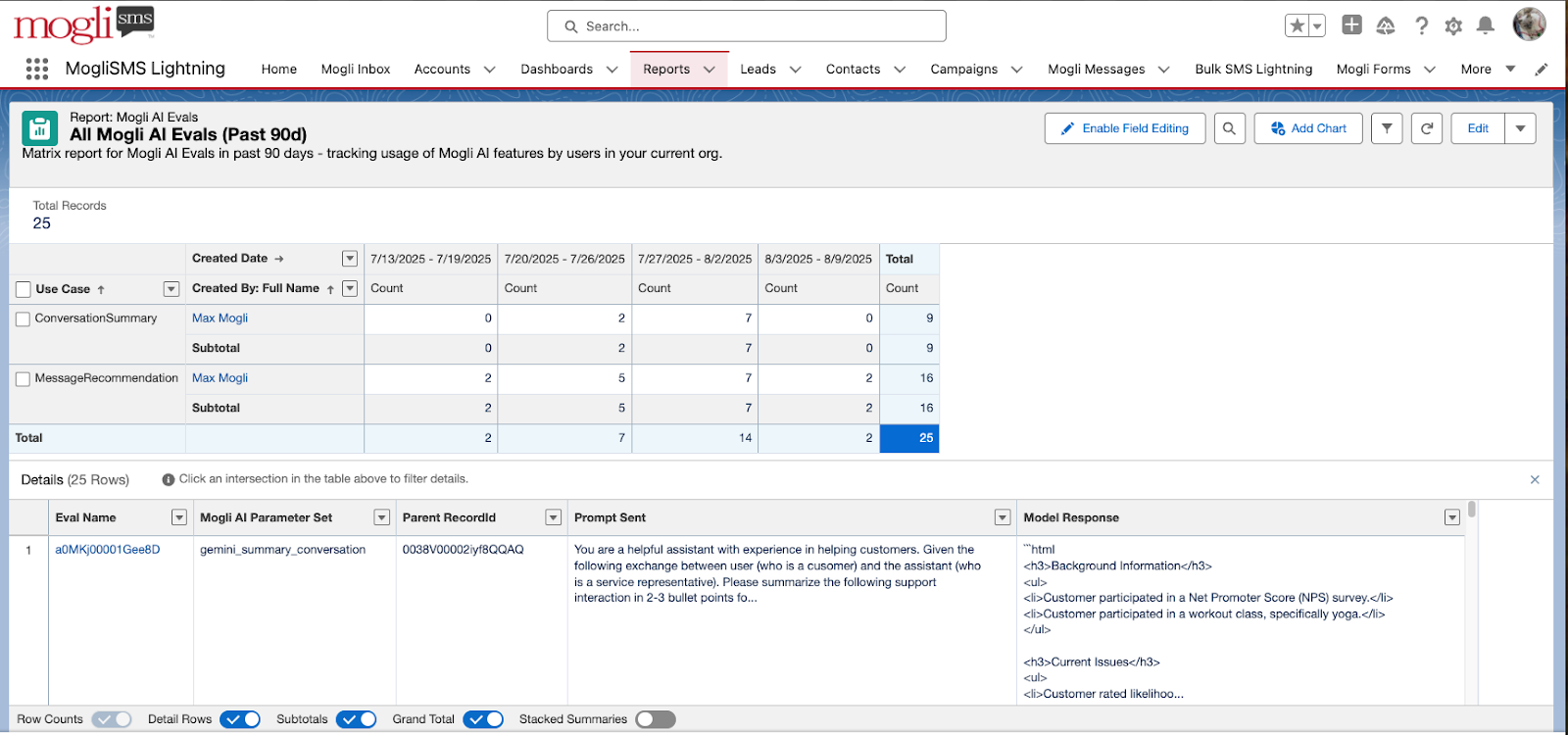
Once Mogli AI has been enabled for your organization, the following reports will be available to you under the Report tab in the 0.0 Mogli SMS folder.
You can easily create custom reports by cloning and editing these reports, or by creating your own.
| All Mogli AI Evals tabular
|
| All Mogli AI Evals matrix
|
| Mogli AI Evals (Message Recommendation) tabular
|
| Mogli AI Evals (Conversation Summary) tabular
|
| All Mogli AI Evals (Past 90d) matrix
|
Dashboards
Once Mogli AI has been enabled for your organization, the following dashboard will be available to you under the Dashboard tab in the 0.0 Mogli SMS folder.
You can easily create custom dashboards by cloning and editing this dashboard, or by creating your own.
| Top row shows Mogli AI usage for all use cases (Conversation Summary and Message Recommendation), split by all time, past 90 days and also by all users Middle row Bottom row |
.png)