Mogli SMS Release Notes - v5.86.1 (Mt. Belford)
Self-upgrade to Mount Belford by using these instructions.
5.86.1 PATCH
Bug fix for component error when triggering consecutive bulk messages.
Bug fix for SMS Error status via the Mogli Messaging API.
Bug fix for WhatsApp UI.
What’s New
Introducing Mogli URL - shorten URLs with a custom domain, and track URL engagements.
Introducing the Mogli Messaging API for improved bulk sends.
Resolved Issues
Bug fix for message segments via the Mogli Messaging API.
Bug fix for message segments via Telnyx gateways.
Bug fix for Mogli Inbox read/unread/archived messages.
Update Details
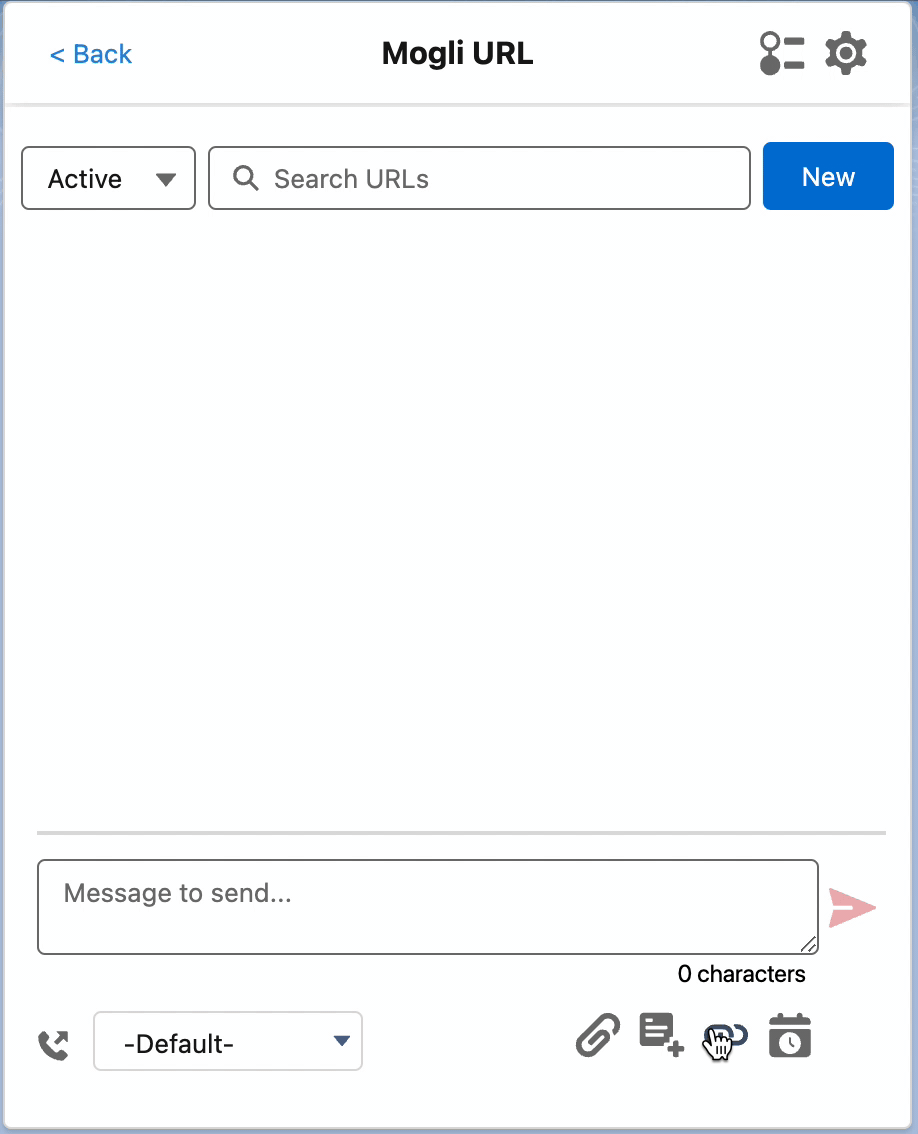
Introducing Mogli URL
Mogli URL seamlessly integrates with Mogli SMS which enables users to effortlessly create and insert custom short URLs into messages, configure custom domains to ensure brand recognition and SMS carrier compatibility, and provide engagement analytics which includes personalized click tracking.
Click here to learn more about Mogli URL!
Introducing the Mogli Messaging API
The Mogli Messaging API is an API endpoint hosted on a cloud server which acts as an intermediate layer for processing outgoing bulk messages. It enables faster message throughput, less batch apex jobs in Salesforce, and more reliable bulk sends. We recommend you enable the Mogli Messaging API if you are sending via short codes or toll-free numbers, send large volumes of bulk messages, or just like the idea of increased speed and reliability.
Configuration is simple, and takes less than 5 minutes. There is no change in how you send a bulk message, just in what happens behind the scenes.
Enable the Mogli Messaging API:
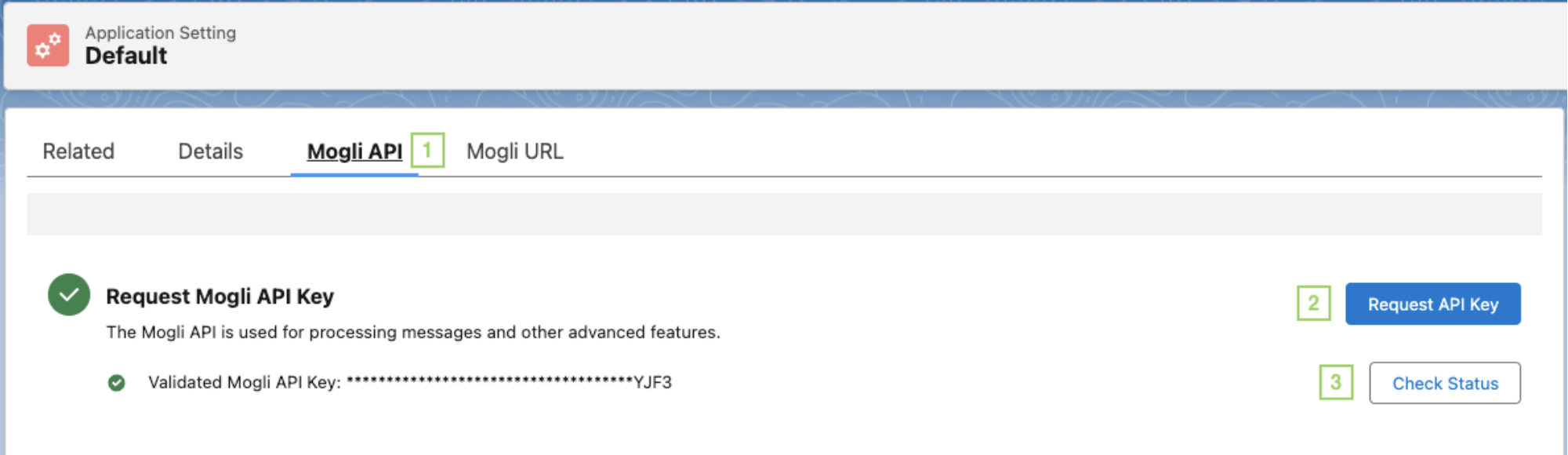
Navigate to the Mogli SMS Application Settings, and find the Mogli API tab.
Click Request API Key.
Note: If you are configuring Mogli SMS in a Sandbox, you will need to input your Production Org ID.
Once an API key is obtained, it may take a minute before it is activated. Click the Check Status button to confirm that your Mogli API key has been activated.
Note: The Mogli Messaging API will be automatically enabled once this process is complete.
Disable the Mogli Messaging API:
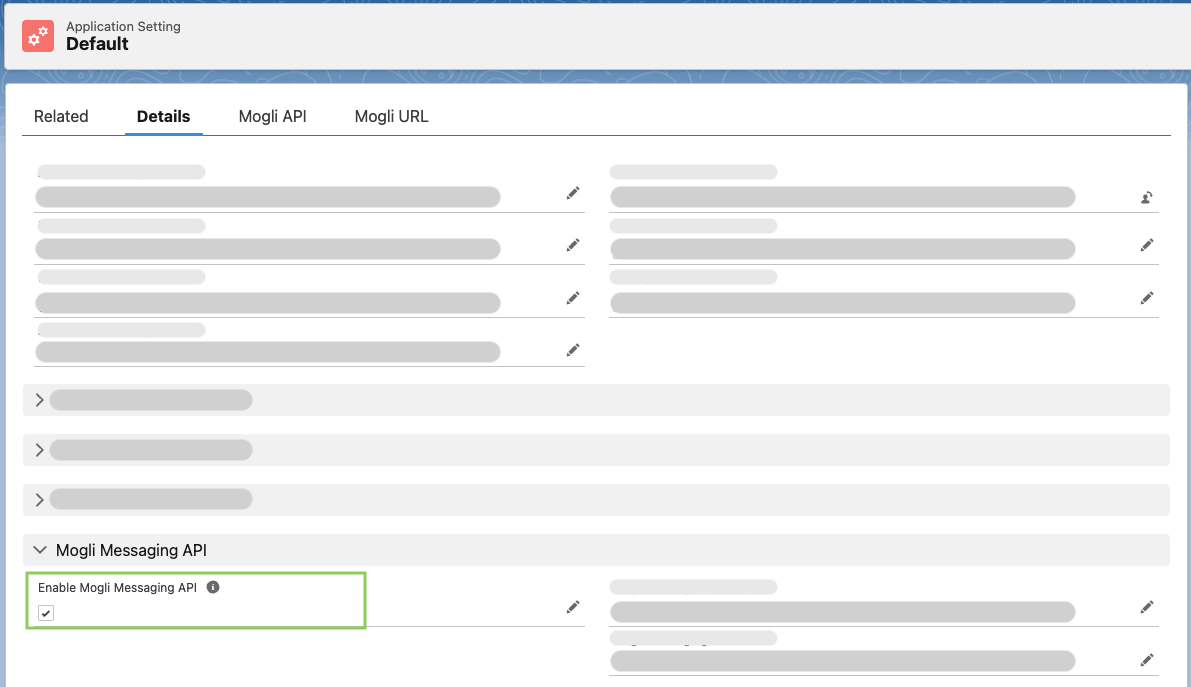
Navigate to the Mogli SMS Application Settings, and find the Details tab.
Uncheck the Enable Mogli Messaging API checkbox.
If you upgraded from a previous version of Mogli SMS and do not see this field, edit the page layout to add the field.
To re-enable the Mogli Messaging API, just check the checkbox. Super easy.
More info about the Mogli Messaging API:
The Mogli Messaging API only stores debug logs which includes: the Salesforce ID for an SMS record, the message ID from the messaging partner, the batch group ID of the bulk send, and status information with timestamps. The Mogli Messaging API does not store origination or destination phone numbers, message text, or any other personal identifying information.
When your message is sent, the SMS Status will be Sending API until the message is sent from the messaging partner.
If you have any questions, reach out to help@mogli.com.
SMS processing improvements
We improved systems that handle SMS processing in Salesforce to support advanced features such as bulk messages over the Mogli Messaging API, Mogli URL, merge fields, and other fun and upcoming features on our roadmap. If you often find yourself in the weeds, you may notice that there is a new SMS Status labeled Ready To Send, and that scheduled messages no longer use the Status labeled Sending.