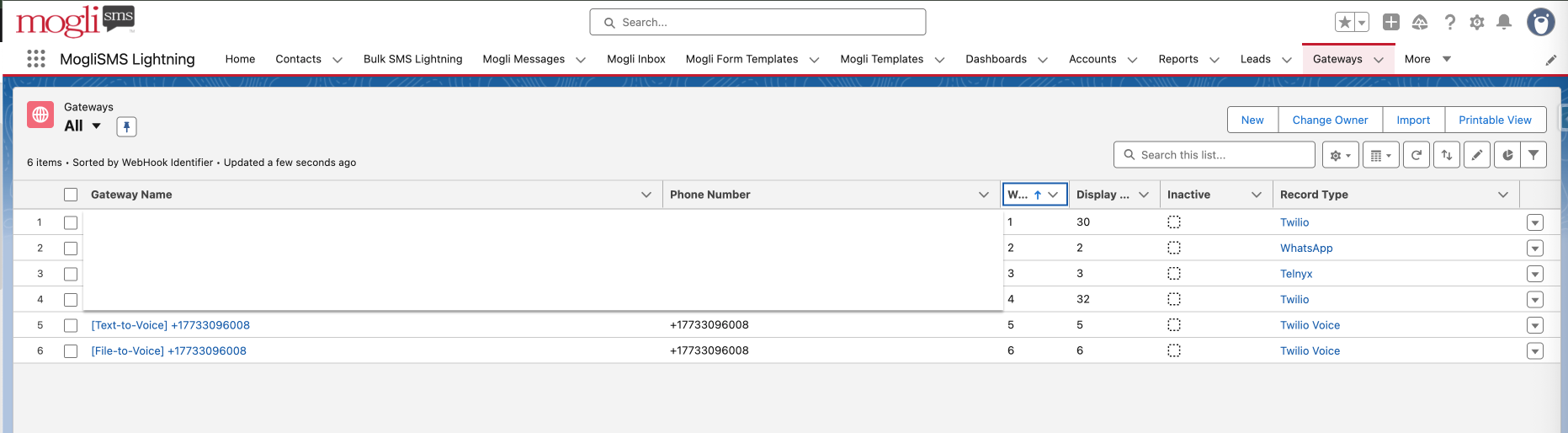
Mogli Voice is accessible via a text-to-voice and file-to-voice Gateway. Using a Mogli Voice Gateway will allow you to send message(s) to a single recipient or to thousands - playing either an audio file of your choice, or using a simulated voice to read your message aloud.
Interested in Mogli Voice?
Contact your Mogli Account Executive or schedule a demo here
By using a Mogli Voice Gateway, you’ll be able to type your message directly into our conversation view component or Bulk SMS Lightning tab just as you would a regular text message. Upon sending, your recipient(s) will receive a phone call to their mobile phone or landline. Your message will then be played aloud by a simulated human voice (with your specified accent).
If the phone call isn’t answered, the message will be accessible via voicemail.
A Mogli Voice Gateway is a handy tool for any of your recipients who prefer not to send/receive texts.
Mogli Voice: Text-to-Voice and File-to-Voice
Be sure your Mogli AE has configured a text-to-voice and/or file-to-voice gateway first.
Be sure your intended recipient(s) have a properly formatted Mogli Number on their record.

Send your message: We highly recommend testing using a test record in Salesforce before sending to any constituents.
For text-to voice, select the text-to-voice Gateway in the drop-down menu.
Type your message into the Message to Send field in conversation view or the SMS Message section of Bulk SMS Lightning, or attach an SMS Template.

For file-to-voice, select the file-to-voice Gateway in the drop-down menu.
Attach an MP3, WAV file, or paste the URL of your file in the Message to Send field in conversation view or the SMS Message section of Bulk SMS Lightning.

Click Send
Your message or file will be audibly played to your recipient(s) via a phone call.
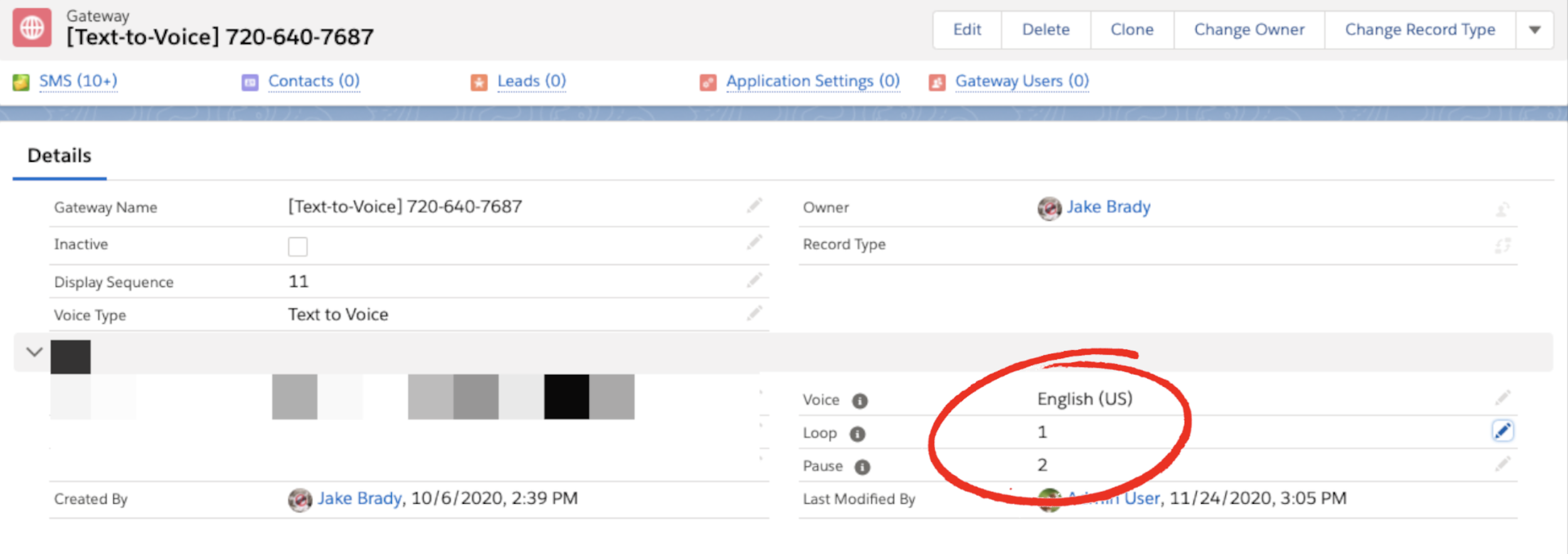
Change the Language and Accent of Your Mogli Voice Gateway
Access the Gateways tab
Select your text-to-voice Gateway
In the Voice field, select your preferred accent
In the Loop field, enter the number of times you’d like the message to play
In the Pause field, enter the length of time (in whole numbers of seconds) before the message is played after the call is answered. We recommend keeping this number at ‘2’.